
Note: This guide is based on current WhatsApp mobile editing features and practical app-use experience. Menu names may vary slightly between iPhone and Android, but the core drawing process is the same.
WhatsApp is no longer just the place where family group chats multiply like rabbits and someone always sends “Good morning” with a glittery rose. It is also a fast, surprisingly handy photo and video editor. Whether you want to circle a restaurant sign, draw an arrow to your new haircut, doodle a mustache on your dog, or explain exactly which button your friend should press, WhatsApp lets you draw directly on pictures and videos before sending them.
The drawing tool is built into WhatsApp’s media editor, so you do not need a separate design app, a stylus, or an art degree from a suspiciously expensive university. You only need your phone, a photo or video, and a finger willing to behave like a tiny digital paintbrush.
In this complete guide, you will learn how to draw on pictures and videos on WhatsApp in 9 simple steps. We will also cover color choices, editing tricks, common mistakes, status updates, privacy tips, and real-world ways to make your scribbles look useful instead of looking like a raccoon tried to sign a contract.
What Does “Draw on Pictures and Videos on WhatsApp” Mean?
Drawing on WhatsApp means using the app’s built-in pen or pencil tool to add freehand lines, circles, arrows, notes, highlights, or doodles to a photo or video before you send it in a chat or post it as a Status update. It works like a simple markup feature: choose media, tap the drawing icon, pick a color, draw with your finger, and send.
This feature is useful for both practical and fun reasons. You can mark a location in a screenshot, highlight a product in a photo, point to a detail in a repair video, decorate a birthday message, or make a plain picture more personal. Unlike heavy photo editors, WhatsApp keeps the process quick. Open, draw, send, done. Your masterpiece has left the building.
Before You Start: Update WhatsApp
Before using the drawing tool, make sure WhatsApp is updated. Media editing features can change over time, and WhatsApp occasionally adjusts icons, tools, stickers, filters, and Status options. If your app looks different from someone else’s, an outdated version is often the reason.
On iPhone, open the App Store, search for WhatsApp, and tap Update if the button appears. On Android, open Google Play, search for WhatsApp, and tap Update. After updating, reopen WhatsApp and try again. This tiny maintenance step prevents a lot of “Where did my button go?” drama.
How to Draw on Pictures and Videos on WhatsApp: 9 Steps
Step 1: Open WhatsApp
Start by opening WhatsApp on your iPhone or Android device. You can draw on media before sending it to an individual chat, a group chat, or your Status. The process is very similar across these areas, although the buttons may sit in slightly different places depending on your phone and app version.
If you want to send your edited image privately, open the chat first. If you want everyone allowed by your Status privacy settings to see it, go to the Updates or Status area.
Step 2: Choose a Chat or Status
To send a drawing in a conversation, tap the chat where you want to share the picture or video. This can be a one-on-one chat or a group. Be careful with groups, because a harmless doodle can travel faster than gossip at a family reunion.
To draw on a Status post, open the Status or Updates tab and begin creating a new Status. WhatsApp Status lets you share photos, videos, text, and other updates that disappear after a limited time. Drawing is especially useful here because Status posts are visual by nature. A quick arrow, caption, or doodle can make your update feel more expressive and less like it was uploaded by a toaster.
Step 3: Select or Capture a Photo or Video
Next, choose the media you want to edit. In a chat, tap the attachment icon, gallery icon, or camera icon, depending on your device. You can pick an existing photo or video from your gallery, or you can take a new one directly inside WhatsApp.
If you are posting a Status, tap the camera or gallery option to capture or select your media. For best results, choose a photo or video with enough open space for drawing. If the image is already crowded with details, your doodle may disappear into the chaos like a white sock in a laundry basket.
Step 4: Open the Media Editor
After selecting the picture or video, WhatsApp opens its media preview screen. This is where the editing tools appear. You may see options for cropping, adding stickers or emoji, inserting text, applying filters, and drawing freehand.
Do not tap the send button yet. That button is tempting, but once you send the media, your editing moment is over unless you start again. Stay on the preview screen until your drawing looks the way you want.
Step 5: Tap the Drawing Icon
Look for the pencil, pen, or drawing icon. On many versions of WhatsApp, it appears near the top of the screen along with other editing tools. Tap it to activate drawing mode.
Once the drawing tool is selected, your finger becomes the pen. This is great news if you enjoy speed and terrible news if you have the hand steadiness of a caffeinated squirrel. Fortunately, WhatsApp drawings are usually meant to be quick, informal, and helpful. They do not need to look like museum pieces.
Step 6: Choose a Color
WhatsApp usually provides a color selector or color bar. Drag your finger along the color bar or tap a color option to choose the color for your drawing. Bright colors such as red, yellow, green, or blue work well for arrows and circles because they stand out on most images.
Choose contrast over prettiness. A pale yellow line on a sunny beach photo may look charming for half a second, then vanish completely. A bold red circle around the important detail is usually more useful. Think less “fine art gallery” and more “please notice this before buying the wrong charger.”
Step 7: Draw on the Picture or Video
Now draw directly on the screen with your finger. You can make arrows, circles, underlines, check marks, smiley faces, quick labels, or handwritten notes. On videos, the drawing appears as an overlay on the media, so keep your marks clear and simple.
For photos, you can take your time and draw more carefully. For videos, avoid covering the main action. If someone is dancing, jumping, cooking, or demonstrating a repair, do not bury the subject under a giant neon spiral unless that is the joke. Small arrows and short handwritten cues usually work best.
Step 8: Undo Mistakes or Add More Edits
If your line goes rogue, look for the undo arrow. WhatsApp usually lets you undo recent drawing strokes before sending. You can also switch colors and add more marks. Combine drawing with text, stickers, emoji, or filters if they improve the message.
For example, you might draw a circle around a restaurant entrance, add a text label saying “Meet here,” and include a pointing emoji. That is much clearer than sending a blurry photo and hoping your friend develops detective-level image analysis skills on the sidewalk.
Step 9: Send or Post Your Edited Media
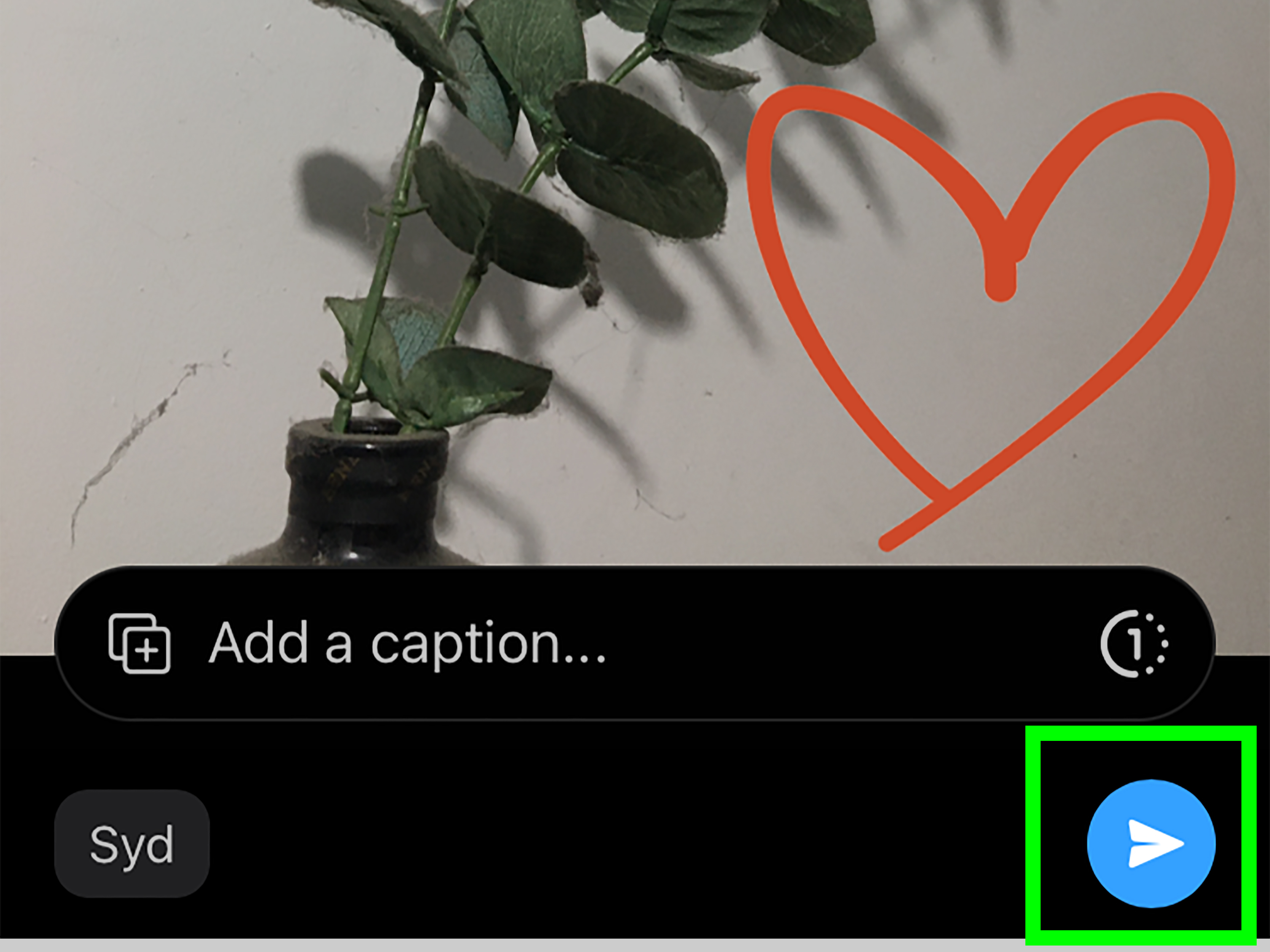
When your drawing is ready, add a caption if needed, then tap the send button or post it to your Status. In chats, the edited picture or video will appear in the conversation. In Status, it will appear as part of your temporary update for the people allowed to view it.
Before sending, take one last look. Make sure your drawing does not accidentally cover important information, reveal private details, or point to the wrong object. Nothing says “modern communication” like accidentally circling the trash can instead of the front door.
Smart Ways to Use WhatsApp Drawing Tools
Use Arrows for Directions
Arrows are one of the most practical ways to draw on WhatsApp pictures. Use them to show where to park, which building entrance to use, which item on a shelf to buy, or which button to press in a screenshot. A clear arrow can save five follow-up messages and one unnecessary phone call.
Circle Important Details
Circles are perfect for highlighting small objects. If you are sending a product photo, circle the model number. If you are sharing a document screenshot, circle the important line. If you are reporting a problem, circle the crack, stain, leak, dent, or mysterious thing that definitely was not there yesterday.
Add Quick Handwritten Notes
Short handwritten notes feel personal and casual. You can write “this one,” “look here,” “too small,” “yes,” “no,” or “help.” Keep handwriting brief because phone-screen writing can quickly become a secret language known only to you and maybe one very confused archaeologist.
Decorate Personal Photos
Drawing is not only for instructions. You can use it to decorate birthday photos, vacation pictures, pet snapshots, food photos, and celebration videos. Add hearts, stars, confetti lines, smiley faces, or funny captions. A simple doodle can make a casual photo feel more like a message made for a specific person.
Tips for Better WhatsApp Drawings
Keep It Simple
The best WhatsApp drawings are usually simple. One arrow, one circle, or one short note is often enough. Too many marks can make the image harder to understand. The goal is communication, not turning the photo into a treasure map designed by a hyperactive pirate.
Use High-Contrast Colors
Always pick a color that stands out against the background. Red is great on light or neutral images. Yellow works well on dark images. White can work on dark videos. Black can work on bright photos. If the mark is hard to see, change the color before sending.
Zoom Mentally Before Drawing
WhatsApp may not provide advanced drawing controls like professional design apps, so plan your mark before touching the screen. Decide where the line should start and end. For circles, begin with a slow motion instead of a wild loop. Your finger is not a laser-guided machine, but it can be trained.
Avoid Covering Faces
Unless the joke is intentional, avoid drawing over faces. In personal photos, drawing across someone’s eyes, mouth, or expression can ruin the image. Put notes in empty space around the subject or use arrows to point from the side.
Preview Before Sending
Always pause for one second before tapping send. Check spelling, placement, privacy, and overall clarity. If you are marking a screenshot, make sure sensitive information such as phone numbers, addresses, payment details, or private messages are not visible.
Drawing on WhatsApp Photos vs. Videos
Drawing on photos is easier because the image is still. You can mark exact details, write short notes, and decorate at your own pace. Photos are best for instructions, screenshots, shopping help, location guidance, and before-and-after comparisons.
Drawing on videos can be more dynamic. It helps you highlight movement, point to something happening in the frame, or add playful commentary. However, because the video changes over time, keep drawings larger and simpler. A tiny arrow may make sense on the first frame but become confusing as the action moves.
For videos, watch the preview after drawing if possible. Make sure the overlay still makes sense during playback. A line that looks perfect at the beginning may point at absolutely nothing three seconds later, which is basically the visual version of giving directions by saying, “Turn where the old tree used to be.”
Can You Edit the Drawing After Sending?
In most cases, once you send the edited media, the drawing becomes part of the sent photo or video. You cannot simply reopen the sent item and remove one line as if it were a layered design file. If you made a mistake, the easiest fix is to delete the message if appropriate, return to the original media, edit it again, and resend it.
This is why previewing matters. WhatsApp is fast, but speed can betray you. Check your media before sending, especially in professional chats, school groups, business conversations, or any group where someone will absolutely notice that you wrote “defiantly” instead of “definitely.”
Privacy and Safety Tips
Drawing on images can accidentally draw attention to private information. Before marking a screenshot, crop out sensitive areas or cover them with a solid mark if necessary. Be careful with addresses, bank details, order numbers, school information, personal messages, faces of children, and location clues.
For Status posts, review your privacy settings. WhatsApp lets users control who can see Status updates. If your drawing is meant for close friends only, make sure it is not visible to every contact saved on your phone, including your dentist, your landlord, and that one person you met at a conference in 2018.
Common Problems and Quick Fixes
The Drawing Tool Is Missing
If you cannot find the drawing icon, update WhatsApp first. Then restart the app. Also confirm that you are on the media preview screen before sending. The drawing tool usually appears only after you choose or capture a photo or video.
The Color Is Hard to See
Choose a brighter or darker color with stronger contrast. If the background is busy, use a thicker-looking stroke if available, or draw in a simpler area and use an arrow to point toward the detail.
The Drawing Looks Messy
Messy lines happen. Use undo, slow down, and draw shorter strokes. For arrows, draw the line first and then add the arrowhead. For circles, use a loose oval instead of trying to create mathematical perfection. Nobody is measuring your doodle with a compass.
The Edited Video Sends Slowly
Videos are larger than photos, so they may take longer to upload, especially on weak Wi-Fi or mobile data. Shorter clips send faster. If speed matters, trim the video before sending or use a photo screenshot instead.
Experience-Based Advice: What Actually Works Best
After using WhatsApp drawing tools in everyday situations, one thing becomes clear: the feature is most valuable when it solves a tiny communication problem quickly. It is not trying to replace Photoshop, Illustrator, Premiere Pro, or a full editing studio. It is the digital equivalent of grabbing a marker and saying, “Look right here.” That simplicity is the whole point.
For example, when helping someone find a building, a plain photo of the street may not be enough. But draw one red arrow toward the entrance, circle the sign, and add a caption like “Door next to the pharmacy,” and suddenly the photo becomes useful. The drawing removes confusion. It also prevents the classic “I’m outside” message, which somehow always means the person is outside the wrong building.
The same is true for shopping. If someone asks which cable, snack, notebook, shirt, or replacement part to buy, drawing on the photo is faster than typing a paragraph. Circle the exact item. Add a check mark. Write “2 packs” if needed. This is especially helpful when the shelf is crowded or several products look almost identical. Without the drawing, your helper may return with the wrong thing and a brave facial expression that says, “I tried.”
In work or school conversations, WhatsApp drawing can be a lightweight explanation tool. You can mark a screenshot to show where a form field is, point to a mistake in a document image, or highlight a schedule change. The key is to keep drawings clean and respectful. Use arrows and circles, not giant angry scribbles. A red circle around an error says “please check this.” A red tornado across the entire screenshot says “I have become the storm.”
For personal messages, the drawing tool adds warmth. A heart on a birthday photo, a silly crown on a friend’s selfie, or a doodled speech bubble on a pet picture can make the message feel custom-made. It takes only a few seconds, but it shows effort. That tiny bit of effort is why people smile when they receive it.
Videos need a lighter touch. The best video drawings are bold but minimal: one arrow, one word, or one quick highlight. If you draw too much, the viewer stops watching the video and starts trying to decode your artwork. When marking a moving subject, place the drawing where it will remain helpful for most of the clip. If the subject moves around a lot, consider sending a still frame instead.
Another practical lesson: captions and drawings work better together. A drawing gets attention; a caption explains the meaning. For instance, a circle alone may make someone wonder, “What am I looking at?” But a circle plus “crack near hinge” makes the message instantly clear. Think of drawing as the spotlight and the caption as the narrator.
Finally, do not aim for perfect handwriting. Most WhatsApp drawings are viewed quickly on phone screens. Clear beats beautiful. A slightly wobbly arrow that points to the right thing is better than an elegant note nobody can read. Use the tool like a practical communicator, not like a nervous calligraphy student being judged by invisible art critics.
Conclusion
Learning how to draw on pictures and videos on WhatsApp is simple, but it can make your messages much clearer, funnier, and more personal. In just 9 steps, you can open WhatsApp, choose a chat or Status, select media, tap the drawing tool, pick a color, mark the image or video, fix mistakes, and send your edited creation.
The best results come from simple marks, strong colors, and a clear purpose. Use arrows for directions, circles for important details, short notes for context, and playful doodles when the moment calls for personality. Whether you are explaining, decorating, joking, teaching, or rescuing someone from buying the wrong adapter, WhatsApp’s drawing tool is a small feature with big everyday value.













