
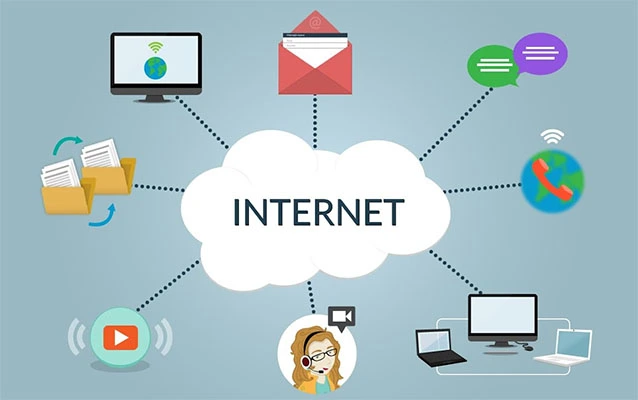
Your router is the tiny blinking box that quietly decides whether your laptop, phone, smart TV, printer, doorbell camera, and suspiciously chatty refrigerator can reach the internet. Your firewall is the bouncer standing at the door, checking traffic before it gets into the party. Together, they form the first line of defense for your home or small office network. Ignore them, and your Wi-Fi can become the digital equivalent of leaving the front door open with a sign that says, “Free snacks and passwords inside.”
The good news? You do not need to be a network engineer with a closet full of cables and strong opinions about Ethernet crimping tools. With a few smart router and firewall settings, you can improve security, speed, privacy, and reliability. This guide walks through practical router how-tos, firewall tips, troubleshooting steps, and everyday habits that make your network safer without turning your living room into a data center.
What a Router Actually Does
A router connects your local devices to the internet and directs traffic between them. Think of it as a traffic manager. When your phone opens a website, your router sends the request out to the internet and brings the response back to the correct device. It also gives each device a local IP address, usually through DHCP, so your devices can identify one another on the network.
Most modern home routers also include Wi-Fi, basic firewall protection, network address translation, parental controls, guest network tools, and sometimes security scanning. In small offices, routers may also manage VPN access, VLANs, failover internet connections, and business-grade firewall policies.
What a Firewall Does and Why It Matters
A firewall controls network traffic based on rules. It can allow, block, or inspect connections depending on where traffic comes from, where it is going, what port it uses, and what application or service is involved. Your router’s built-in firewall usually blocks unsolicited inbound traffic from the internet by default. That is a very good thing. Random strangers on the internet should not be able to poke your laptop just because they are bored at 2:00 a.m.
Software firewalls, such as those built into Windows and macOS, protect individual devices. They help control which apps can receive incoming connections and may also restrict outbound traffic. Hardware firewalls protect the edge of the network, while software firewalls protect each endpoint. Using both is not overkill; it is layered security, which is just a fancy way of saying, “Do not depend on one lock.”
Router Setup Basics: Start With the Admin Login
Change the Default Router Password
The first rule of router security is simple: never keep the default administrator password. Many routers ship with generic credentials such as “admin” and “password.” Attackers know these defaults, and so does your neighbor’s teenager who “just wants to test something.”
Use a long, unique administrator password that is different from your Wi-Fi password. A strong passphrase such as “CoffeeMug-Forest-72-Rocket!” is easier to remember and harder to guess than a short jumble of symbols. Store it in a password manager if possible.
Rename the Network Without Oversharing
Your Wi-Fi network name, also called the SSID, should not reveal your router brand, address, family name, business name, or favorite password clue. Avoid names like “SmithFamilyNetgear” or “Apt4B_WiFi.” A harmless name such as “BlueLantern” or “QuietOtter” is better. Bonus points if it makes you smile without providing useful information to attackers.
Update the Firmware Immediately
Firmware is the router’s internal software. Manufacturers release firmware updates to fix bugs, improve stability, patch security vulnerabilities, and sometimes add new features. After logging in to your router dashboard, check for firmware or software updates. Turn on automatic updates when available. If your router no longer receives updates, consider replacing it, especially if it cannot support WPA2-AES or WPA3 encryption.
Wi-Fi Security Settings That Actually Matter
Use WPA3 or WPA2-Personal
For wireless encryption, WPA3-Personal is the strongest common option for modern home and small office networks. If some of your older devices do not support WPA3, WPA2-Personal with AES encryption is a solid fallback. Avoid WEP and WPA, which are outdated and unsafe. If your router still lists WEP as an option, that is not nostalgia; it is a warning sign.
Create a Strong Wi-Fi Password
Your Wi-Fi password should be long, unique, and not reused anywhere else. Avoid birthdays, pet names, street names, and anything printed on a family holiday card. A strong Wi-Fi password keeps casual snoopers, drive-by attackers, and freeloading bandwidth vampires away from your network.
Disable WPS
Wi-Fi Protected Setup, or WPS, was designed to make connecting devices easier. Unfortunately, convenience and security occasionally have a messy breakup. WPS can introduce risks, especially when PIN-based pairing is enabled. Disable WPS unless you absolutely need it for a specific device, and even then, turn it off again afterward.
Use a Guest Network
A guest network lets visitors access the internet without giving them access to your main devices. This is useful for friends, clients, babysitters, contractors, and anyone who asks for Wi-Fi before saying hello. Give the guest network its own password, limit access to local devices if your router supports it, and change the password occasionally.
Smart Home Devices Need Their Own Corner
Smart speakers, cameras, thermostats, robot vacuums, and light bulbs are convenient, but many are not famous for elite security discipline. Put smart home devices on a separate guest or IoT network when your router supports it. This reduces the chance that a compromised camera or bargain-bin smart plug can reach your laptop, work files, or network storage.
For example, your laptop and phone can stay on the main network, while smart TVs, cameras, and speakers live on the IoT network. They can still reach the internet, but they do not need to mingle with your tax documents. Your thermostat does not need to know that much about you.
Firewall Settings: What to Enable, Disable, and Leave Alone
Keep the Router Firewall On
Most routers include a basic firewall that blocks unexpected inbound traffic. Keep it enabled. Do not disable the firewall to “see if the internet gets faster.” That is like removing your front door because the hinges squeak.
Be Careful With Port Forwarding
Port forwarding allows outside internet traffic to reach a specific device or service inside your network. It can be useful for hosting a game server, remote desktop gateway, camera system, or self-hosted application. It can also be risky if done carelessly.
Before forwarding any port, ask three questions: Do I really need this open? Is the device fully updated? Is the service protected with strong authentication? If the answer to any question is “uhhh,” pause. Use a VPN, cloud relay, or secure remote access tool when possible instead of exposing services directly to the internet.
Disable Remote Administration From the Internet
Remote administration allows you to manage your router from outside your network. For most home users, it should be turned off. If you need remote management for a business router, restrict access to trusted IP addresses, require strong authentication, and use encrypted management protocols. Never expose a router admin page to the open internet unless you enjoy learning cybersecurity lessons the expensive way.
Review UPnP Settings
Universal Plug and Play, or UPnP, allows devices and apps to automatically open ports on your router. It can help game consoles, video chat apps, and media services work smoothly. It can also allow poorly secured devices to create unwanted openings. If you do not need UPnP, disable it. If you do need it, check your router’s port mapping table occasionally to see what has been opened.
How to Troubleshoot Router Problems Without Panicking
Step 1: Identify the Scope
Before blaming the router, determine whether the problem affects one device, several devices, Wi-Fi only, wired connections, or the entire internet connection. If one laptop is slow but your phone is fine, the router may be innocent. Let the little blinking box have a fair trial.
Step 2: Restart in the Right Order
For many connection issues, restart your modem and router. Unplug both, wait about 30 seconds, plug in the modem first, wait for it to fully reconnect, then plug in the router. This clears temporary glitches and forces a fresh connection. It is not magic, but it works often enough to feel suspiciously close.
Step 3: Check Cables and Placement
Loose Ethernet cables, damaged coax lines, crowded power strips, and poor router placement can cause problems. Place your router in a central, elevated, open area. Avoid hiding it behind metal objects, inside cabinets, near microwaves, or under a pile of mail from 2021. Wi-Fi signals are useful, but they are not superheroes.
Step 4: Test Wired Speed
If Wi-Fi feels slow, connect a computer directly to the router with Ethernet and run a speed test. If wired speed is good but Wi-Fi is poor, focus on wireless interference, channel selection, band steering, mesh placement, or device distance. If wired speed is also poor, the issue may involve your modem, ISP, router hardware, or plan limits.
Router Performance Tips for Faster, Cleaner Wi-Fi
Use the Right Band
Most modern routers support 2.4 GHz and 5 GHz bands, and newer models may also support 6 GHz. The 2.4 GHz band reaches farther but is more crowded and slower. The 5 GHz band is faster but has shorter range. The 6 GHz band can be excellent for compatible devices at shorter distances. Use 5 GHz or 6 GHz for streaming, gaming, and video calls when possible. Use 2.4 GHz for older devices and long-range smart home gadgets.
Reduce Interference
Neighboring networks, baby monitors, Bluetooth devices, cordless phones, microwaves, and thick walls can affect Wi-Fi. If your router has automatic channel selection, enable it. If not, try changing channels manually. For 2.4 GHz networks, channels 1, 6, and 11 are commonly recommended because they reduce overlap.
Use Ethernet for Important Devices
Wi-Fi is convenient, but Ethernet is still the dependable old truck of networking. Use wired connections for desktop computers, gaming consoles, network-attached storage, security systems, and streaming boxes when practical. This reduces wireless congestion and improves stability.
Small Office Firewall Tips
Small businesses should treat router and firewall setup as a business risk issue, not just a tech chore. A small office firewall should separate staff devices, guest Wi-Fi, point-of-sale systems, cameras, and servers where possible. Network segmentation limits damage if one device is compromised.
Use clear firewall rules. Allow what the business needs, block what it does not, and document every exception. A rule named “temporary-test-do-not-delete” has a magical ability to survive for six years and confuse everyone. Use descriptions, dates, and owners for firewall changes.
Business networks should also enable logging where appropriate. Firewall logs can help identify blocked attacks, misconfigured apps, infected devices, and unusual traffic. Logs are not exciting reading unless you are a network admin, but during an incident they become the detective notebook.
Device Firewalls: Windows and Mac Basics
Windows Firewall Tips
On Windows, Microsoft Defender Firewall is built in and should usually stay enabled. You can allow or block apps through the firewall, choose different rules for private and public networks, and block all incoming connections when using a risky public network. Be selective when allowing apps through the firewall. If you do not recognize the app, do not approve it just because a pop-up interrupts your day.
Mac Firewall Tips
macOS includes an application firewall that can block unwanted incoming connections. Users can turn it on in System Settings under Network and Firewall. Options may include blocking all incoming connections, allowing built-in software, allowing signed apps, and enabling stealth mode. Stealth mode helps prevent the Mac from responding to certain probing requests, which is useful on unfamiliar networks.
Common Router Mistakes to Avoid
- Using one password everywhere: Your router admin password and Wi-Fi password should not match your email, banking, or streaming passwords.
- Ignoring firmware updates: Outdated router software can leave known vulnerabilities unpatched.
- Leaving old devices connected: Remove devices you no longer use or recognize.
- Opening ports casually: Every open port should have a clear purpose and security plan.
- Using public Wi-Fi settings at home: Mark your trusted home network as private when appropriate, but keep public networks locked down.
- Buying only by speed claims: Security updates, encryption support, and management features matter as much as flashy Mbps numbers.
When Should You Replace Your Router?
Replace your router if it no longer receives firmware updates, cannot support WPA2-AES or WPA3, frequently overheats, drops connections, lacks the coverage you need, or cannot handle your number of devices. A router from ten years ago may still blink heroically, but that does not mean it belongs in charge of your modern network.
For homes with many devices, remote workers, gamers, or smart home systems, a modern mesh router or business-grade access point setup may improve both coverage and reliability. For small offices, consider a dedicated firewall appliance with VLAN support, VPN features, logging, intrusion prevention, and centralized management.
Simple Monthly Router and Firewall Checklist
- Check for router firmware updates.
- Review connected devices and remove unknown ones.
- Confirm WPA3 or WPA2-AES is enabled.
- Make sure WPS and remote admin are disabled unless truly needed.
- Review port forwarding and UPnP mappings.
- Change guest Wi-Fi passwords if many visitors have used them.
- Back up your router configuration after major changes.
- Test internet speed and Wi-Fi coverage in problem areas.
Real-World Experiences: Router & Firewall Lessons Learned the Practical Way
One of the most useful experiences with routers and firewalls is learning that “working” and “secure” are not the same thing. A network can stream movies, load websites, and keep the printer online while still being held together by default passwords and wishful thinking. Many people only open router settings when something breaks. The better habit is to treat the router like a car: do small maintenance before smoke appears.
A common real-world example is the mystery of slow Wi-Fi in one room. People often assume they need a more expensive internet plan, but the issue is usually placement, interference, or distance. Moving the router from a corner cabinet to a central shelf can make a shocking difference. In one small office setup, the router was placed behind a metal filing cabinet because “that is where the outlet was.” The Wi-Fi signal had to fight through metal, walls, and office furniture before reaching the conference room. After moving the router and wiring the main desktop computers with Ethernet, video calls stopped freezing. No dramatic upgrade, no tech wizard robe required.
Another lesson comes from guest networks. In homes and businesses, guests often need Wi-Fi, but they do not need access to printers, shared folders, cameras, or workstations. Creating a guest network is one of the easiest security wins. It keeps visitors online while protecting private devices. It also makes password changes less painful. Instead of changing the main Wi-Fi password and reconnecting every laptop, TV, and smart bulb, you can update the guest password and move on with your life.
Firewall rules teach a similar lesson: simple is safer. The more exceptions you create, the harder the network becomes to understand. Port forwarding is especially tempting. A game, camera, or remote desktop tool may ask for ports to be opened, and the fastest answer is often “sure.” But every forwarded port should be treated like a window. If you open it, know why it is open, what is behind it, and how it is protected. For remote access, a VPN or secure cloud-based service is usually better than exposing a device directly.
Firmware updates are another experience-based must. Many router problems disappear after updates, including random disconnects, poor device compatibility, and security flaws. However, it is smart to update during a low-pressure time, not five minutes before an important video meeting. After updating, confirm that Wi-Fi names, passwords, firewall rules, and guest networks still look correct. Keep a backup of your router configuration if the router supports it.
Finally, the best router and firewall habit is documentation. Write down your network name, router model, admin access method, major settings, and any special firewall rules. Store this information securely. Future you will be grateful. Future you may even say nice things about present you, which is rare and should be encouraged.
Conclusion
Router and firewall security does not have to be complicated. Start with the basics: change default passwords, use WPA3 or WPA2-AES, update firmware, disable risky features, create a guest network, and keep the firewall enabled. Then build better habits: review connected devices, document firewall rules, avoid unnecessary port forwarding, and replace outdated equipment before it becomes the weakest link.
A safe network is not built from one magic setting. It is built from layers: a secure router, smart Wi-Fi configuration, careful firewall rules, updated devices, and a little common sense. Your router may be small, but it has a big job. Treat it well, and it will protect your digital home without asking for applausejust the occasional firmware update.
Note: This article is for general educational purposes. Router menus and firewall options vary by brand, model, firmware version, operating system, and internet provider. For business networks or high-risk environments, consult qualified IT or cybersecurity professionals.













