
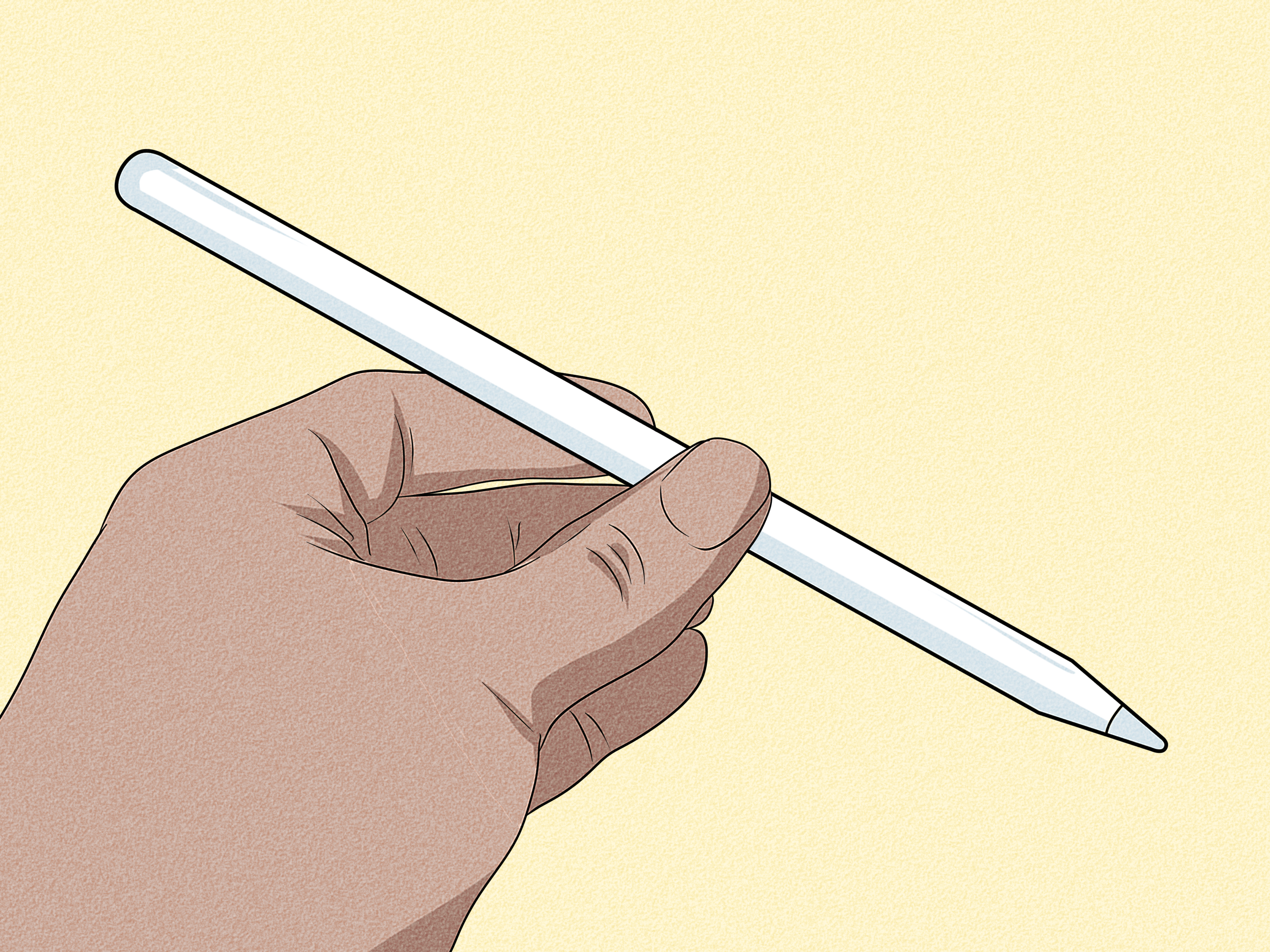
Your Apple Pencil is supposed to feel like a magic wand for your iPad. You tap, sketch, mark up PDFs, take notes, and suddenly you look like the most organized person in the room. Then one day it refuses to charge, and the magic wand becomes a very expensive white stick. Rude? Absolutely. Fixable? Very often, yes.
If your Apple Pencil 1st generation or Apple Pencil 2nd generation is not charging, the problem usually comes down to one of a few things: a weak connection, a Bluetooth hiccup, an iPad compatibility issue, dirt on the connector, a drained battery, or a hardware problem. The good news is that you do not need to be a Genius Bar wizard to try the basic fixes. Most of the troubleshooting steps are simple, safe, and take only a few minutes.
This guide walks you through six practical fixes for an Apple Pencil not charging, including what to try for both the 1st generation Lightning-style model and the 2nd generation magnetic charging model. We will also cover when the issue may be a dead battery, when your iPad might be the culprit, and when it is time to stop fighting the Pencil and contact Apple Support.
Why Is My Apple Pencil Not Charging?
Before you start poking around in Settings like a detective in a tiny digital trench coat, it helps to understand how Apple Pencil charging works. The Apple Pencil 1st generation charges through a Lightning connector or a USB-C adapter, depending on the iPad model. The Apple Pencil 2nd generation charges wirelessly by attaching magnetically to the side of a compatible iPad.
That means the charging failure can happen in different places. On a 1st generation Apple Pencil, the issue may involve the Lightning connector, USB-C adapter, charging cable, iPad port, or battery. On a 2nd generation Apple Pencil, the issue may involve the magnetic charging area, alignment, Bluetooth pairing, the iPad case, or the Pencil battery itself.
Another important detail: Apple Pencil models are not universally compatible with every iPad. A Pencil that is perfectly healthy may refuse to pair or charge properly if it is connected to the wrong iPad model. Think of it like trying to plug a toaster into a banana. The confidence is admirable, but the system was never designed for that.
Quick Checklist Before You Start
Try this quick checklist first:
- Make sure your iPad has enough battery.
- Confirm Bluetooth is turned on.
- Check that your Apple Pencil is compatible with your iPad.
- Remove any thick case that may block magnetic charging.
- Clean the connector or magnetic charging area.
- Restart your iPad before assuming the Pencil is dead.
If none of that works, move through the six fixes below in order. Start with the easiest steps and save the dramatic “is this thing dead forever?” moment for last.
Fix 1: Check Apple Pencil and iPad Compatibility
The first fix is not glamorous, but it is essential: make sure your Apple Pencil actually works with your iPad. Apple Pencil compatibility can be surprisingly specific. The 1st generation Apple Pencil works with many older and standard iPad models, while the 2nd generation Apple Pencil works with select iPad Pro, iPad Air, and iPad mini models that support magnetic pairing and charging.
If you recently bought a used Apple Pencil, upgraded your iPad, borrowed a Pencil from a friend, or ordered one online at 2 a.m. while telling yourself it was “for productivity,” compatibility should be your first suspect.
How to Check Compatibility
Go to your iPad model information in Settings > General > About. Look for the model name, then compare it with Apple Pencil compatibility information from Apple’s official support pages. If your iPad does not support your Pencil model, it may not pair, charge, or appear correctly in the battery widget.
For example, the Apple Pencil 2nd generation needs an iPad with the correct magnetic charging system. Simply sticking it to the side of an incompatible iPad will not magically make wireless charging happen. It may look attached, but it is not actually receiving power.
If compatibility is the problem, the solution is not a software trick. You need the correct Apple Pencil model for your iPad. Annoying? Yes. Better than spending three hours cleaning a perfectly innocent connector? Also yes.
Fix 2: Reconnect and Charge the Apple Pencil Properly
Sometimes the Apple Pencil is not broken. It is just not connected correctly. This is especially common with the 2nd generation Apple Pencil because the magnetic connection needs proper alignment. If the Pencil is slightly off-center, blocked by a case, or sitting on debris, it may appear connected but fail to charge reliably.
For Apple Pencil 1st Generation
Remove the cap and plug the Apple Pencil directly into the iPad’s connector if your iPad supports that connection. If your iPad uses USB-C, use the correct Apple adapter and a working cable. Make sure the connection is firm, but do not force it. If the Pencil feels wobbly or the connector looks bent, stop and inspect it carefully.
You can also try charging the Pencil with a different cable, adapter, or power source if your setup allows it. This helps you figure out whether the problem is the Pencil, the adapter, the cable, or the iPad.
For Apple Pencil 2nd Generation
Attach the Apple Pencil to the magnetic connector on the side of the iPad. The flat side of the Pencil should sit flush against the iPad. If you use a case, remove it temporarily and try charging again. Some cases are just thick enough to interfere with charging, even if the Pencil still appears to snap into place.
Wait at least one minute after attaching the Pencil. If the battery is extremely low, the iPad may need a moment before it displays the pairing or battery indicator. Impatient tapping will not speed it up, although we have all tried it.
Fix 3: Turn Bluetooth Off and Back On
Apple Pencil depends on Bluetooth for pairing and communication with the iPad. Even though charging is a hardware process, a Bluetooth glitch can make the Pencil appear missing, disconnected, or stuck at an incorrect battery percentage.
To reset the connection, open Settings > Bluetooth, turn Bluetooth off, wait about 10 seconds, and turn it back on. Then reconnect or reattach your Apple Pencil.
If your Apple Pencil appears under Bluetooth devices, tap the information icon next to it and choose Forget This Device. After that, pair the Pencil again. For the 1st generation model, plug it back into the iPad or use the correct adapter. For the 2nd generation model, attach it to the magnetic connector.
This step is especially useful if your Apple Pencil worked yesterday but suddenly stopped charging or showing battery status today. iPadOS is smart, but like all software, it occasionally needs the digital equivalent of a deep breath.
Fix 4: Restart or Update Your iPad
If Bluetooth reset does not work, restart your iPad. A restart can clear temporary software bugs that affect pairing, charging indicators, widgets, or accessory communication. This is the classic “turn it off and on again” fix, and yes, it still works often enough to deserve its reputation.
To restart an iPad with Face ID or Touch ID in the top button, press and hold the top button and either volume button until the power-off slider appears. Turn the iPad off, wait a short moment, then turn it back on. For iPads with a Home button, press and hold the top button until the power-off slider appears.
After restarting, attach or plug in your Apple Pencil again and check whether the battery status appears. You can use the Batteries widget or check Settings > Apple Pencil on supported iPadOS versions.
Check for iPadOS Updates
Go to Settings > General > Software Update. If an update is available, install it after backing up your iPad. Updates can fix accessory bugs, Bluetooth issues, and battery reporting problems. You do not need to update every five minutes like your iPad is training for a marathon, but running a very old iPadOS version can cause avoidable headaches.
Fix 5: Clean the Charging Area Carefully
Dirt, dust, lint, oil, and tiny mystery crumbs can interfere with charging. This is true for the Apple Pencil 1st generation connector and the Apple Pencil 2nd generation magnetic charging surface. If you carry your iPad in a bag, use it near snacks, or live in the real world, debris happens.
How to Clean Apple Pencil 1st Generation
Remove the cap and inspect the Lightning connector. Look for dirt, corrosion, bending, or damage. Use a soft, dry, lint-free cloth to gently wipe the connector. Avoid liquids, metal tools, sharp objects, and aggressive scraping. The goal is to clean the Pencil, not audition for a tiny demolition crew.
Also inspect the iPad port or adapter. A port packed with lint may prevent proper charging. If you are not comfortable cleaning a port, visit Apple or an authorized repair provider rather than using a random sharp object. A damaged charging port is much worse than a dirty one.
How to Clean Apple Pencil 2nd Generation
Wipe the flat magnetic side of the Pencil and the magnetic charging area on the iPad with a soft, dry, lint-free cloth. Remove the case and any magnetic accessories. Then reattach the Pencil and see whether charging begins.
Do not use water, harsh cleaners, compressed air, or abrasive pads. Apple devices are sleek, but they are not kitchen countertops. Gentle cleaning is enough for most charging-contact issues.
Fix 6: Let a Fully Drained Apple Pencil Charge Longer
If your Apple Pencil has been sitting unused for weeks or months, the battery may be deeply discharged. Lithium-ion batteries do not love being empty for long periods. In some cases, a deeply drained Apple Pencil may need extra time connected to power before it wakes up enough to pair or show battery status.
For a 1st generation Apple Pencil, connect it to the iPad or the correct charging adapter and leave it charging for a while. For a 2nd generation Apple Pencil, attach it to the magnetic connector and leave the iPad awake or nearby. Make sure the iPad itself has a good charge.
Give it time before declaring defeat. If the Pencil starts charging after several minutes, leave it connected until the battery level rises comfortably. After that, disconnect and reconnect it to confirm that pairing and charging remain stable.
However, if the Apple Pencil stays at 0%, charges for only a few seconds, disconnects repeatedly, or works only while physically attached, the internal battery may be failing. Apple Pencil batteries are not designed for easy user replacement. At that point, professional service or replacement may be the realistic option.
How to Check Apple Pencil Battery Level
For Apple Pencil 2nd generation, attach the Pencil magnetically to the iPad. A small battery pop-up may appear briefly. You can also use the Batteries widget on the iPad to monitor the charge level.
For Apple Pencil 1st generation, plug it into the iPad or connect it using the proper adapter, then check the Batteries widget. If the battery widget does not show the Pencil, make sure Bluetooth is on and the Pencil is paired.
Battery percentage can be a clue. If the Pencil jumps from low battery to disconnecting, or stays stuck at 0% after long charging, the issue may be more serious than a simple pairing glitch.
What If Apple Pencil Charges but Still Does Not Work?
If your Apple Pencil charges but will not write, the issue may not be charging at all. Check the Pencil tip. A loose, worn, or damaged tip can cause writing problems. Gently twist the tip clockwise until it is secure. If it looks rough, cracked, or flattened, replace it.
Next, test the Pencil in Apple Notes. Some third-party apps have settings that can make stylus input behave strangely. Apple Notes is a simple way to confirm whether the Pencil itself is working.
If the Pencil works in Notes but not in another app, check that app’s stylus settings. If it fails everywhere, the problem may involve pairing, hardware, or the Pencil tip.
When to Contact Apple Support
Contact Apple Support or visit an Apple Authorized Service Provider if:
- Your Apple Pencil never appears in Bluetooth settings.
- The Pencil stays at 0% after extended charging.
- The 2nd generation Pencil connects for a second and then stops charging.
- The 1st generation connector is bent, loose, or damaged.
- Your iPad charges normally but the Pencil never does.
- You have confirmed compatibility and tried all software fixes.
Apple can help determine whether the issue is the Pencil, the iPad, or the charging system. If the device is under warranty or covered by AppleCare, you may have service options. If not, Apple can still provide repair or replacement guidance.
How to Prevent Apple Pencil Charging Problems
Once your Apple Pencil is working again, prevention is simple. Keep it charged, clean, and paired with the correct iPad. Avoid leaving it completely dead for long periods. If you use the 2nd generation model, store it attached to the iPad when practical. If you use the 1st generation model, keep the cap, adapter, and connector safe.
Also, be careful with cases. A beautiful iPad case that blocks Apple Pencil charging is like a raincoat with holes in it: stylish, but suspiciously unhelpful. Choose a case designed for your iPad and Pencil model.
Finally, clean the charging area occasionally. A quick wipe with a lint-free cloth can prevent a lot of frustration. Your Apple Pencil does not need spa treatment, but it does appreciate not being covered in backpack dust.
Real-World Experiences: What Usually Works Best
In everyday use, the most common Apple Pencil charging problems tend to be surprisingly ordinary. The 2nd generation Apple Pencil often stops charging because the case is too thick, the Pencil is slightly misaligned, or the magnetic charging strip is dirty. Many users assume the battery has failed, only to discover that removing the case solves the problem instantly. It is a small fix, but it feels like winning a tiny technology lottery.
For the 1st generation Apple Pencil, adapter confusion is a major source of trouble. Because Apple has moved many iPads from Lightning to USB-C, some users mix up adapters, cables, and charging methods. The Pencil may be fine, but the charging setup is wrong. If you own a 1st generation Pencil, keep the adapter somewhere obvious. A drawer full of mystery dongles is where productivity goes to retire.
Another common experience is the “dead after storage” problem. Someone puts the Apple Pencil away for a semester, a work project, or a long vacation. Months later, they plug it in and nothing happens. In some cases, leaving it connected for a longer period brings it back. In other cases, the battery no longer holds a charge. This is why it is smart to charge the Pencil occasionally even when you are not using it every day.
Bluetooth confusion is also common. The Pencil may be charging, but the iPad does not show the correct battery level. Forgetting the device in Bluetooth settings, restarting the iPad, and pairing again often clears the issue. This is especially useful after iPadOS updates or after using multiple Apple Pencils with one iPad.
A loose tip can create a fake charging panic, too. The Pencil may charge normally but fail to write, making the user think the battery is dead. Before assuming the worst, check the tip. Tighten it gently or replace it if it is worn. This is one of those fixes that feels too easy, but easy fixes are still fixes. We do not argue with success.
From a practical standpoint, the best troubleshooting order is simple: confirm compatibility, remove the case, clean the charging area, restart the iPad, reset Bluetooth, and let a deeply drained Pencil charge longer. If those steps do not help, the battery or hardware may be the issue. At that point, continuing to plug and unplug it 87 times is unlikely to summon a miracle.
The biggest lesson is not to panic immediately. Apple Pencil charging problems often look dramatic because there are few visible clues. There is no screen on the Pencil, no charging light, and no tiny message saying, “Relax, I just needed Bluetooth reset.” That silence makes small issues feel bigger than they are. Work through the fixes calmly, and you will usually know within a short time whether the Pencil can be revived at home or needs professional help.
Conclusion
An Apple Pencil not charging can interrupt your notes, drawings, edits, schoolwork, or creative projects, but the cause is often simple. Start by checking compatibility, then reconnect the Pencil correctly, reset Bluetooth, restart or update the iPad, clean the charging area, and give a fully drained battery time to wake up. These six fixes solve many Apple Pencil 1st generation and Apple Pencil 2nd generation charging issues without needing a repair appointment.
If the Pencil still refuses to charge after all that, the internal battery or hardware may have failed. In that case, contact Apple Support or an authorized service provider. Sometimes the smartest fix is knowing when the tiny white wand has left the building.
Note: This article is based on current Apple charging, pairing, compatibility, and service guidance, along with widely accepted troubleshooting practices for iPad accessories.












