
Adding borders in Adobe InDesign sounds simple until you realize InDesign gives you several different “border-ish” tools, each with its own personality. A border around a photo? That is usually a stroke. A border around every page? That probably belongs on a parent page. A border around a paragraph? Surprise: that is not the same thing as drawing a rectangle and hoping your text behaves.
The good news is that once you know which method fits the job, borders in InDesign become fast, clean, and wonderfully controllable. Whether you are designing a magazine layout, flyer, restaurant menu, portfolio, ebook, product catalog, or school project, borders can help organize content, create visual hierarchy, and make important elements stand out without shouting like a neon sign in a library.
In this guide, you will learn three practical ways to add borders in InDesign: using the Stroke panel, drawing a page border, and applying borders to text or tables. Each method includes clear steps, examples, and design tips so your layout looks polished instead of “I found the rectangle tool and got excited.”
Before You Start: What Counts as a Border in InDesign?
In InDesign, a border is usually created with a stroke. A stroke is the visible line applied to a frame, shape, path, table cell, or paragraph edge. You can adjust the stroke’s weight, color, type, alignment, corners, and sometimes even its gap color. That means a border can be a thin black outline, a dotted coupon box, a thick colored frame, or a subtle gray rule around a text callout.
The key is choosing the right object. If you select the image inside a frame, the border may not behave the way you expect. If you select the frame itself, the Stroke panel becomes your best friend. If you want the same border on every page, use a parent page. If the border needs to follow text, use paragraph border settings rather than manually drawing boxes.
Way 1: Add a Border to a Frame with the Stroke Panel
The Stroke panel is the classic method for adding borders in InDesign. It works beautifully for image frames, text frames, rectangles, circles, custom shapes, and lines. This is the method you will use most often when you want a clean border around one object.
Best For
Use this method when you want to add a border around a photo, a text box, an icon area, a coupon, a pull quote, or any individual design frame. It is simple, flexible, and easy to revise later.
Step-by-Step Instructions
- Select the frame. Use the Selection Tool, which is the black arrow. Click the edge of the object or frame you want to border. If you are working with an image, make sure you select the frame, not just the image content inside it.
- Open the Stroke panel. Go to Window > Stroke. You can also use stroke controls in the top Control panel when an object is selected.
- Set the stroke weight. Increase the weight to make the border visible. For a subtle layout border, try 0.5 pt or 1 pt. For a bold promotional design, try 3 pt, 5 pt, or higher.
- Choose a stroke color. Open the Swatches panel and make sure the stroke box, not the fill box, is active. Pick a color that supports your design instead of fighting it for attention.
- Adjust the stroke type. In the Stroke panel, choose solid, dashed, dotted, double, or another available stroke style.
- Set stroke alignment. Choose whether the stroke aligns to the center, inside, or outside of the frame. Inside alignment is useful when you do not want the border to expand beyond the frame’s original size.
Example: Add a Border Around a Photo
Imagine you are designing a travel brochure and want a photo of a beach to look more intentional. Select the photo frame, open the Stroke panel, set the stroke weight to 2 pt, and choose a warm off-white color. The result is a simple image border that gives the photo a printed postcard feel. Add a slight corner radius if the design is soft and modern, or keep sharp corners for a more editorial look.
Pro Tips for Better Frame Borders
Do not make every border the star of the show. A border should often act like a picture frame: helpful, attractive, and mostly quiet. If your border is thicker than the headline, it may be auditioning for the wrong role.
For image-heavy designs, consider using Object Styles. An Object Style can save your border settings, including stroke weight, color, transparency, and effects. This is especially useful for catalogs, portfolios, and newsletters where multiple frames need the same appearance. Instead of formatting every image one by one, create a style once and apply it repeatedly.
Way 2: Create a Page Border with a Rectangle or Parent Page
If you want a border around an entire page, do not manually draw it on every page unless you enjoy repetitive tasks and mild layout regret. The smarter method is to draw the border once on a parent page, then apply that parent to your document pages.
Best For
This method is best for certificates, invitations, worksheets, newsletters, book pages, event programs, menus, and any layout that needs a consistent border on multiple pages.
Step-by-Step Instructions
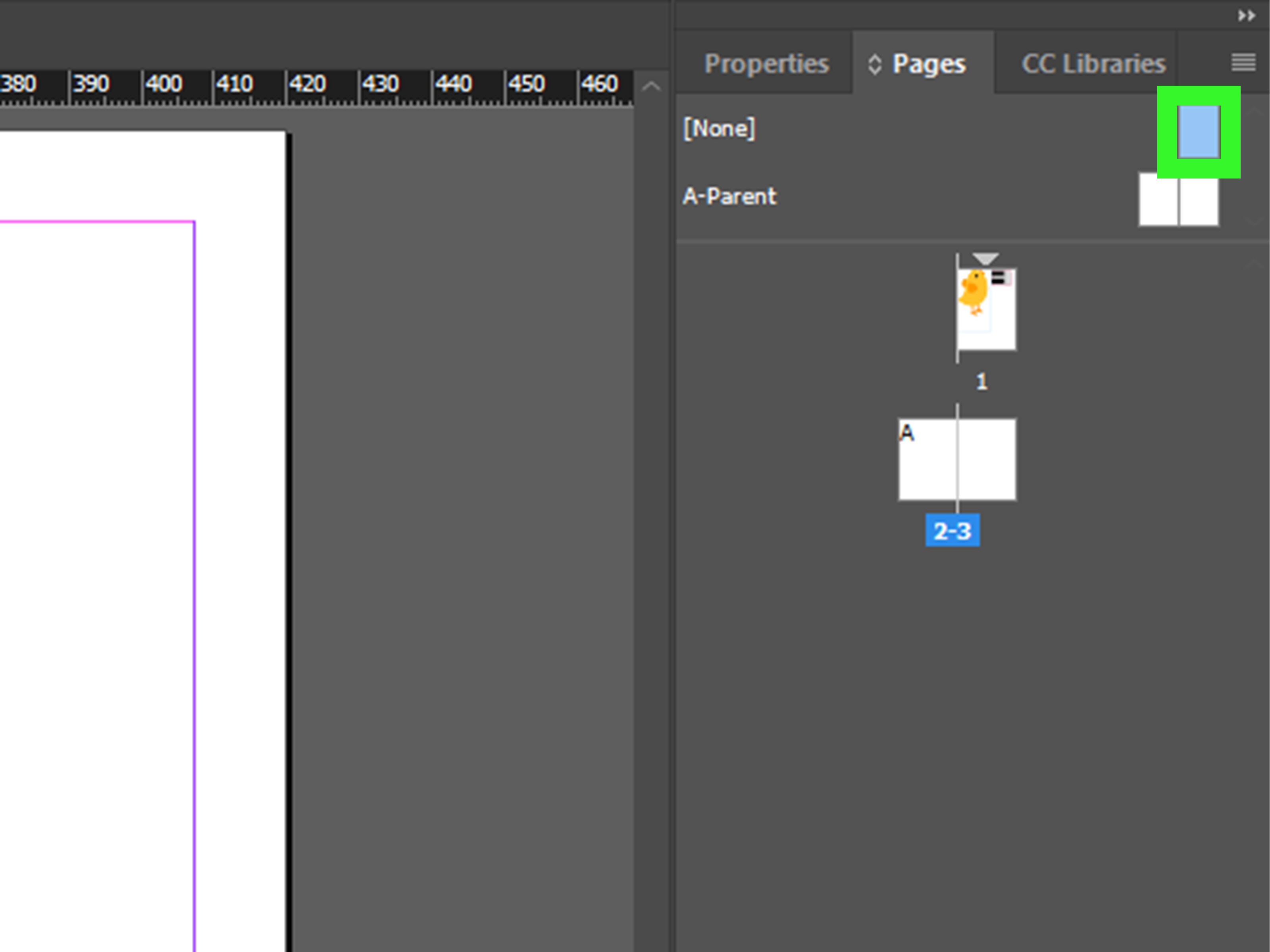
- Open the Pages panel. Go to Window > Pages.
- Double-click the parent page. In newer versions of InDesign, these are called parent pages. Older tutorials may call them master pages. Same idea, new name.
- Select the Rectangle Tool. Draw a rectangle where you want the page border to appear. Use guides, margins, or ruler measurements to keep it accurate.
- Remove the fill. Set the fill to None so the rectangle does not cover your page content.
- Apply a stroke. Choose your border color, weight, and style from the Stroke and Swatches panels.
- Refine the placement. Use the Transform panel or Control panel to position the rectangle precisely.
- Apply the parent page. Drag the parent page icon onto the document pages that need the border.
Example: Add a Border to a Certificate
For a certificate, create a parent page border with a 3 pt dark blue stroke and place it about 0.35 inches inside the page edge. Then add a second, thinner gold rectangle inside it for a formal double-border effect. The design instantly feels more official, as if it should be handed over with a handshake and possibly a tiny round of applause.
Print Tip: Respect Margins and Bleed
If your document will be printed, keep important borders away from the trim edge unless the design intentionally bleeds off the page. Printers trim paper with impressive machines, not magical lasers of perfection. A border too close to the edge can look uneven after trimming. For most printed pieces, place page borders safely inside the margin area or build the file with proper bleed and trim expectations.
Design Tip: Use Layers
Put page borders on their own layer and lock that layer when you are finished. This prevents accidental movement while you edit text, images, and other layout elements. Few things are more annoying than discovering your perfect border shifted three pixels because you clicked too enthusiastically.
Way 3: Add Borders to Text, Paragraphs, or Tables
Sometimes you do not want a border around a frame or page. You want a border that belongs to the text itself. This is common for callout boxes, side notes, warnings, recipe tips, pricing blocks, and styled headings. InDesign gives you paragraph border tools for this, and they are much cleaner than drawing manual rectangles behind text.
Best For
Use paragraph borders when the border should move with the text. Use table borders when you are formatting rows, columns, price lists, schedules, comparison charts, or forms.
How to Add a Paragraph Border
- Click inside the paragraph. Use the Type Tool and place your cursor in the paragraph you want to style.
- Open Paragraph Borders and Shading. You can access it from the Paragraph panel menu, the Control panel menu, or paragraph style options.
- Turn on Border. Enable the border option and choose which sides should display: top, bottom, left, right, or all sides.
- Set weight, color, and offset. Adjust the border thickness and color. Use offsets to create breathing room between the text and the border.
- Save it as a Paragraph Style. If you will reuse the look, update or create a paragraph style so the border remains consistent throughout the document.
Example: Create a Tip Box
Suppose you are designing a cookbook and want a “Chef’s Tip” box. Click inside the tip paragraph, open Paragraph Borders and Shading, turn on a border, set the stroke to 1 pt, choose a soft green color, and add offset spacing so the text does not feel trapped. Add paragraph shading if you want a light background. Now the tip stands apart from the recipe without needing a separate shape that may get left behind when the text reflows.
How to Add Borders to Tables
For tables, click inside a table cell and use Table > Table Options > Table Setup to adjust the outer table border. To customize individual cells, rows, or columns, use Table > Cell Options > Strokes and Fills. This lets you control cell borders, internal grid lines, row separators, and table edge styling.
For example, a restaurant menu might use a thin outside border around the entire pricing table, then lighter internal lines between menu sections. A business report might use no vertical lines at all, relying only on subtle horizontal rules. Borders in tables should make information easier to scan, not turn the page into graph paper having a dramatic moment.
Common Border Problems and How to Fix Them
The Border Does Not Show Up
Make sure you selected the frame or object, not only the content inside it. With images, this is the most common mistake. Click the frame edge with the Selection Tool, then apply the stroke again.
The Border Covers Part of the Image
Change the stroke alignment. If the stroke is aligned to the inside, it may overlap the image slightly. Try center or outside alignment, or increase the frame size if the layout allows it.
The Page Border Looks Uneven After Printing
The border may be too close to the trim edge. Move it farther inside the page margin or discuss trim tolerance with your printer. For professional print jobs, always check bleed, margins, and safe area before exporting the final PDF.
The Paragraph Border Feels Too Tight
Increase the border offset values. Text needs breathing room. A paragraph border with no padding can look cramped, like the words are stuck in an elevator with a very talkative stranger.
Which Border Method Should You Use?
Use the Stroke panel when you need a border around a single frame, image, shape, or text box. Use a rectangle on a parent page when the border belongs to the page design and should repeat across multiple pages. Use paragraph or table border settings when the border needs to follow text, rows, columns, or structured information.
The best InDesign users do not use one border method for everything. They choose the method that makes future editing easier. That is the real secret. A beautiful border is nice. A beautiful border that does not break when you change the copy at 11:47 p.m. is better.
Advanced Tips for Cleaner InDesign Borders
Use Styles Whenever Possible
If you are adding the same border more than twice, consider creating a style. Object Styles are excellent for repeated image or text frame borders. Paragraph Styles are ideal for recurring callouts, sidebars, warnings, and section labels. Styles save time and reduce tiny inconsistencies that become painfully obvious after export.
Match Border Weight to the Layout
A luxury brochure might use thin, elegant strokes. A children’s event flyer might use thick, playful borders. A corporate report might use restrained gray rules. Border weight should match the voice of the project. When in doubt, start thinner than you think you need. You can always increase the weight, but removing visual heaviness later is like trying to un-toast bread.
Choose Colors with Purpose
Black borders are useful, but they are not always the best choice. Try using a tint of your brand color, a neutral gray, or a color sampled from an image. Subtle color choices can connect the border to the rest of the layout and make the design feel intentional.
Preview Before Exporting
Use Preview mode to hide guides, frame edges, and other layout helpers. This gives you a cleaner view of how the border will actually look. Before exporting, zoom in and check corners, alignment, spacing, and whether the border competes with nearby text.
Real-World Experience: What I Have Learned About Adding Borders in InDesign
The first lesson about borders in InDesign is that they are more powerful when they are boring in the best possible way. New designers often want borders to do everything: decorate, separate, emphasize, sparkle, organize, and possibly make coffee. Experienced designers usually make borders do one job at a time. If a border is meant to organize content, it should be clean. If it is meant to decorate, it should support the style of the piece. If it is meant to highlight something important, it should guide the reader’s eye without wrestling the headline for attention.
One practical habit that helps a lot is naming and saving styles early. In a long document, manually created borders can become a tiny nightmare. One image has a 1 pt black stroke, another has a 1.25 pt rich black stroke, and another has a gray border that looked fine at 2 a.m. but now feels suspicious. Object Styles solve this problem. Create a style named something clear, such as “Photo Border – Thin Gray” or “Callout Box – Blue Stroke.” Future you will be grateful, and future you is the person who has to fix the file when the client says, “Can we make all those borders just a little softer?”
Another experience-based tip is to check borders at different zoom levels. A border that looks perfect at 300% may barely show at actual size. A border that looks pleasantly bold on screen may feel heavy when printed. For print projects, I like to export a test PDF and view it at real size. If possible, printing one proof page is even better. Paper has a way of revealing design choices that the screen politely ignored.
Text borders deserve special care. If you draw a rectangle behind a paragraph, it may look fine until the text changes. Then the rectangle stays where it is while the paragraph grows, shrinks, or moves to the next page. That is how layout chaos begins. Paragraph borders and shading are much safer for repeated text treatments because they travel with the paragraph. They are especially useful for manuals, workbooks, textbooks, and reports where callouts appear again and again.
For page borders, consistency matters more than complexity. A simple rectangle on a parent page often works better than an ornate frame pasted onto every page. Parent-page borders are easier to manage, easier to revise, and less likely to drift out of place. Just remember to leave enough room for margins, page numbers, headers, and trimming. A page border should frame the content, not squeeze it like a suitcase packed five minutes before leaving for the airport.
Finally, the best borders are tested in context. A border may look beautiful by itself, but the real question is how it behaves with text, images, white space, and neighboring elements. InDesign gives you excellent tools, but good judgment still matters. Use borders to clarify, group, and polish. When they help the reader move through the page, they are doing their job. When they become the loudest thing on the page, it may be time to lower the stroke weight and let the content breathe.
Conclusion
Learning how to add borders in InDesign is less about memorizing one command and more about understanding which tool fits the design problem. The Stroke panel is perfect for quick frame and image borders. Parent pages are the smart choice for repeating page borders. Paragraph and table border settings are best when the border needs to stay connected to structured text or data.
Once you understand these three methods, borders become a flexible part of your layout toolkit. They can add structure, elegance, emphasis, and rhythm to your designs. Use them with intention, keep them consistent, and remember: the best border is not always the thickest one. Sometimes it is the quiet little line that makes the whole page feel finished.











