
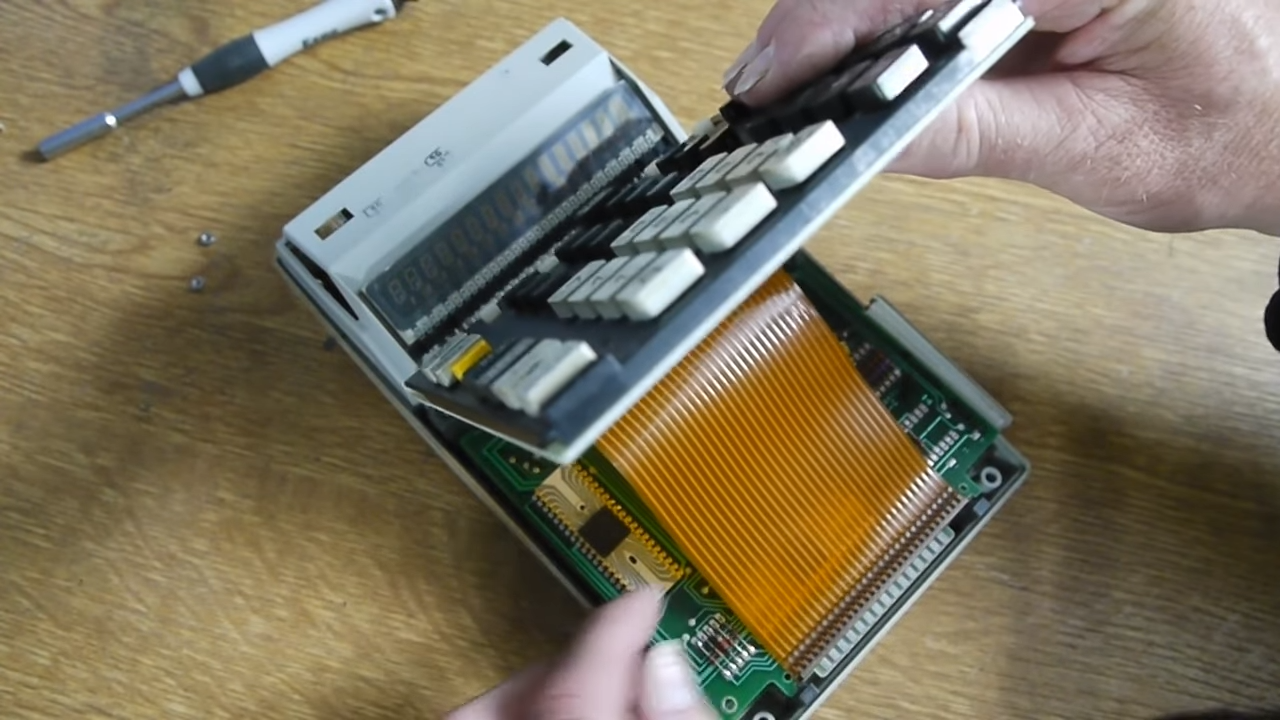
Old calculators are stubborn little legends. They survive desk drawers, high school exams, mystery batteries, coffee-adjacent humidity, and at least one owner who thought “precision electronics” meant “smack it until the percent key works again.” But one weak spot shows up again and again: the keyboard flex.
That thin ribbon or membrane tail is the calculator’s nervous system. When it cracks, corrodes, delaminates, or simply gives up after decades of loyal service, the whole machine starts acting haunted. One key does nothing. Another key types the wrong number. Sometimes a full column quits, which is calculator for “I’m technically alive, but emotionally unavailable.”
If you want to revive a vintage calculator, creating a new keyboard flex can be one of the smartest repairs you make. It is not always the quickest job, and it is definitely not the kind of project you rush while balancing toast in one hand. Still, with patience, a little reverse engineering, and a clear plan, you can build a replacement that restores function without turning the calculator into a museum piece with commitment issues.
This guide explains what a calculator keyboard flex does, why it fails, how to map the original keypad, what materials make sense, and how to create a replacement that actually fits and works. Whether you are repairing a cherished scientific calculator, a chunky desktop adding machine, or a thrift-store orphan with a dead keypad, the process is surprisingly logical once you break it down.
What a Keyboard Flex Actually Does
In many calculators, the keys are not individual switches soldered to a modern PCB. Instead, they are part of a membrane keypad, a conductive-rubber contact system, or a flex circuit that carries signals from the key area to the main board. Press a key, and the system closes a connection between a row and a column in a matrix. The calculator scans that matrix, figures out which row and column met for a brief romantic moment, and translates that into a number or function.
That design is elegant because it reduces wiring. Instead of one wire per key, the calculator uses grouped rows and columns. This is why a failed trace can knock out a whole column of keys, and why a short between lines can make one key behave like another. If the keyboard flex is damaged, the symptoms often look weird before they look obvious.
The flex itself may be made from polyester or polyimide film with printed conductive traces, or it may be part of a larger membrane assembly. Some calculators use a separate keypad sheet in the front housing, while others combine the contact area and ribbon tail into one thin laminated part. Either way, the job of the replacement is the same: preserve the matrix, preserve the physical fit, and preserve the pressure relationship between the buttons and the contact area.
Why Old Calculator Keypads Fail
Aging traces and cracked tails
The first big culprit is mechanical fatigue. A thin flex tail bends every time the case is opened, every time the device flexes slightly in handling, and sometimes just from the way it was routed at the factory. Over years, traces can crack near the connector, especially where the tail exits the keypad body. This is classic flex circuit failure: the conductor was never meant to be folded sharply forever.
Dirty or worn contact surfaces
Sometimes the flex is innocent and the contact system is the troublemaker. Old calculators often collect skin oils, dust, dried soda, and the kind of mystery film that only appears on devices nobody has touched since the Clinton administration. Sticky buttons can come from dirty membranes, contaminated contact pads, or worn conductive pills under rubber domes.
Corrosion and shorts
Battery leaks are the tiny supervillains of calculator repair. Even a mild leak can creep into nearby traces, corrode printed conductors, or create conductive grime that bridges adjacent lines. When that happens, the keypad matrix starts making bad decisions. A pressed key may read as the wrong key, or several keys may die together because one damaged line takes its neighbors down with it.
Connector problems
Sometimes the flex is fine but the connection is not. The pitch of the tail may no longer match cleanly, the clamp connector may be worn, or the exposed contact surface may be too oxidized to make a reliable connection. In some compact devices, the display or keypad also relies on an elastomeric “zebra” connector, which adds another layer of alignment drama.
Before You Design Anything, Diagnose the Real Failure
Do not sprint straight to fabrication. First, confirm that the keyboard flex is actually the bad actor. Open the calculator carefully and inspect the keypad, the flex tail, and the board connector under magnification. Look for hairline cracks, lifted layers, darkened traces, sticky residue, green corrosion, and any damage where the tail bends.
Next, test continuity. A multimeter in continuity mode is your best friend here, even if it beeps with the confidence of a tiny hall monitor. Probe from the keypad side to the tail contacts. If one line is open, that is a clue. If two neighboring lines appear connected when they should not be, that suggests contamination or trace bridging.
Also map the symptoms. If an entire row or column of keys is dead, think matrix line. If one key feels mechanically wrong, think dirty contact, warped button, or bad conductive pill. If the calculator responds but gives the wrong key in a predictable pattern, suspect a short between adjacent row or column traces.
One more reality check: sometimes a calculator only needs cleaning, not a new flex. If the membrane and sensor surfaces are dirty, restoring them can solve the issue without a full redesign. Repair is not a failure of ambition. It is good triage.
How to Map the Original Keyboard Matrix
Document everything first
Take high-resolution photos before removing anything. Measure the tail width, exposed contact length, contact pitch, total membrane dimensions, screw or locating-hole positions, and the distance from the keypad area to the board connector. If the part nests into a molded front case, note every notch and registration feature. A replacement that is electrically perfect but physically off by one millimeter is still a failure. Electronics are picky, and plastic housings are pettier than they look.
Build a row-and-column chart
Write down every key and determine which row and column it connects. You can do this by probing the original membrane or PCB contact area while pressing keys. Create a simple matrix chart such as:
Row 1: 7, 8, 9, ÷
Row 2: 4, 5, 6, ×
Row 3: 1, 2, 3, −
Row 4: 0, ., =, +
The actual layout may be stranger than that, especially in scientific calculators with mode keys, memory keys, and enough function buttons to intimidate a normal person. Still, the principle is the same. Once you know the matrix, you know what your new flex must reproduce.
Identify the contact style
Not every keypad closes contacts the same way. Some use printed membrane layers with a spacer between them. Others use rubber domes with conductive pills that short two PCB pads. Others rely on a flex tail only, with the switch structure elsewhere. Match the replacement method to the original feel and stack height whenever possible.
Choosing the Right Replacement Strategy
Option 1: Repair the original
If only one or two traces are broken, you may be able to repair them with silver conductive ink, a conductive pen, or careful splicing. This is best for simple damage near the tail and worst for large areas of delamination. It is the fastest route, but not always the most durable one.
Option 2: Replace only the flex tail
If the keypad contact area is still healthy but the tail is damaged, you can fabricate a new tail or splice in a compatible FFC/FPC-style extension. This can preserve the original key feel while avoiding a full membrane rebuild.
Option 3: Recreate the whole keyboard flex
This is the cleanest long-term solution when the original is badly cracked, corroded, or incomplete. You redraw the matrix, recreate the contact layout, and fabricate a new flexible part or a thin substitute assembly that fits the case. This is more work, but it gives you control and repeatability.
Option 4: Use a thin PCB substitute
In some vintage calculators, hobbyists have successfully replaced failing membrane keypads with very thin PCB assemblies and ultra-slim tactile switches. That approach changes the construction but can preserve the original button height closely enough to work. It is not ideal for every calculator, but it is a clever fallback when membrane reproduction would be harder than diplomacy on the internet.
Materials That Make Sense for a New Keyboard Flex
For a true calculator keyboard flex replacement, the most common base materials are polyester and polyimide. Polyester is common in membrane switches and can be cost-effective. Polyimide handles heat and flexing well and is common in more robust flex circuits. If the new part only bends once during installation, a static-flex design is easier than one meant to move constantly.
Trace material and geometry matter too. Avoid sharp corners. Give traces smooth routing where possible. Respect bend radius, especially near the tail. If the original connector depends on a certain contact thickness or stiffness, you may need a stiffener at the tail end so the new flex inserts cleanly and stays aligned.
For splicing or bonding, conductive transfer tapes and anisotropic conductive film can sometimes bridge flex to PCB, flex to flex, or flex to display-related contacts. These are useful in the right geometry, but they are not magic stickers. Alignment, pressure, overlap, and pad spacing all matter. In a hurry, people treat these materials like electronic duct tape. In reality, they are closer to tiny legal contracts with strict terms.
Designing the New Flex Step by Step
1. Recreate the outline
Draw the full physical shape in CAD. Include holes, notches, connector tongue length, and any zones that must remain clear for screws, posts, windows, or the LCD frame. The outline is not decoration. It is the difference between a satisfying restoration and a dramatic afternoon.
2. Recreate the electrical netlist
Turn your row-and-column map into a netlist. Keep naming consistent. If the calculator board expects tail pad 1 to be Row 1, do not decide that today is a good day for artistic freedom.
3. Route for reliability
Use generous trace spacing when possible. Keep traces out of hard bend zones when you can. Fan out cleanly from contact areas to the tail. If the tail must bend, route it in a way that reduces concentrated stress. This is especially important on old housings that already impose a tight path.
4. Match the contact system
If the buttons press conductive rubber pills onto exposed pads, reproduce the pad geometry accurately. If the original was a membrane sandwich, include the necessary spacer behavior. If the replacement changes the switch method entirely, test stack height obsessively before final assembly.
5. Prototype before committing
Print the outline at full size. Lay it in the case. Check alignment with buttons, connector, and posts. Then test an electrical prototype before the final install. Even a crude bench mockup can save you from discovering that the “AC” key now doubles as “tan” because two traces got creative.
Assembly, Testing, and the Moment of Truth
Once the replacement is fabricated, inspect it before installation. Check continuity on every line. Confirm there are no accidental shorts. Clean the mating connector on the calculator board. If the tail inserts into a clamp connector, make sure the exposed pads face the right way and the thickness is appropriate. This is the part where overconfidence becomes folklore.
Install the flex without forcing it. If a tail does not fit naturally, stop and recheck the dimensions. A slightly oversized tail can damage the connector; a loose one can create intermittent keypad behavior that will drive you directly into interpretive screaming.
After assembly, test every key systematically. Start with simple number entry, then check function keys, shifted functions, and any mode behavior that shares matrix lines. A calculator can look fully repaired while still hiding one dead key that ruins algebra with the precision of a villain in sensible shoes.
If everything works, celebrate modestly. You have just restored a device many people would have tossed. That is both practical and strangely heroic.
Common Mistakes to Avoid
The first mistake is assuming all dead keys mean bad traces. Dirt, worn conductive rubber, oxidized connectors, and housing misalignment can produce similar symptoms. The second is ignoring mechanical thickness. Even a perfect electrical design fails if the buttons no longer reach the contact surface properly. The third is forgetting that old plastics shrink, warp, or crack, which changes alignment more than many repairers expect.
Another classic mistake is making the new tail too fragile by routing it through a sharp bend with no margin. Flex circuits hate being treated like origami. Finally, do not skip documentation. The second version of any restoration is easier only if you wrote down what the first one taught you.
Bench Experience: What It Feels Like to Rebuild a Calculator Keyboard Flex
The most interesting part of creating a new keyboard flex for an old calculator is that the job feels half engineering and half archaeology. You open the case expecting a dead keypad and instead find a little time capsule: dust packed into corners, a membrane that has taken on the personality of dry autumn leaves, and a flex tail that looks fine until you breathe on it and it decides retirement sounds lovely.
The first lesson from experience is that symptoms lie. A calculator that appears to have three dead keys might really have one cracked row trace. Another that seems to need a full rebuild may come back to life after cleaning the contact surface and re-seating the tail. That is why experienced repairers slow down at the start. They probe, photograph, label, and test before redesigning anything. It saves time, prevents accidental damage, and keeps you from building a gorgeous replacement part for a problem caused by old battery residue hiding in a corner like a tiny criminal mastermind.
The second lesson is that physical fit matters just as much as electrical accuracy. On the bench, a replacement flex can pass continuity tests beautifully and still fail once installed because the button stack height changed by a sliver. Suddenly the zero key feels mushy, the equals key needs a dramatic press, and the mode button only works when the calculator is held like you are trying to open a pickle jar. Tiny dimensional errors become huge user-experience problems. This is why cardboard templates, paper mockups, and dry fits are not busywork. They are sanity insurance.
Another real-world discovery is that old calculators reward patience. Clean contacts carefully. Use magnification. Respect brittle plastic clips. Keep screws organized. If you rush, you tend to create a second repair while performing the first one, and that is how a keypad project turns into a case-restoration side quest nobody ordered.
There is also a very satisfying moment when the repaired keyboard finally works. You press 1, then 2, then 3, and the display responds correctly every time. It feels less like fixing a gadget and more like restoring a tiny language. The keys are speaking to the board again. The matrix makes sense. The old calculator gets its voice back.
And perhaps that is the best part of the experience. Making a new keyboard flex is not just about replacing a broken ribbon. It is about understanding how the machine was designed, respecting its original constraints, and creating a solution that feels believable inside the device. When done well, the repair does not scream “modern hack.” It simply lets an old calculator go back to doing what it was always meant to do: turning button presses into answers without drama, unless the math itself is dramatic.
Conclusion
Creating a new keyboard flex for an old calculator is one of those repairs that looks intimidating right up until it starts making sense. Once you understand the keypad matrix, identify the real failure, match the original contact method, and respect the mechanical fit, the project becomes manageable. Not easy, exactly, but manageable in the satisfying, workshop-table, “I can absolutely do this if nobody talks to me for twenty minutes” kind of way.
The real trick is not brute force. It is observation. A good replacement flex is part electrical design, part materials choice, and part physical choreography. Get those three things working together, and even a calculator with a dead keyboard can earn a second life. That is a pretty good outcome for a machine most people would have written off as obsolete.












