Sending SQL queries to MySQL from the command line may sound like something only a hoodie-wearing database wizard does at 2:17 a.m., but it is actually one of the most useful skills a developer, sysadmin, analyst, or curious website owner can learn. The MySQL command-line client lets you connect to a database, run SQL statements, execute scripts, export results, troubleshoot problems, and automate routine tasks without opening a graphical tool.
Why bother with the terminal when shiny database apps exist? Speed, flexibility, and control. A command like mysql -u user -p -e "SHOW DATABASES;" can give you an answer in seconds. You can run reports from a cron job, test a query on a remote server, apply a migration file, or quickly check whether your database is alive before your coffee has finished judging you from across the desk.
This guide explains how to send SQL queries to MySQL from the command line in seven practical steps. You will learn how to connect, run single queries, execute SQL files, save output, avoid common mistakes, and follow safer habits when working with real data. The examples use standard MySQL command-line syntax and are written for everyday use on Linux, macOS, and Windows terminals.
Why Use the MySQL Command Line?
The MySQL command-line client, usually launched with the mysql command, is a direct way to communicate with a MySQL server. It can be used interactively, where you type queries one at a time, or in batch mode, where MySQL reads SQL statements from a file or from a command argument.
Command-line access is especially helpful when you need to work on a remote server, automate database checks, run a quick one-off query, import a backup, test credentials, or troubleshoot a website that depends on MySQL. It is also lightweight. No large application window, no extra panels, no “where did that button go?” scavenger hunt. Just you, the database, and the blinking cursor of truth.
Step 1: Confirm That the MySQL Client Is Installed
Before sending SQL queries from the command line, make sure the MySQL client is available on your machine. Open your terminal, Command Prompt, PowerShell, or shell session and run:
If the client is installed, you should see version information. If the command is not recognized, install a MySQL-compatible client first. On many Linux systems, package managers can install the MySQL or MariaDB client. On macOS, developers often install MySQL through Homebrew or the official installer. On Windows, the MySQL Installer can add the command-line client, though you may need to add the MySQL bin directory to your system PATH.
Remember: the MySQL client and MySQL server are not the same thing. The client is the tool you use to connect. The server is the database engine that stores and processes your data. You can run the client on your laptop and connect to a database server somewhere else, such as a cloud-hosted MySQL database.
Step 2: Collect Your Connection Details
To connect to MySQL from the command line, you need the right connection information. For a local database, that may be as simple as a username and password. For a remote database, you may also need a host, port, database name, and SSL or TLS settings.
Common MySQL Connection Options
-uor--user: the MySQL username.-por--password: tells MySQL to prompt for a password.-hor--host: the server hostname or IP address.-Por--port: the MySQL port, commonly3306.-Dor a database name at the end: the database to use after connecting.-e: execute a SQL statement and exit.
A typical remote connection command looks like this:
After you run it, MySQL prompts for the password. This is usually safer than placing the password directly in the command, because command-line passwords may be exposed through shell history or process lists on some systems. In other words, do not leave your database password lying around like a sticky note on a public vending machine.
Step 3: Connect Interactively and Run a Query
The simplest way to send SQL queries is to open an interactive MySQL session. For a local server, try:
For a specific database, include the database name:
Once connected, you will see the MySQL prompt:
Now you can type SQL statements. Each standard SQL statement should end with a semicolon:
The semicolon matters. Without it, MySQL assumes you are still writing the statement. If your terminal appears to be waiting forever, do not panic. It is probably not haunted. You may simply need to finish the query with ; or cancel the current input with \c.
When you are finished, exit the MySQL prompt with:
or:
Step 4: Send a Single SQL Query with the -e Option
If you do not need an interactive session, use the -e option to execute a query directly from the command line. This is one of the fastest ways to send SQL queries to MySQL.
This command connects to app_database, runs the query, prints the result, and exits. It is excellent for quick checks, scripts, monitoring commands, and simple reports.
Examples of One-Line MySQL Queries
When using quotes, keep your operating system in mind. Linux and macOS shells commonly work well with single or double quotes, while Windows Command Prompt and PowerShell may treat quotes differently. If a query works inside MySQL but fails from the shell, quoting is one of the first things to check.
Step 5: Run SQL Queries from a File
For longer queries, schema changes, seed data, or migration scripts, put the SQL in a file and send that file to MySQL. This is cleaner than pasting a giant query into a terminal window and hoping your keyboard does not betray you.
Create a file named report.sql:
Then run it from the command line:
You can also specify host and port for remote databases:
This approach is useful for importing SQL dumps, running setup scripts, applying repeatable queries, and keeping SQL under version control. If your team uses Git, storing important SQL scripts in a repository makes changes easier to review and less likely to turn into “who ran what on Friday?” archaeology.
Using SOURCE Inside an Interactive Session
If you are already inside the MySQL prompt, you can execute a file with:
or:
This is handy when you are testing scripts step by step and want to stay connected after the file runs.
Step 6: Format, Save, and Reuse Query Output
By default, MySQL prints query results in a readable table format. That is great for humans, but scripts often prefer simpler output. The command-line client supports options that make results easier to process.
Save Results to a Text File
This redirects the output into users.txt. Your terminal stays clean, and your results are saved for review.
Use Batch Mode for Script-Friendly Output
The --batch option produces tab-separated output, which is often easier to parse with shell tools or import into spreadsheets. To remove column headers, add --skip-column-names or -N:
For quick reporting, this is gold. You can run a SQL query, save the output, and hand it to another script without opening a database GUI. It is the command-line equivalent of putting your database results on a conveyor belt.
Step 7: Troubleshoot Safely and Build Good Habits
Command-line MySQL is powerful, which means it deserves respect. A single DELETE without a WHERE clause can turn a productive afternoon into a dramatic reenactment of a disaster movie. Build safe habits early.
Common Problems and Fixes
- Access denied: Check the username, password, host, and user permissions.
- Unknown database: Confirm the database name with
SHOW DATABASES;. - Command not found: Install the MySQL client or update your PATH.
- Connection timed out: Check the hostname, port, firewall rules, network access, and cloud database allowlist.
- Syntax error: Test the SQL interactively, check quotes, and make sure statements end correctly.
Safer Command-Line Practices
- Use
-pwithout typing the password directly after it. - Use a limited-permission database user instead of an all-powerful admin account.
- Test destructive queries with
SELECTfirst. - Use transactions when changing important data, if your storage engine and workflow support them.
- Back up important databases before imports, migrations, or bulk updates.
- Use SSL or TLS options when connecting to hosted databases that require encrypted connections.
- Keep reusable scripts organized, reviewed, and version-controlled.
For repeated use, you can also store connection options in a properly protected MySQL option file. This can reduce typing while avoiding password exposure in shell history. Just be sure the file permissions are locked down so other users on the system cannot read your credentials.
Practical Command Examples
Check Whether MySQL Is Reachable
This confirms that the client can connect and that the server responds.
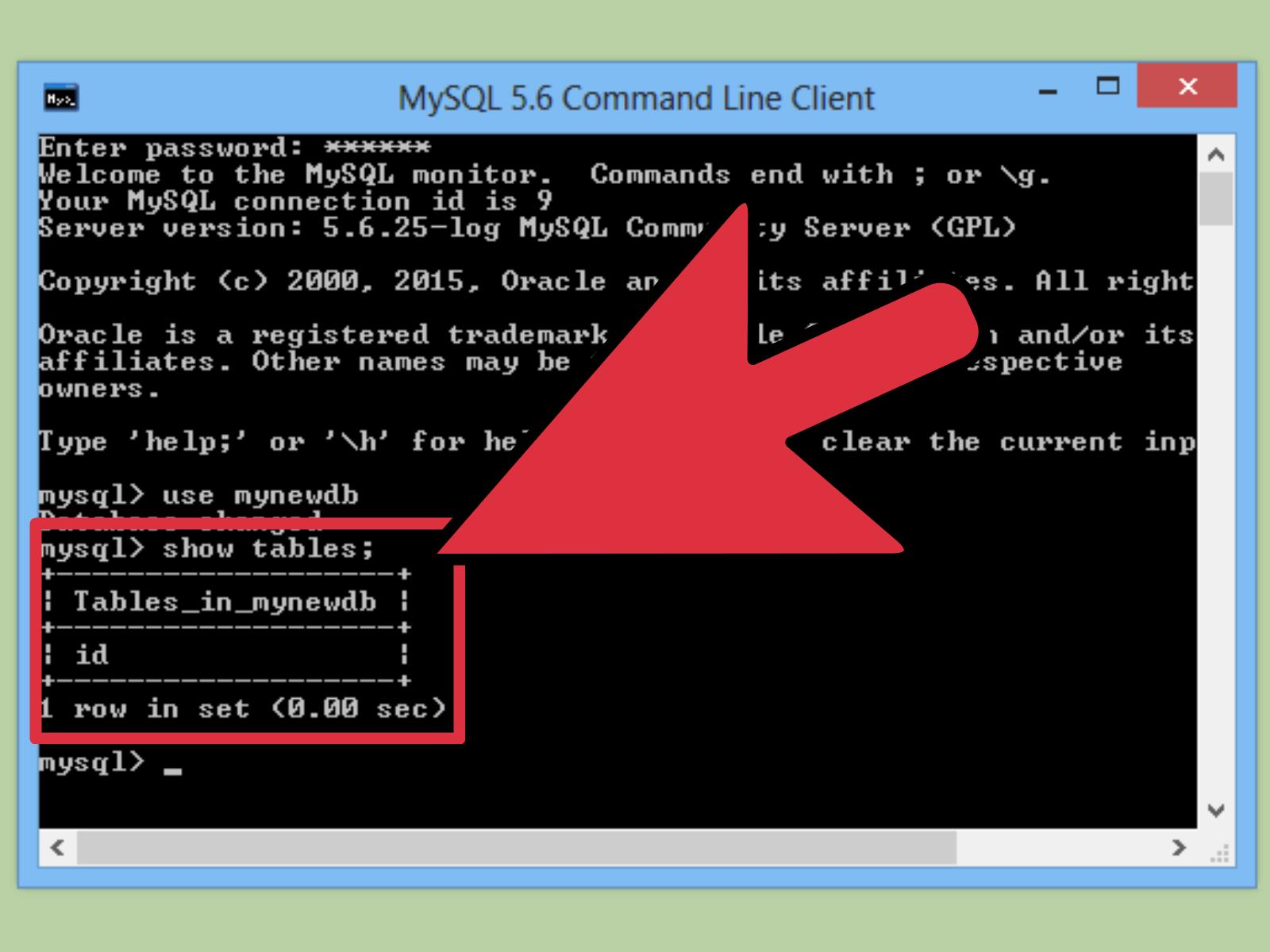
List Tables in a Database
Run a Basic Report
Import a SQL File
Export Query Results
Best Practices for Sending SQL Queries from the Command Line
Start small. When writing a new query, test it with LIMIT before running it against a large table. For updates and deletes, write the WHERE clause carefully and preview matching rows with SELECT. If you are changing production data, work slowly and document what you are doing.
Use clear filenames for SQL scripts. A file named fix.sql is not very helpful six months later. A file named 2026-05-31-update-expired-coupons.sql tells future-you what happened, when it happened, and why future-you should be grateful.
Be careful with shell history. Terminals often remember commands, which is convenient until secrets appear in them. Do not type passwords directly into commands. Avoid placing sensitive values in scripts unless they are protected by proper file permissions, environment management, or a secure secrets workflow.
Finally, separate learning from production. Practice on a local database, sample data, or staging environment before touching live business data. The command line is efficient, but efficiency without caution is just a faster way to make a bigger mess.
Experience Notes: What Working with MySQL from the Command Line Teaches You
After using MySQL from the command line for real projects, one lesson becomes obvious: the terminal rewards preparation. The people who look “fast” are usually not typing magic spells from memory. They have built habits. They know how to check the current database, confirm the user, preview rows, save output, and keep a backup nearby before making changes. The command line feels intimidating at first, but after a few practical sessions, it becomes less like a black screen of doom and more like a very honest assistant.
One useful habit is to begin every session by asking MySQL where you are. Running SELECT DATABASE();, SELECT USER();, or SHOW TABLES; may seem basic, but these small checks prevent embarrassing mistakes. When you manage several environments, such as local, staging, and production, it is surprisingly easy to connect to the wrong place. The database will not wave a tiny flag that says, “Careful, this is the important one.” You need to verify it yourself.
Another experience-based tip is to keep reusable command snippets. For example, if you often check recent orders, failed jobs, user counts, or migration status, save those queries in named .sql files. Then you can run them with input redirection instead of rewriting them every time. This reduces typos and makes your workflow repeatable. It also helps teammates understand what you are checking. A clear SQL file is much easier to review than a mysterious terminal command from last Tuesday.
Formatting matters more than beginners expect. When results are only for your eyes, table output is comfortable. When results are going into another script, tab-separated output with --batch and --skip-column-names is usually cleaner. This tiny change can save a lot of time when building reports or automation. Good output is not glamorous, but neither is debugging a broken script because one extra header row sneaked into the data like a raccoon in a garage.
The command line also teaches respect for permissions. Using an admin account for every task may feel convenient, but it increases risk. A read-only reporting user is better for reports. A migration user with limited scope is better for deployments. Good permissions turn mistakes from disasters into minor annoyances. That is a bargain worth taking.
Most importantly, MySQL command-line work teaches you to slow down before running commands that change data. Read the query. Read it again. Check the WHERE clause. Run a SELECT version first. If the query affects many rows, make sure that number matches your expectation. The command line is not dangerous by itself; careless commands are dangerous. Used thoughtfully, it becomes one of the most reliable tools in your database toolbox.
Conclusion
Learning how to send SQL queries to MySQL from the command line gives you a practical advantage. You can connect quickly, run one-off queries with -e, execute SQL files, save results, automate reports, and troubleshoot database issues without depending on a graphical tool. The seven steps are simple: install or confirm the client, gather connection details, connect interactively, run single queries, execute files, format output, and work safely.
The real power is not just speed. It is confidence. Once you understand the MySQL command-line workflow, database tasks become more repeatable and less mysterious. You can move from “I hope this works” to “I know what this command does, where it runs, and how to verify the result.” That is a pretty good upgrade for a tool that fits in one terminal window.
Note: Always test SQL commands in a safe environment before running them on production databases, especially when using UPDATE, DELETE, imports, or migration scripts.