When a PlayStation 4 starts sounding like it is preparing for airport takeoff, the fan usually gets blamed first. Fair enough. The fan is loud, dramatic, and impossible to ignore. But behind the noise, another tiny troublemaker may be doing its best villain impression: old thermal paste.
Thermal paste is the thin compound between the PS4’s APU chip and the heatsink. Its job is simple but important: help move heat away from the processor so the console can stay cool while you are busy surviving boss fights, racing through open worlds, or pretending you will only play “one more match.” Over time, the original paste can dry out, spread unevenly, or lose effectiveness. When that happens, heat transfer gets worse, the fan spins harder, and the console may run hotter than it should.
This guide explains 8 simple ways to apply thermal paste to a PS4, including how to prepare the console, clean the chip, choose a safe application method, and avoid common mistakes. Whether you have an original PS4, PS4 Slim, or PS4 Pro, the principles are similar: clean surfaces, use the right amount of paste, apply even pressure, and do not turn the inside of your console into a frosting experiment.
Important note: Opening a PS4 can void warranty coverage, and working inside electronics always carries risk. Unplug the console completely, let it cool, avoid touching the power supply internals, and stop if you are not comfortable with disassembly. A repair shop is cheaper than replacing a console you accidentally turned into modern art.
Why Thermal Paste Matters on a PS4
The PS4’s processor creates heat during gameplay. The heatsink pulls that heat away, while the fan pushes hot air out of the system. Thermal paste fills microscopic gaps between the chip and heatsink surface. Without it, those tiny gaps trap air, and air is terrible at moving heat compared with metal-to-metal contact supported by thermal compound.
Fresh thermal paste will not magically turn a PS4 into a PS5. It will not increase graphics power, unlock secret frame rates, or make your backlog smaller. What it can do is improve heat transfer when the old paste is dried, cracked, poorly spread, or contaminated with dust. In many cases, replacing thermal paste works best when paired with a full dust cleaning of the fan, heatsink, and vents.
Tools and Supplies You Need Before Starting
Before you remove a single screw, prepare your workspace. A clean table, bright lighting, and a small container for screws will save you from the classic “mystery screw” ending. You will usually need a TR8 Torx security screwdriver, small Phillips screwdriver, plastic pry tool, cotton swabs, lint-free wipes or coffee filters, 90% or higher isopropyl alcohol, compressed air or an electric duster, and a good non-conductive thermal paste.
For most users, a reputable non-conductive paste such as ARCTIC MX series, Noctua NT-H1 or NT-H2, Corsair TM/XTM series, Cooler Master MasterGel, or Thermal Grizzly Kryonaut is easier and safer than liquid metal. Avoid liquid metal unless you are highly experienced, because it can be electrically conductive and may damage components if applied incorrectly.
1. Power Down, Unplug, and Let the PS4 Cool First
The first way to apply thermal paste correctly is to not rush into it while the console is still warm. Shut the PS4 down fully, not Rest Mode. Disconnect the power cable, HDMI cable, USB devices, external drives, and any accessories. Let the console sit for at least 20 to 30 minutes so internal parts cool down.
This matters for two reasons. First, cooler parts are safer to handle. Second, hardened old paste can sometimes release more predictably when the heatsink and chip are not hot. You do not want to twist, pry, or force anything while the motherboard is still holding heat.
Quick safety checklist
Work slowly. Keep drinks away from the table. Ground yourself by touching a metal part of your workspace or using an anti-static wrist strap. Take photos during disassembly so you can remember where cables, shields, and screws belong. Your future self will thank you, probably with fewer dramatic sighs.
2. Disassemble Carefully and Clean Dust Before the Paste
Thermal paste replacement is not only about the paste. If the heatsink fins are packed with dust, fresh paste can only do so much. It is like putting premium tires on a car and then driving through mud with the parking brake on.
Depending on the PS4 model, the exact disassembly steps vary. The original PS4, PS4 Slim, and PS4 Pro use different layouts, screw placements, and covers. Follow a model-specific teardown guide, keep screws organized by step, and avoid pulling ribbon cables by force. Once the fan and heatsink path are accessible, remove dust gently with compressed air, a soft brush, or an electric duster.
Do not spin the fan wildly with compressed air. Hold the fan in place while cleaning it. Overspinning a fan can stress the bearing or send dust deeper into the assembly. A little patience here can reduce fan noise and improve airflow after reassembly.
3. Remove the Old Thermal Paste Completely
Old paste must come off both contact surfaces: the PS4’s APU chip and the heatsink plate. Do not apply new thermal paste on top of old paste. Layering paste is not “extra cooling.” It is more like stacking wet napkins and hoping they become a bridge.
Use a lint-free cloth, coffee filter, or thermal paste cleaning wipe. Add a small amount of isopropyl alcohol to loosen dried paste, then wipe gently until the chip surface is clean and shiny. Cotton swabs can help around edges, but avoid leaving fibers behind. The heatsink contact plate should also be cleaned until no gray residue remains.
Let the surfaces dry completely before applying new paste. Alcohol evaporates quickly, but waiting a few minutes is smart. The goal is a dry, clean, smooth contact area with no old compound, dust, fingerprints, or mystery crumbs from your snack break.
4. Use the Pea-Sized Dot Method for Simplicity
The pea-sized dot method is one of the simplest ways to apply thermal paste to a PS4. Place a small dot of paste in the center of the APU. When the heatsink is reinstalled, mounting pressure spreads the paste outward across the chip.
For many PS4 repairs, this method is beginner-friendly because it reduces the temptation to smear paste everywhere. You do not need a mountain of compound. A small pea or large grain-of-rice amount is usually enough. If paste squeezes far beyond the chip edges, you probably used too much.
The benefit of the dot method is consistency. It keeps paste centered where the chip generates heat and lets the heatsink pressure do the spreading. The downside is that if you use too little, the corners may not receive enough coverage. That is why the amount matters.
5. Try the Thin Spread Method for Full Coverage
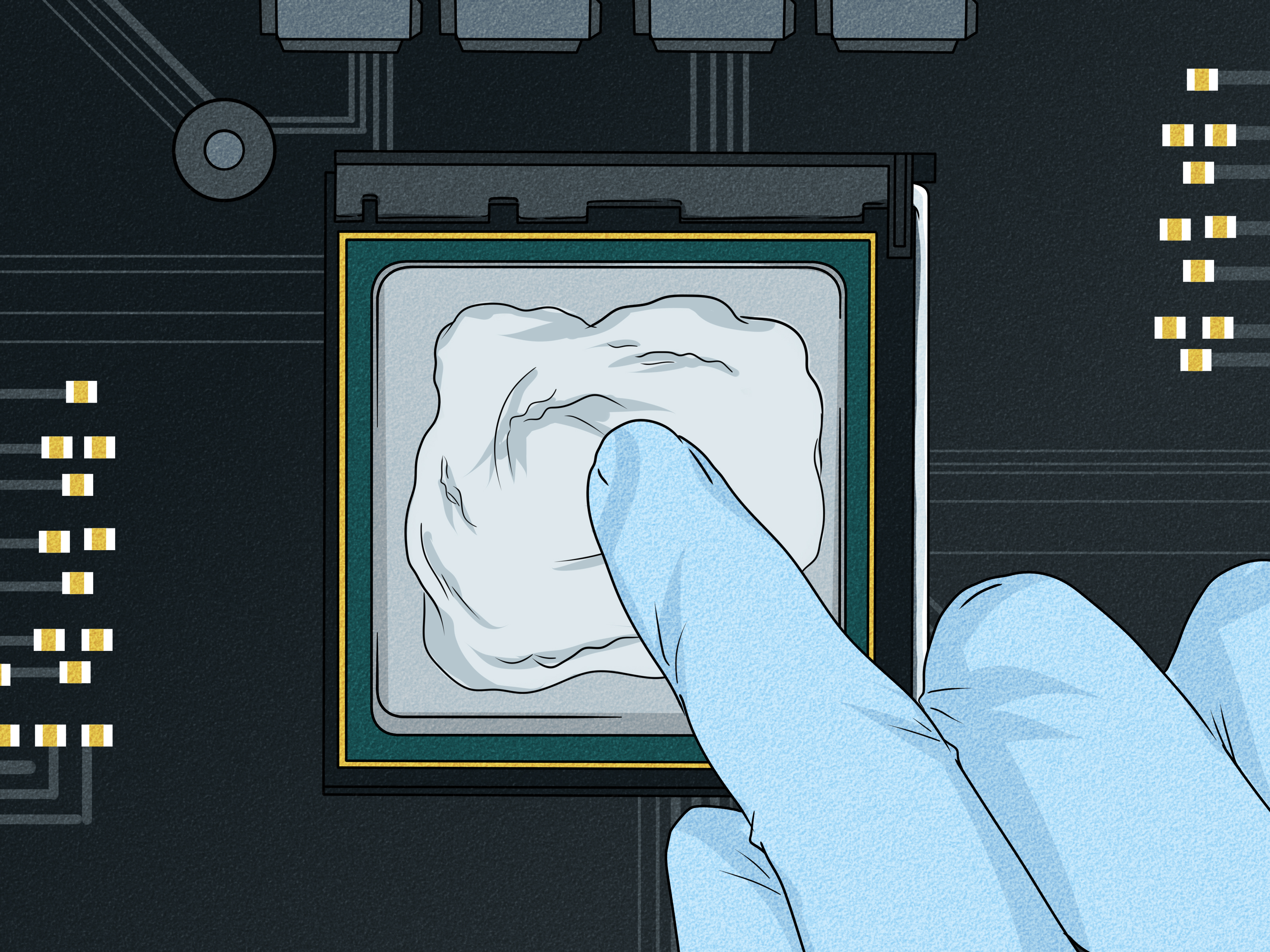
The thin spread method gives you more direct control. Instead of placing a dot and letting pressure do the work, you spread a thin, even layer of thermal paste across the chip before reinstalling the heatsink.
You can use a plastic spreader, the edge of a clean card, or an applicator included with some thermal paste kits. The layer should be thin enough that the chip surface is covered but not buried. Think “smooth coat of paint,” not “cupcake frosting.” If the paste has ridges, clumps, or thick waves, keep smoothing it lightly.
This method is useful for users who want to confirm coverage before reassembly. It can be especially reassuring because the PS4 APU is a bare-looking chip surface compared with many desktop CPUs that have larger heat spreaders. However, spreading paste also creates more chances for contamination, so keep the tool clean and avoid touching the paste with your fingers.
6. Use the Line Method When You Want Controlled Direction
The line method is another simple option. Instead of a dot, apply a short, thin line of thermal paste across the center of the chip. When the heatsink presses down, the paste spreads outward from the line.
This can work well if you are careful with the amount. The line should not run edge to edge. Leave space near the sides so the paste can spread without spilling excessively. A short centered line is enough. If it looks like you are signing your name on the processor, you have gone too far.
The line method may provide more coverage in one direction than the dot method, but it still relies on even heatsink pressure. When reinstalling the metal clamp or heatsink assembly, tighten screws gradually in a cross pattern whenever possible. Uneven pressure can cause uneven paste spread and weaker heat transfer.
7. Avoid the “Too Much Paste” Trap
One of the most common mistakes in PS4 thermal paste replacement is using too much. More paste does not mean more cooling. Thermal paste is designed to fill microscopic gaps, not act as a thick blanket. A thick layer can reduce performance because heat must travel through more compound before reaching the heatsink.
Most quality thermal pastes are non-conductive, so a small amount of overflow may not instantly destroy the console. Still, messy overflow is not ideal. It can attract dust, make future cleaning harder, and create anxiety when you look at the motherboard and wonder whether you just invented a new problem.
Signs you used too much paste
If paste squeezes out heavily around the chip after the heatsink is mounted, remove the heatsink, clean both surfaces again, and reapply a smaller amount. If the paste layer looks thick enough to sculpt with, restart. A correct application is thin, controlled, and boring. In electronics repair, boring is beautiful.
8. Reassemble With Even Pressure and Test the Console
Thermal paste application is only successful if the heatsink sits evenly against the chip. When reinstalling the heatsink, metal shield, and clamp, tighten screws gradually rather than cranking one screw down completely before touching the others. Even pressure helps the paste spread properly and improves contact between the chip and heatsink.
Reconnect internal cables carefully. Make sure the fan connector is seated. Reinstall the hard drive or storage cover if removed. Before celebrating, check that no screws are left behind. One extra screw on the table is not a souvenir; it is a clue.
After reassembly, place the PS4 in an open, well-ventilated area. Avoid closed cabinets, carpet, stacks of books, or any setup where hot air gets trapped behind the console. Start the system and listen. The fan may still become audible during demanding games, but it should not immediately scream at the home screen. Test with a familiar game for 20 to 30 minutes and monitor fan behavior, shutdowns, and heat output.
Common Mistakes to Avoid When Applying PS4 Thermal Paste
Using liquid metal without experience
Liquid metal can offer strong thermal performance in certain advanced applications, but it is risky inside a console if you are inexperienced. It can be conductive, messy, and unforgiving. For most PS4 owners, a high-quality non-conductive thermal paste is the smarter choice.
Forgetting to clean the heatsink contact plate
Cleaning only the chip is half the job. The heatsink plate touches the paste directly, so it must be just as clean. Old compound left on the heatsink can mix with fresh paste and reduce effectiveness.
Touching the clean chip with bare fingers
Finger oils can contaminate the surface. If you accidentally touch the chip after cleaning it, wipe it again with isopropyl alcohol and a lint-free cloth.
Ignoring airflow after the repair
Fresh paste cannot fix a console suffocating inside a closed cabinet. Give the PS4 room to breathe. Keep vents clear and dust the area regularly.
Which Thermal Paste Method Is Best for a PS4?
For beginners, the pea-sized dot method is the easiest and safest. It is simple, fast, and usually effective when the correct amount is used. For users who want visible coverage before reassembly, the thin spread method is also a strong choice. The line method can work well, but it requires careful control so the paste does not spread unevenly or overflow.
The best method is less about artistic paste patterns and more about fundamentals: clean surfaces, proper amount, even pressure, and good airflow. The PS4 does not care whether your paste shape looks like a dot, line, or tiny modern painting. It cares whether heat can move efficiently from the chip to the heatsink.
How Often Should You Replace PS4 Thermal Paste?
There is no universal schedule, but many PS4 owners consider replacing thermal paste after several years of heavy use, especially if the console becomes louder, runs hotter, or shuts down from overheating after basic dust cleaning. If your PS4 is quiet, stable, and clean, there is no urgent need to open it just because a guide on the internet made thermal paste sound exciting.
Replace thermal paste when symptoms suggest it may help: loud fan noise under normal load, overheating warnings, sudden shutdowns during games, or visible dried paste during disassembly. Always clean dust first, because dust buildup is often the easiest and most common cooling problem.
Extra Experience: Real-World Lessons From Applying Thermal Paste to a PS4
After working through many PS4 thermal paste stories, tutorials, and user experiences, one lesson stands out: the paste is important, but the process matters more than the brand name on the syringe. People often buy premium thermal compound and expect instant silence. Sometimes that happens. Other times, the fan still gets loud because the heatsink is clogged, the console is trapped in a cabinet, or the paste was applied like peanut butter on toast.
The best experience usually starts with preparation. Users who lay out screws in order, take photos, and clean dust thoroughly tend to have smoother repairs. Users who rush often create new problems, such as torn ribbon cables, missing screws, loose fan connectors, or uneven heatsink pressure. A PS4 is not impossible to service, but it rewards patience. Treat it like a puzzle, not a wrestling match.
Another practical lesson is that “less is more” is almost true, but not completely. Too much thermal paste is messy and inefficient, but too little can leave gaps. The sweet spot is enough to cover the chip after pressure is applied, without creating heavy overflow. For many beginners, a centered pea-sized dot is less stressful than manually spreading paste. For careful hands, a thin spread gives confidence because you can see the coverage before the heatsink goes back on.
One experience many PS4 owners share is surprise at how dry the old paste looks. After years of heat cycles, the original compound may appear chalky, cracked, or stubborn. Cleaning it can take longer than expected. This is where high-percentage isopropyl alcohol and lint-free material help. Do not scrape the chip with metal tools. A few extra minutes of gentle cleaning is safer than one aggressive second with the wrong tool.
Fan noise expectations also deserve a reality check. A successful thermal paste replacement may reduce fan speed, especially during demanding games, but it will not make every PS4 silent. Some games push the hardware harder. Some PS4 Pro units are naturally louder than others. Room temperature, console placement, dust level, and fan condition all affect noise. If the console is cooler and stable after the repair, that is a win even if it still reminds you it has a fan.
Testing after reassembly is another underrated step. Start with the home screen, then a lighter game, then a more demanding title. Listen for abnormal grinding, clicking, or sudden shutdowns. If the PS4 powers on but the fan does not spin, shut it down and check the fan connector. If it overheats quickly, the heatsink may not be seated correctly, or the paste coverage may be poor. Do not keep forcing the console to run hot just to “see what happens.” What happens is usually expensive.
Finally, the best long-term habit is keeping the PS4’s environment clean. Place it on a hard surface, give it open space, and dust the vents regularly. Thermal paste replacement is a useful repair, but airflow maintenance keeps the repair effective. Think of it as console hygiene. Your PS4 does not need bubble baths or motivational speeches, but it does appreciate not inhaling dust bunnies for three years straight.
Conclusion
Applying thermal paste to a PS4 is a manageable repair when you move carefully, use the right tools, and respect the tiny details. The eight best ways to do it are simple: power down fully, clean dust, remove old paste, choose a controlled application method, avoid excess paste, reinstall with even pressure, test carefully, and maintain airflow afterward.
For most PS4 owners, the pea-sized dot method or thin spread method will be the best choice. The goal is not to create a perfect-looking paste pattern for social media. The goal is smooth heat transfer, stable performance, and a fan that no longer sounds personally offended by your game library.
If your console is still overheating after cleaning and thermal paste replacement, the issue may involve the fan, heatsink, power supply, damaged sensors, or other internal hardware. In that case, professional repair is the safer route. But when old paste and dust are the main problems, a careful thermal paste replacement can give your PS4 a cooler, quieter second life.