
Some internet tricks are useful. Some are legendary. And some exist purely to make your screen spin like it just drank three espressos and challenged gravity to a duel. Google’s “do a barrel roll” trick belongs proudly in that last category.
If you have ever typed “do a barrel roll” into Google and watched the search results rotate in a full 360-degree flip, congratulations: you have discovered one of the web’s most famous Easter eggs. It is quick, harmless, a little silly, and surprisingly satisfying. Better yet, it works beautifully on many Chromebooks because ChromeOS is built around the Chrome browser experience.
This fun guide explains how to do a barrel roll on Google, how to try it on a Chromebook, what to do if it does not work, and why this tiny trick became such a beloved internet moment. Buckle up. Your search results are about to get a pilot’s license.
What Does “Do a Barrel Roll” Mean on Google?
On Google, “do a barrel roll” is a hidden search animation. When you search that exact phrase, the Google results page spins around once, creating the illusion that the whole page has performed a dramatic aerial maneuver. It does not rotate your actual laptop hardware, damage your display, change your settings, or send your Chromebook into orbit. It is just a browser animation.
The phrase became famous through the classic Nintendo game Star Fox 64, where players were encouraged to perform a defensive roll maneuver. In the game, the move was triggered by quickly pressing certain shoulder buttons twice. Google later turned the phrase into a playful search effect, and the internet did what the internet does best: it laughed, shared it, repeated it, and made sure everyone’s uncle eventually tried it at Thanksgiving.
How to Do a Barrel Roll on Google
The easiest way to make Google do a barrel roll is wonderfully simple. You do not need an extension, secret developer tool, or a suspicious download button blinking in neon green. Just use Google Search.
Step 1: Open Google
Open your browser and go to Google. This works best in a modern browser such as Chrome, especially if you are using a Chromebook. Make sure your browser is updated if you want the smoothest animation.
Step 2: Type the Magic Phrase
In the search box, type:
do a barrel roll
Then press Enter or tap the search button. The search results page should rotate one full time. It usually happens quickly, so do not blink unless you enjoy missing tiny internet miracles.
Step 3: Try the Alternate Phrase
There is another classic trigger:
z or r twice
This phrase is a nod to the old game controls associated with the move. Search it on Google, and you may see the same spinning effect. It is one of those small details that makes the Easter egg feel like an inside joke between Google engineers, gamers, and anyone who enjoys watching a web page briefly forget which way is up.
How to Do a Barrel Roll on a Chromebook
Doing a Google barrel roll on a Chromebook is almost identical to doing it on any other laptop. Since Chromebooks are designed around ChromeOS and the Chrome browser, the trick is usually easy to test.
Method 1: Use Google Search in Chrome
- Open Chrome on your Chromebook.
- Go to Google.com.
- Type do a barrel roll.
- Press Enter.
- Watch the page spin once like it just got accepted into flight school.
This is the real Google Easter egg. It affects only the search page animation. Your Chromebook screen orientation stays the same.
Method 2: Use the Chromebook Launcher or Address Bar
You can also type the phrase directly into the Chrome address bar. On most Chromebooks, the address bar doubles as a search box. Type do a barrel roll, press Enter, and Chrome should send the query to Google. If Google recognizes the phrase, the page will spin.
Method 3: Use Voice Search for Extra Drama
If voice search is available, you can say “do a barrel roll” and run the search that way. This is not necessarily faster, but it does make you feel like a spaceship commander giving orders to a very obedient laptop. For best results, speak clearly and make sure Google hears the exact phrase.
Is the Google Barrel Roll the Same as Rotating a Chromebook Screen?
No. This is where many people get confused.
The Google barrel roll is a browser Easter egg. It spins the Google search results page as a fun animation. The Chromebook screen rotation shortcut, on the other hand, changes your actual display orientation by 90 degrees. That second one is useful if your screen is sideways, upside down, or has been attacked by a cat walking across your keyboard.
How to Rotate a Chromebook Screen
To rotate your Chromebook screen, press:
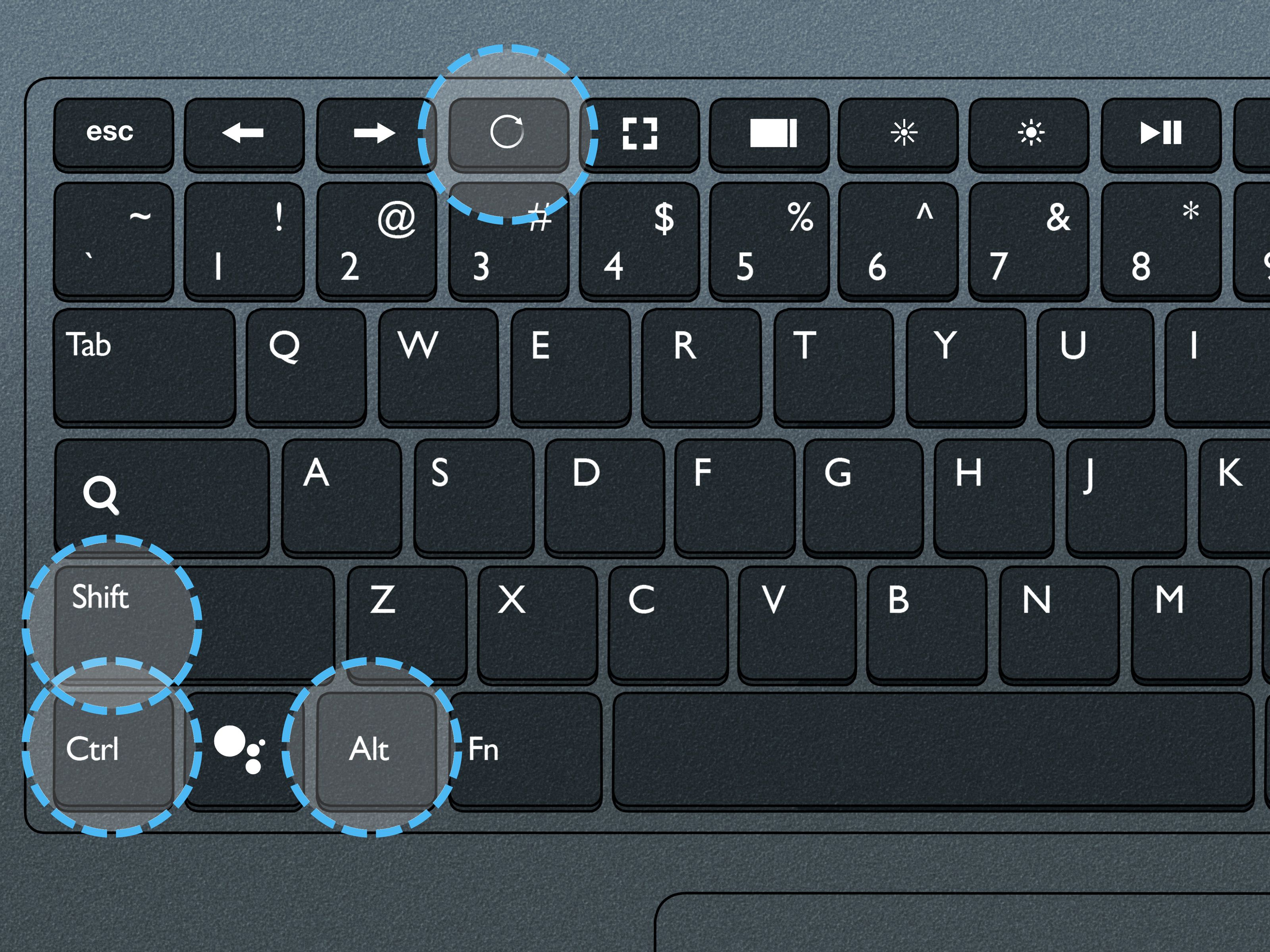
Ctrl + Shift + Refresh/Rotate
The Refresh or Rotate key is usually on the top row and looks like a circular arrow. Each press rotates the display 90 degrees. If your screen accidentally turns sideways, keep pressing the same shortcut until it returns to normal.
Important note: this is not the same as Google’s barrel roll trick. The Chromebook shortcut changes the system display orientation, while the Google trick simply animates the web page.
Why the Barrel Roll Trick Became So Popular
The “do a barrel roll” trick became famous because it combines three things the internet loves: nostalgia, surprise, and a tiny bit of harmless chaos.
First, it connects to gaming culture. People who played Star Fox 64 instantly recognized the phrase. Second, it surprises users because search engines are usually serious tools. You ask a question, Google gives answers, and everyone behaves like a responsible adult. Then suddenly the entire page spins, and the responsible adult leaves the room.
Third, the trick is easy to share. You do not need to explain a complicated process. You can simply tell a friend, “Search ‘do a barrel roll’ on Google.” Ten seconds later, they are either laughing or accusing you of breaking their browser.
What If “Do a Barrel Roll” Does Not Work?
Most of the time, the trick is simple. But if your Google barrel roll does not work, try these fixes before declaring war on your Chromebook.
Check the Exact Search Phrase
Use the phrase do a barrel roll without extra words. Searching “how do I do a barrel roll on Google” may show normal results instead of triggering the animation. Google Easter eggs often depend on specific phrases.
Update Your Browser
The animation depends on modern browser features. If your browser is outdated, the effect may not run correctly. On a Chromebook, Chrome normally updates automatically, but restarting your device can help finish pending updates.
Try Google.com Directly
If you are searching through another site, app, school portal, or custom search box, go directly to Google.com and try again. Some search tools strip out animations or show a simplified results page.
Disable Conflicting Extensions
Ad blockers, script blockers, accessibility extensions, or school-managed restrictions may interfere with animations. You do not need to remove anything permanently. Testing in Guest mode or an Incognito window can help you see whether an extension is the issue.
Try Another Device
If your Chromebook is managed by a school or workplace, certain features may be restricted. Try the same search on a personal phone, tablet, or computer to see whether the Easter egg works elsewhere.
Other Fun Google Tricks to Try
Once you have made Google do a barrel roll, you may want to continue your tour of tiny search-engine mischief. Here are a few related Google tricks that are often popular with curious users.
Askew
Search askew, and the results page may tilt slightly. It is subtle, but once you notice it, your brain will insist the furniture is crooked too.
Google Gravity Variations
Some third-party mirror sites recreate older or fan-made Google tricks, including gravity-style pages where search elements fall around the screen. These are not always official Google features, so use trustworthy sites and avoid downloading anything.
Chrome Dino Game
When Chrome loses internet connection, the little dinosaur game appears. Press the spacebar and the dinosaur starts running. It is simple, addictive, and dangerously good at turning “I’ll just play once” into “Where did twenty minutes go?”
Is “Do a Barrel Roll” Safe?
Yes, the Google barrel roll trick is safe when you run it through Google Search. It does not install software, change system settings, or harm your Chromebook. It is a temporary visual animation on the results page.
However, be careful with websites that promise extreme versions such as “barrel roll 1,000 times” or “make your whole laptop spin forever.” Some fan sites are harmless, but others may be cluttered with ads or misleading buttons. If a site asks you to install something just to see a page rotate, close the tab and walk away like a wise internet ninja.
Best Uses for the Google Barrel Roll Trick
The barrel roll trick is not exactly productivity software. It will not write your essay, organize your tabs, or explain why your printer has chosen violence today. But it is great for small moments of fun.
Use It as a Classroom Icebreaker
Teachers can use it as a quick technology icebreaker when introducing search engines, browser features, or internet culture. It is short, memorable, and unlikely to derail the whole lesson unless students discover every other Easter egg immediately afterward.
Use It to Surprise Friends
Tell someone to search the phrase without explaining what will happen. The effect is quick and silly, which makes it perfect for a harmless surprise.
Use It to Teach Browser Animation
The trick is also a fun example of how web pages can move, transform, and respond to user input. For beginners learning HTML, CSS, or JavaScript, it can spark curiosity about how animations work behind the scenes.
Chromebook Tips for a Smoother Barrel Roll Experience
If you are using a Chromebook, a few simple habits can make the trick and other browser animations run better.
Keep ChromeOS updated. Updates often improve performance, security, and browser behavior. Restart your Chromebook occasionally, especially if it has been sleeping for days like a digital housecat.
Close unnecessary tabs before testing. If you have 47 tabs open, including three video streams and a document titled “final_final_REAL_final.docx,” your Chromebook may be too busy to care about your barrel roll ambitions.
Use the built-in touchpad gestures to navigate smoothly. Chromebook touchpads support common gestures such as two-finger scrolling and two-finger right-clicking, which can make browsing easier after you finish playing with search tricks.
Common Questions About Doing a Barrel Roll on Google
Can I make Google do a barrel roll more than once?
The official Google search effect usually performs one rotation per search. To see it again, refresh the page or search the phrase again. Some third-party sites offer multiple spin versions, but they are separate from the official Google Search experience.
Does it work on school Chromebooks?
It may work, but school-managed Chromebooks can have restrictions. If animations, certain searches, or outside sites are blocked, the trick may not appear. That does not mean the Chromebook is broken; it may simply be managed by an administrator.
Does the barrel roll affect all tabs?
No. The Google search animation affects the current results page. Your other tabs should remain calm, upright, and emotionally stable.
Can the trick make me dizzy?
For most people, the animation is brief. If motion effects bother you, avoid repeating it. The internet has many jokes, but none are worth feeling uncomfortable.
Experience Notes: What It Feels Like to Try the Barrel Roll Trick
The best part of the Google barrel roll trick is not the animation itself. It is the reaction. The first time someone tries it, there is usually a tiny pause before the brain catches up. The search page loads, the screen spins, and for half a second the room becomes a low-budget flight simulator. Then comes the laugh, the “Wait, what?” or the classic “Do it again!”
On a Chromebook, the experience feels especially smooth because everything starts in the browser. You open Chrome, type the phrase, and the trick happens right where you already spend most of your time: the search page. There is no setup, no app store visit, no permission request, and no long tutorial narrated by someone with a microphone too close to their mouth. It is instant fun, which is exactly why it has lasted so long.
One common experience is using the trick as a quick mood reset. Imagine working on homework, research, or a long document. Your tabs are multiplying. Your brain is loading at 12 percent. You type “do a barrel roll,” watch the page flip, and suddenly the computer feels less like a machine and more like a mischievous coworker. It does not solve your assignment, but it does provide a tiny spark of amusement before you return to reality.
Another fun experience is showing it to someone who has never seen it. This works best when you say almost nothing. Hand them the Chromebook and say, “Search this.” They type the phrase, press Enter, and the page spins. The surprise is clean, harmless, and universal. It does not matter whether they are a gamer, a teacher, a parent, or someone who still calls every browser “the Google.” The reaction is usually the same: confusion first, delight second.
There is also a useful lesson hidden inside the joke. The trick reminds users that technology does not always have to be painfully serious. Search engines can answer complex questions, map cities, calculate equations, translate languages, and still make room for a ridiculous spinning page. That mix of usefulness and playfulness is part of why people remember the barrel roll years after discovering it.
For Chromebook users, the trick can also lead to a funny misunderstanding. Someone sees the phrase “barrel roll” and thinks it might rotate the entire screen. Then they discover the separate Chromebook shortcut, Ctrl + Shift + Refresh/Rotate, and suddenly the display is sideways. At that point, the fun guide becomes survival training. Thankfully, pressing the same shortcut again rotates the screen back, and everyone can pretend it was all part of the lesson.
In short, the barrel roll trick is not important because it is advanced. It is important because it is memorable. It takes a basic action, searching Google, and adds a moment of surprise. In a web full of pop-ups, passwords, updates, and cookie banners, a silly 360-degree spin feels oddly refreshing. It is proof that even a search page can have a sense of humor.
Conclusion
Learning how to do a barrel roll on Google and Chromebook is easy: open Google, search do a barrel roll, and enjoy the quick 360-degree spin. If you want the alternate gamer-style trigger, try z or r twice. If you are actually trying to rotate your Chromebook display, use Ctrl + Shift + Refresh/Rotate, but remember that this is a ChromeOS screen shortcut, not the Google Easter egg.
The Google barrel roll remains popular because it is simple, nostalgic, safe, and funny. It turns an ordinary search into a tiny surprise. No download. No complicated setup. Just one phrase, one spin, and one more reason to believe the internet still has a few harmless tricks hiding in its pockets.












