External links in Excel can be usefuluntil they are not. One day your workbook is politely pulling numbers from another file, and the next day it is flashing warnings, asking for missing sources, or refusing to behave because someone renamed Budget_Final_FINAL_v7.xlsx. We have all met that file. We do not speak of it at meetings.
Learning how to break links in Excel is one of those small spreadsheet skills that can save a surprising amount of time. Whether you are preparing a report for a client, cleaning up a shared workbook, archiving an old budget, or removing connections to files that no longer exist, breaking links helps make your workbook cleaner, safer, and easier to share.
In this guide, you will learn exactly how to break external links in Excel in five practical steps. You will also learn what happens after a link is broken, why some links refuse to disappear, where hidden links like to lurk, and how to troubleshoot stubborn workbook references without losing your mindor your afternoon.
What Does It Mean to Break Links in Excel?
In Excel, a link usually means your workbook is pulling information from another workbook, file, or external data source. These are often called external references or workbook links. For example, a formula like this points to another workbook:
That formula tells Excel, “Go look inside another file and bring me the result.” When everything is organized, external links are helpful. They let teams connect monthly reports, department budgets, dashboards, sales trackers, and financial models. But when the source file is moved, renamed, deleted, locked, or sent to the mysterious land known as “someone else’s desktop,” the link may break.
Breaking a link means disconnecting your workbook from the source file. Excel replaces formulas that depend on the external workbook with their current calculated values. In plain English: the number stays, but the live connection is gone. Your workbook becomes more independent, but it will no longer update when the source file changes.
When Should You Break Links in Excel?
You should break links in Excel when the external connection is no longer needed, creates errors, slows down the workbook, causes security warnings, or makes the file difficult to share. It is especially useful when you are sending a workbook to someone who should not need access to the original source files.
Common reasons to remove external links include:
- You are finalizing a report and want static values instead of live formulas.
- The source workbook has been moved, renamed, or deleted.
- Excel displays a warning that the workbook contains links to external sources.
- You want to protect sensitive source data before sharing the workbook.
- The file opens slowly because Excel is trying to update unavailable links.
- You inherited a workbook and have no idea where half the links came from. Welcome to spreadsheet archaeology.
Before you break links, remember one important rule: breaking links cannot be undone through a simple Undo command. Always save a backup copy first. Think of it like cutting the cord on a lamp. The lamp may still look lovely, but it is not turning on again unless you reconnect the wiring.
How to Break Links in Excel: 5 Steps
The fastest way to break workbook links is through Excel’s built-in link management tools. Depending on your version of Excel, the command may appear as Edit Links, Edit Links to Files, or Workbook Links. The wording can vary slightly between Excel for Microsoft 365, Excel desktop, Excel for Mac, and older versions, but the idea is the same.
Step 1: Save a Backup Copy of Your Workbook
Before touching any links, create a backup. This is not optional if the workbook matters. Click File, choose Save As, and save a copy with a clear name such as:
This protects you in case you later realize that one of those links was actually important. When Excel breaks a link, formulas connected to the source workbook are converted into static values. For example, if a linked formula currently returns 45, Excel keeps 45 and removes the formula connection. That is great for final reports, but not ideal if you still need future updates.
A backup also gives you room to experiment. If the workbook has multiple external links, named ranges, charts, or data validation lists, you may need to test which links are safe to remove. Backups are boring until they save your project. Then they become the office hero.
Step 2: Open the Workbook That Contains the Links
Open the Excel workbook where you want to remove external references. This is called the destination workbook because it receives data from another file. You do not always need to open the source workbook, although opening it can sometimes help if you want to check what the link is doing before removing it.
If Excel displays a warning such as “This workbook contains links to one or more external sources,” do not panic. That message simply means Excel found connections to other files. You can choose not to update the links while you inspect the workbook. If you are unsure whether the external data is still needed, review the workbook first rather than clicking buttons at random. Excel is powerful, but it is not a fan of panic-clicking.
Step 3: Go to Data > Edit Links or Workbook Links
Next, go to the Data tab on the Excel ribbon. Look for a section related to queries, connections, or workbook links. In many desktop versions, you will see Edit Links. In newer Microsoft 365 experiences, you may see Workbook Links instead.
If you cannot find the command on the Data tab, try this route:
- Click File.
- Select Info.
- Look for Edit Links to Files under related file options.
If the Edit Links command is unavailable or grayed out, Excel may not detect standard workbook links in formulas. However, that does not always mean your workbook is link-free. External references can hide in defined names, charts, objects, data validation rules, conditional formatting, or other workbook features. We will cover those sneaky little spreadsheet gremlins later.
Step 4: Select the Link You Want to Break
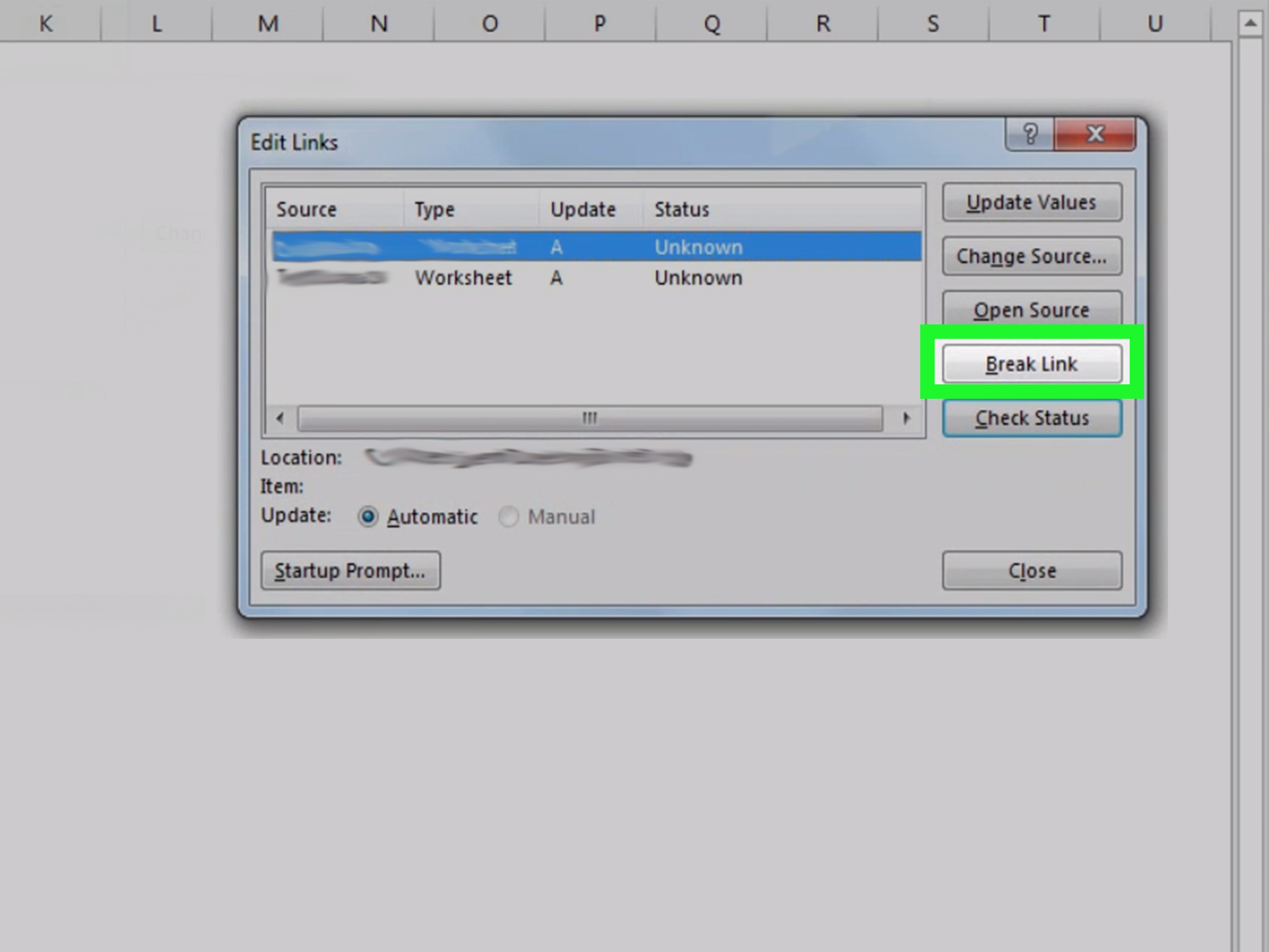
Once the Edit Links or Workbook Links dialog opens, Excel should display a list of source workbooks connected to your file. Select the source link you want to remove. If there are multiple links, you may be able to select more than one at a time using Ctrl on Windows or Command on Mac, depending on your version.
Before breaking the link, look at the source name and location. Ask yourself:
- Do I recognize this source file?
- Is this link still needed for calculations?
- Is the workbook being finalized for sharing?
- Will static values be acceptable after the link is removed?
For example, if your workbook links to 2024_Revenue_Source.xlsx and you are preparing a final annual report, breaking the link may be exactly what you want. But if the workbook is a live dashboard that needs weekly updates, breaking the link could freeze your numbers in time. That is fine for an archive, not so fine for Monday morning leadership slides.
Step 5: Click Break Link and Confirm
After selecting the source file, click Break Link or choose the break-link option from the Workbook Links menu. Excel will warn you that the action cannot be undone and that formulas using the linked source will be converted to their current values.
If you are certain, confirm the action. Excel will remove the connection and replace the linked formulas with static values. Save the workbook after breaking the links. Then close and reopen it to make sure the external link warning no longer appears.
That is the basic five-step process:
- Save a backup copy.
- Open the workbook with links.
- Go to Data > Edit Links or Workbook Links.
- Select the source workbook link.
- Click Break Link and confirm.
How to Find External Links Before Breaking Them
Sometimes Excel tells you there are links, but you want to know where they are before removing them. This is smart. Blindly breaking links in a complex workbook is like unplugging cables behind a TV and hoping the internet still works.
Search Formulas with Ctrl + F
A simple way to find external references is to search for .xl, because linked Excel files often include extensions like .xlsx, .xlsm, or .xls.
- Press Ctrl + F.
- Click Options.
- In Find what, type .xl.
- Set Within to Workbook.
- Set Look in to Formulas.
- Click Find All.
Excel will list formulas that contain external workbook references. You can click each result to jump to the cell. This is useful when you want to review or manually replace formulas before using Break Link.
Check Name Manager
External links often hide in named ranges. To check them, go to Formulas > Name Manager. Look through the Refers To column for references that include another workbook name, especially anything inside square brackets like [Budget.xlsx].
If you find a name that points to an old workbook, edit or delete the name if it is no longer needed. Be careful: named ranges can support formulas, charts, validation lists, and dashboards. Delete only what you understand or what your backup copy is ready to forgive.
Inspect Charts and Chart Data Series
Charts can also contain external references. Click a chart, then inspect the formula bar while selecting each chart series. If the chart is pulling data from another workbook, the formula may include a file name or path. Update the data source to a local range or remove the chart if it is no longer needed.
Review Data Validation Rules
Drop-down lists created with data validation can reference another workbook or sheet. Select the cells that may contain lists, then go to Data > Data Validation. Check the Source field. If the source points to an external workbook, replace it with a local range or type the list directly.
This is one of the most common reasons links seem impossible to break. The formulas look clean, the Edit Links window still complains, and somewhere a tiny drop-down list is holding the entire workbook hostage.
Look at Objects, Shapes, and Buttons
Excel objects such as shapes, text boxes, buttons, and form controls can contain links or assigned macros that point to external workbooks. Right-click suspicious objects and inspect hyperlinks, assigned macros, or formula bar references. This is especially important in older workbooks that have passed through many hands.
What Happens After You Break a Link?
After you break a link, Excel keeps the current result of the linked formula but removes the external formula. This means your workbook becomes more portable, but less dynamic.
For example, suppose a cell contains:
If that formula currently returns 128,500, breaking the link changes the cell to:
The number remains, but the formula is gone. If Q1_Sales.xlsx changes tomorrow, your workbook will not update. That is the main trade-off. Breaking links gives you stability and independence, but you lose automatic refresh behavior.
Why Excel Links Sometimes Refuse to Break
Every Excel user eventually meets a link that refuses to leave. You break links, save the file, reopen it, and the warning comes back like a spreadsheet ghost. This usually means the link is not stored in an obvious worksheet formula.
Here are the usual hiding places:
- Defined names: Check Formulas > Name Manager.
- Charts: Inspect chart series, titles, and labels.
- Data validation: Review drop-down list sources.
- Conditional formatting: Check rules that reference other workbooks.
- Objects and shapes: Inspect hyperlinks and assigned macros.
- Pivot tables: Check whether the pivot cache uses an external source.
- Power Query connections: Review queries under Data > Queries & Connections.
If the standard Break Link button does not solve the problem, use a checklist approach. Search formulas, inspect names, review charts, check validation, and examine connections. This is slower than one click, but it works far better than glaring at the workbook until it apologizes.
Best Practices Before Sharing an Excel Workbook
If you are preparing a workbook for clients, coworkers, auditors, managers, or a web upload, breaking unnecessary links is only part of good file hygiene. A clean workbook is easier to open, easier to understand, and less likely to trigger security warnings.
Keep a Linked Master File and a Static Sharing Copy
A practical workflow is to keep two versions of important files. The master version can include live links, formulas, queries, and supporting worksheets. The sharing version should be cleaned, simplified, and converted to static values where appropriate.
This protects your working model while giving others a stable file. It also prevents accidental exposure of source file paths, internal folder names, or confidential data sources.
Document What You Break
If the workbook is important, add a small notes sheet that records when links were broken and why. For example:
This kind of note can save confusion later. Future-you will appreciate present-you. Future-you is tired and has too many tabs open.
Test the Workbook After Breaking Links
After breaking links, review key totals, charts, pivot tables, and formulas. Save, close, and reopen the workbook. If Excel no longer asks about external sources and the important numbers still look correct, you are in good shape.
Specific Example: Breaking a Budget Link
Imagine you have a file named Department_Report.xlsx. It pulls expense totals from another workbook called Budget_Source.xlsx. The linked formula looks like this:
The formula currently returns $42,750. You are sending the report to a vendor who does not need access to your budget workbook. In this case, breaking the link is a good idea.
You save a backup, open Department_Report.xlsx, go to Data > Edit Links, select Budget_Source.xlsx, click Break Link, and confirm. The cell now contains 42750 instead of the external formula. The vendor sees the final number but cannot refresh or trace it back to the source workbook.
Common Mistakes to Avoid
Breaking Links Without a Backup
This is the classic mistake. Once Excel converts linked formulas to values, you may not be able to rebuild the formulas easily. Always save a copy first.
Assuming All Links Are Bad
Some workbook links are necessary. A financial model, dashboard, or monthly reporting pack may depend on live links. Break only the links you no longer need.
Ignoring Hidden Links
If Excel still warns about links after you use Break Link, do not assume Excel is broken. The link may be hidden in a named range, chart, data validation rule, object, or query.
Forgetting to Recheck the File
Always close and reopen the workbook after removing links. If the warning is gone and the workbook behaves normally, your cleanup worked.
Experience-Based Tips for Breaking Links in Excel
After working with messy Excel files, one lesson becomes obvious: external links are rarely created by villains. Most of the time, they begin as practical shortcuts. Someone links a monthly report to last month’s workbook. Someone builds a dashboard from a department file. Someone copies a chart from another spreadsheet, and Excel quietly keeps the original data connection tucked inside the chart series. The link was useful at the time. The problem is that workbooks tend to travel farther than their creators expected.
One real-world habit that helps is to treat link cleanup as part of file delivery, not as an emergency repair. Before sending a workbook outside your team, open it as though you are the recipient. Does it ask to update links? Does it point to folders only your computer can access? Does it display errors when source files are unavailable? If yes, clean it before sharing. This prevents awkward follow-up emails like, “Can you also send the other twelve files this report apparently needs?” Nobody wants that scavenger hunt.
Another useful practice is to make link removal intentional. Do not simply break every link because Excel shows a warning. First, identify what each link does. In a simple report, links may only feed final totals, so converting them to values is safe. In a forecasting model, links may drive assumptions, formulas, and scenarios. Breaking those links too early can freeze the model and make future updates harder. A good rule is this: if the workbook is still being developed, preserve important links; if the workbook is being published, archived, or shared as a final copy, static values often make more sense.
Hidden links deserve special attention. In many stubborn workbooks, the problem is not a visible formula. It is a named range created years ago, a chart copied from another report, or a data validation list pointing to a forgotten file. When the Break Link button does not solve the issue, move through the workbook systematically. Search formulas for .xl, inspect Name Manager, review charts, check data validation, and look at queries and connections. This checklist approach is much faster than randomly deleting sheets and hoping the warning disappears.
For larger teams, the best experience-based solution is standardization. Store source workbooks in shared locations, use clear file names, avoid linking to desktop paths, and document the purpose of each external reference. A workbook that links to C:\Users\Alex\Desktop\Final2.xlsx is asking for trouble. A workbook that links to a controlled shared reporting folder is much easier to maintain.
Finally, remember that breaking links is not just a technical action. It is a publishing decision. You are deciding whether the workbook should remain connected to live data or stand alone as a fixed record. When you make that decision carefully, Excel becomes less mysterious, your files become more reliable, and your future self gets to enjoy one fewer spreadsheet surprise before coffee.
Conclusion
Breaking links in Excel is simple when the links are visible and a little detective-like when they are hidden. Start with a backup, use the Data tab or Workbook Links tool, select the external source, and click Break Link. Then confirm that your formulas have been converted to values and reopen the workbook to check for warnings.
The most important thing to remember is that breaking links is permanent for the current file. It can make your workbook cleaner, safer, faster, and easier to share, but it also removes live updates from the source workbook. Use it when you want a stable final copy, not when you still need active connections.
If Excel still insists there are links after you break them, search beyond formulas. Check Name Manager, charts, data validation, objects, conditional formatting, pivot tables, and queries. External links are excellent at hide-and-seek. Fortunately, with the right checklist, you are better at finding them.