
Note: Body-only HTML, standard American English, source links intentionally omitted, and publishing artifacts removed.
If you have ever tried to copy multiple text messages on an iPhone, you already know the truth: Apple makes texting easy, but not always gloriously convenient when you want to grab several messages at once. Maybe you need to save delivery details, keep a sweet conversation, document a customer exchange, or send a long thread to your laptop before it disappears into the black hole known as “I’ll remember that later.” Spoiler: you probably will not remember it later.
The good news is that there are reliable ways to copy multiple text messages on iPhone. The less-good news is that there is no giant “Copy Entire Conversation” button sitting in the Messages app like a golden gift from the tech gods. Instead, you need to use a few workarounds. Some are built directly into iOS, some are easier on another device, and one is ideal when you just need a neat chunk of text without turning your thumb into a full-time employee.
In this guide, you will learn three practical methods to copy multiple text messages on iPhone, when each method works best, what its limitations are, and how to avoid the usual formatting mess. If you want the short version, here it is: use direct text selection for small portions, use the More > Forward trick for several messages, and move the job to a Mac or PC when you need to copy a larger conversation without losing your patience.
Why Copying Multiple Text Messages on iPhone Feels Weirdly Hard
The iPhone Messages app is designed first for reading, replying, reacting, and forwarding. It is not really designed like a word processor. That means there is a big difference between copying text inside a message and collecting several message bubbles into one clean block.
In everyday use, that creates three different situations:
- You only need part of one message, like an address, tracking number, or recipe ingredient.
- You need several messages from one thread, but not the entire conversation.
- You need a larger chunk of conversation and would rather handle it on a Mac or PC where copying is less fiddly.
That is why the best approach depends on what you are actually trying to save. Picking the wrong method can turn a 20-second task into a tiny personal crisis.
Method 1: Copy the Text Directly Inside a Message
This is the cleanest option when you only need one message bubble or part of a message. It is especially useful for copying a code, date, address, order number, flight info, or a quote someone texted you at 2:13 a.m. as though you were definitely awake for it.
How to do it
- Open the Messages app.
- Tap the conversation that contains the text you want.
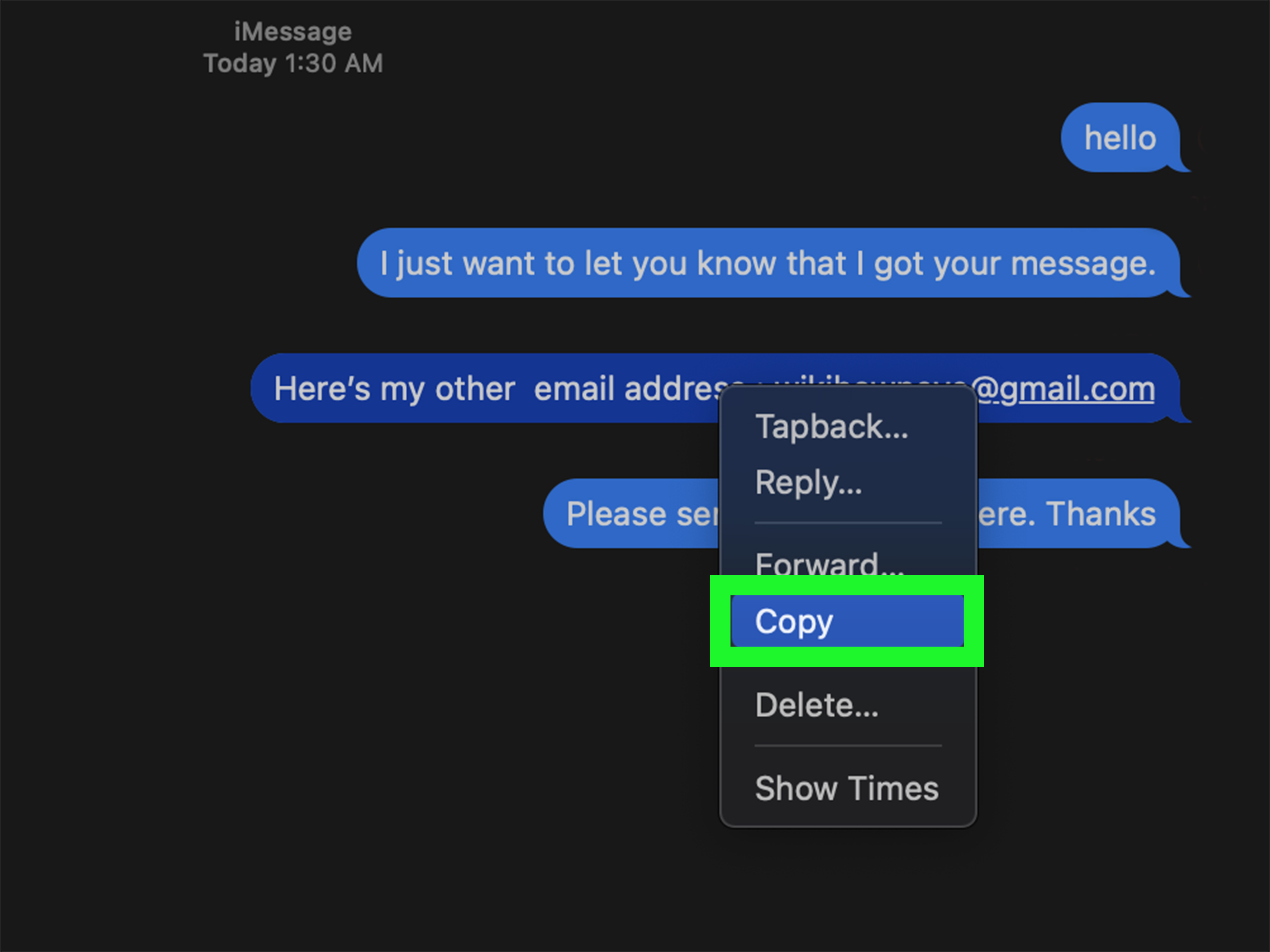
- Press and hold the message bubble.
- If your iPhone lets you select text inside the bubble, drag the selection handles to highlight only the part you want.
- Tap Copy.
- Paste it into Notes, Mail, another text, or wherever you need it.
When this method works best
Use this method when you want precision. If someone texts you a shipping address plus five unrelated opinions about patio umbrellas, you can copy only the address instead of the whole mini novel. On newer iPhone software, partial selection inside a message can feel much more flexible than it used to. On some devices or older iOS versions, though, the phone may still prefer copying the whole message bubble instead of a smaller piece.
Pros
- Fast for short text.
- Best for copying only the exact words you need.
- Works without sending anything to anyone.
Cons
- Not ideal for copying several separate messages.
- Can be awkward if the conversation is long or full of attachments.
- Behavior may vary depending on your iPhone model and iOS version.
Best for: one message, part of one message, or a small copy-and-paste job.
Method 2: Use “More” to Select Multiple Messages, Then Copy the Combined Draft
This is the most reliable built-in workaround for copying multiple text messages on iPhone. It is not fancy, but it works. Apple lets you select multiple messages in a conversation by using the More menu. Once you do that, you can forward them to a new message draft. From there, you can copy that combined block of text and paste it wherever you want.
Yes, it is technically a forwarding trick. No, you do not actually have to send it to another person. Think of it as turning several message bubbles into one temporary staging area.
How to do it
- Open Messages.
- Go into the conversation you want.
- Press and hold one message bubble.
- Tap More.
- Tap the circles next to every message you want to include.
- Tap the Forward arrow in the lower-right corner.
- A new message draft will open with the selected messages placed into the text field.
- Press and hold inside that draft, then tap Copy.
- Paste the text into Notes, Mail, Pages, Google Docs, or another app.
Why this method is so useful
If you need to copy multiple text messages from one thread, this is usually the sweet spot. It lets you handpick only the messages that matter instead of screenshotting half your life. It is great for saving instructions, preserving a mini timeline, collecting details for work, or moving several messages into an email for reference.
It is also friendlier than trying to copy each message one by one and then paste them somewhere in order. That path leads directly to frustration, missing lines, and the sudden urge to blame your phone for things that are not entirely its fault.
What to watch out for
The forwarded draft may not preserve the original conversation format perfectly. Names, timestamps, reactions, and media can become less tidy after export. If your thread contains photos, voice notes, stickers, or heavy formatting, the pasted result may look flatter than the original. The content is usually what matters most, but the presentation can lose some polish.
Still, for most people, this is the best native way to copy multiple text messages on iPhone without using third-party software.
Pros
- Best built-in workaround for several messages.
- Lets you choose only the texts you want.
- Easy to paste into another app after creating the draft.
Cons
- Formatting may change.
- Not as elegant as a real export tool.
- Attachments may not transfer cleanly as plain text.
Best for: copying multiple messages from one conversation without leaving your iPhone.
Method 3: Copy Messages from a Mac or PC for Easier Handling
If you need a bigger stretch of conversation, your iPhone screen is not always the best battlefield. A Mac or PC can make the job easier because you have a larger view, a keyboard, and better copy-and-paste control. This is the method to use when the conversation is long, the details matter, and your thumbs deserve a day off.
Option A: Use a Mac with Messages and Universal Clipboard
If you use a Mac and your Apple devices are connected properly, you can work with your messages there instead. Apple supports Text Message Forwarding and Universal Clipboard across devices, which means you can receive texts on your Mac and copy content between devices much more smoothly.
- On your iPhone, go to Settings > Apps > Messages.
- Tap Text Message Forwarding.
- Turn on your Mac or other Apple device.
- Open the conversation in the Messages app on your Mac.
- Select the text you want and copy it with your keyboard.
- Paste it into Notes, Pages, Mail, Word, or anywhere else.
If your Apple setup supports it, Universal Clipboard also makes it easy to copy on one device and paste on another. That is especially handy when you want to lift text on your Mac and drop it into an iPhone note, or the other way around.
Option B: Use a Windows PC with Phone Link
Windows users are not totally left out of the party. Microsoft Phone Link supports iPhone connections for messaging-related features, which can make reading and handling texts from a PC more convenient than doing everything on the phone itself.
- Set up Phone Link on your Windows PC.
- Pair your iPhone.
- Open the messaging view on your computer.
- Copy the conversation details you need into a document or email.
This route is especially useful when you are collecting information for work, writing a report, or pasting multiple messages into another document. Desktop interfaces are simply better at this kind of task. Sometimes the smartest iPhone trick is admitting the iPhone should not be doing all the work alone.
Pros
- Easier for long threads.
- Better visibility and cleaner text handling.
- Great for moving messages into documents, spreadsheets, or emails.
Cons
- Requires setup on another device.
- Not as instant as staying on your iPhone.
- Some syncing features depend on your settings and account configuration.
Best for: larger conversations, work documentation, and copying messages with less finger gymnastics.
A Quick Bonus Trick for Power Users
Some newer iPhone workflows also let you drag selected content and build a multi-item stack before dropping it into another app. In practice, this can be handy, but it is less predictable for everyday users than the three methods above. Consider it a bonus move, not your primary plan. If you try it and it feels like trying to solve a puzzle while riding a scooter, go back to Method 2 and reclaim your peace.
Which Method Should You Use?
Here is the easy rule:
- Need one line or one message? Use Method 1.
- Need several selected messages from one thread? Use Method 2.
- Need a larger chunk and want to work comfortably? Use Method 3.
If you are wondering which one most people should start with, the answer is Method 2. It is the most practical balance of speed, control, and built-in iPhone functionality.
Common Problems When Copying Multiple Text Messages on iPhone
The copied text looks messy
That is normal. Forwarded or pasted messages often lose some formatting. If the wording matters more than the look, you are fine. If the layout matters too, consider pasting into Notes first and cleaning it up there.
Photos or attachments do not copy well
Text usually transfers more cleanly than media. If the conversation includes images, audio, stickers, or links, you may need to save those items separately.
You only want part of a long message
Try Method 1 first. If your iPhone keeps selecting the whole bubble, copy it anyway and trim the extra text after pasting into Notes or Mail.
You need a legal or business record
For sensitive records, copying and pasting may not be enough. You may also want screenshots, a PDF export from a computer, or a backup workflow that preserves more context.
Privacy Reminder Before You Copy Anything
Text messages often contain personal information, login codes, addresses, banking alerts, medical appointments, and other details people definitely did not send so they could end up in the wrong Notes folder. Before you copy or forward messages, think about where that text is going. A quick paste into a shared work document can create a totally different problem from the one you were trying to solve.
In other words, yes, copy smart. But also paste smart.
Real-World Experiences: What This Looks Like in Everyday Life
One of the most common reasons people search for how to copy multiple text messages on iPhone is not technical curiosity. It is urgency. Someone is in a parking lot trying to paste gate instructions into a maps note. A parent is copying school pickup details into the family group chat. A freelancer is pulling client directions out of Messages and into a project brief before those details get buried under twelve “just checking in” texts. In real life, this feature matters because messages often become temporary filing cabinets, even when they absolutely should not.
A lot of users first try the obvious move: press and hold, tap Copy, celebrate early, then realize they copied only one bubble when they actually needed six. That is usually the moment the iPhone starts feeling strangely unhelpful. The app is excellent for conversation, but not always excellent for extraction. That is why the More > Forward workaround feels like such a lifesaver once you know it exists. It is not flashy, but it gets the job done when you need to save a string of messages about an appointment, a delivery window, or a conversation you want to keep for your own records.
Another real-world pattern is people moving messages into Notes. This is smarter than it sounds. Notes gives you a clean place to paste copied texts, organize them by topic, and edit out the clutter. If you are planning a trip, managing renovations, collecting addresses, or keeping track of family logistics, copying multiple iPhone text messages into Notes can turn a chaotic thread into something actually usable. Suddenly the information is not trapped inside a chat where it has to compete with emojis, reactions, and someone sending “On my way” for the fifth time.
Then there are work situations. Professionals often receive client instructions by text because, for some reason, many people still believe the best place to send important business details is between a thumbs-up reaction and a meme. In those cases, copying the relevant texts into email, a CRM note, a document, or a task manager can save time and prevent mistakes. Method 3 becomes especially valuable here, because a Mac or PC makes it much easier to review a longer exchange and paste it into a cleaner format.
There is also the emotional side of this topic. Not every copied message is about productivity. Sometimes people want to save a kind message from a parent, a funny thread with a friend, or a conversation that marks an important life moment. In those cases, copying and pasting can be part backup, part memory keeping. It may not be glamorous, but it is practical. And practical beats perfect when the message matters.
The biggest lesson from all of these experiences is simple: the best method depends on your goal. If you just need one line, go small and copy directly. If you need a handful of messages, use the forwarding trick. If you need a larger chunk or cleaner editing, move to a Mac or PC. Once you know which method matches which situation, copying multiple text messages on iPhone stops feeling like a weird secret and starts feeling like a skill you can use anytime.
Conclusion
If you want to copy multiple text messages on iPhone, there is no single perfect button, but there is a practical system. Direct selection works for short text. The More > Forward option is the best built-in workaround for several messages. And when the thread gets long or the job gets serious, using a Mac or PC is often the easiest move. Once you know these three methods, the Messages app becomes a lot less stubborn and a lot more useful.












