Note: This guide focuses on Gmail labels you created yourself. Built-in Gmail labels such as Inbox, Sent, Drafts, Spam, Trash, Starred, Snoozed, and Important usually cannot be deleted, although many of them can be hidden or managed in settings.
Introduction: When Your Gmail Labels Start Looking Like a Junk Drawer
Gmail labels are supposed to make your inbox easier to manage. In theory, they are the digital equivalent of tidy file tabs: Work, Receipts, Travel, Clients, Family, Taxes, and maybe that one dramatic label called “Urgent!!!” that somehow contains emails from three years ago.
But over time, labels can become clutter. You create one for a short project, another for a vacation, another for coupons, another for newsletters you swear you will read someday, and suddenly your Gmail sidebar looks like it needs its own cleaning crew. That is when learning how to delete labels from Gmail becomes useful.
The good news is simple: deleting a Gmail label does not delete your emails. A label is more like a tag than a folder. If you remove the tag, the message still exists in your Gmail account unless you separately delete the email itself. That one detail saves a lot of panic-clicking.
In this guide, you will learn how to delete Gmail labels on desktop, Android, iPhone, and iPad. You will also learn the difference between deleting a label, removing a label from an email, hiding a label, and managing filters that keep bringing labels back like a sequel nobody requested.
What Are Gmail Labels?
Gmail labels are organizational tags that help you group emails by topic, sender, project, priority, or workflow. Unlike traditional folders, labels are flexible. One message can have several labels at the same time. For example, a hotel booking email could be labeled “Travel,” “Receipts,” and “2026 Taxes” without creating three separate copies of the same email.
This is one reason Gmail labels are powerful for inbox organization. They let you sort messages without trapping them in one single location. However, that flexibility also makes it easy to create too many labels. A label system that once felt brilliant can slowly turn into digital spaghetti.
Deleting a Label vs. Deleting an Email
Before you delete anything, it is important to understand what actually happens. When you delete a Gmail label, Gmail removes the label name and its connection to the messages that had it. The messages themselves remain in Gmail. They may still appear in All Mail, Inbox, Sent, or under other labels.
When you delete an email, however, you move that message to Trash. After the retention period or manual deletion from Trash, the message can be permanently removed. So, deleting a label is housekeeping. Deleting an email is taking out the trash. Similar vibe, very different consequences.
Can You Delete Gmail Labels on Android, iOS, and Desktop?
Yes, Gmail allows users to delete custom labels on desktop, Android, iPhone, and iPad. The steps are slightly different depending on your device. Desktop gives the most complete label management experience, including sidebar controls, label visibility, color options, and access to filter settings. Mobile apps are convenient for quick label cleanup, especially when you are trying to bring order to your inbox while standing in line for coffee.
If you do not see the same options described below, update the Gmail app, confirm that you are using the official Gmail app, and make sure you are managing a custom label rather than a system label. Some business, school, or organization-managed Google Workspace accounts may also have settings controlled by an administrator.
How to Delete Labels from Gmail on Desktop
The desktop version of Gmail is the best place to clean up labels because it gives you more room to see what you are doing. If you have many labels, nested labels, or filters attached to labels, start here.
Method 1: Delete a Label from the Left Sidebar
- Open Gmail in your web browser.
- Look at the left sidebar where your labels appear.
- If you do not see the label, click More to expand the list.
- Hover over the label you want to remove.
- Click the three-dot menu next to the label name.
- Select Remove label.
- Confirm the deletion when Gmail asks.
This is the fastest way to delete one Gmail label. It is ideal when you spot an old label such as “Spring Campaign 2021” and decide it has had a good life.
Method 2: Delete Labels from Gmail Settings
- Open Gmail on your computer.
- Click the gear icon in the upper-right corner.
- Select See all settings.
- Click the Labels tab.
- Scroll to the custom labels section.
- Find the label you want to remove.
- Click Remove or the available delete option next to that label.
- Confirm your choice.
This method is better for a larger cleanup session because you can review many labels in one place. It also helps you decide whether you want to delete a label completely or simply hide it from the sidebar.
What Happens After You Delete a Desktop Label?
After deletion, the label disappears from your label list and from any messages that previously had it. The emails remain in Gmail. If an email had other labels, those labels stay attached. If a message was in your Inbox, it remains there unless you previously archived it or moved it elsewhere.
How to Delete Labels from Gmail on Android
Deleting Gmail labels on Android is now much easier than it used to be. The exact wording may vary slightly depending on your app version, device, and account type, but the general path is through Gmail settings and label management.
Steps to Delete Gmail Labels on Android
- Open the Gmail app on your Android phone or tablet.
- Tap the menu icon in the top-left corner.
- Scroll down and tap Settings.
- Select the Gmail account you want to manage.
- Tap Manage labels.
- Choose the custom label you want to delete.
- Tap Delete.
- Confirm the action if prompted.
Once deleted, the label is removed from your account. Your emails are not deleted. They simply lose that particular label.
If You Do Not See “Manage Labels” on Android
If the option is missing, try updating the Gmail app from the Google Play Store. You should also check that you are signed in to the correct Gmail account. Many people have more than one account in the app, and it is surprisingly easy to start cleaning the wrong digital closet.
If the label still cannot be deleted from your Android device, use Gmail on desktop. The desktop version remains the most reliable option for full label management.
How to Delete Labels from Gmail on iPhone and iPad
The Gmail app for iOS also lets you delete custom labels. The process is slightly different from Android because label controls are usually found under inbox customization settings.
Steps to Delete Gmail Labels on iPhone or iPad
- Open the Gmail app on your iPhone or iPad.
- Tap the menu icon in the upper-left corner.
- Scroll down and tap Settings.
- Tap Inbox customizations.
- Tap Labels.
- Select the label you want to remove.
- Tap Delete.
- Confirm your choice if Gmail asks.
This removes the label from Gmail but leaves the messages in your account. If you are cleaning up labels from an iPhone, take a moment to confirm you are not deleting a label you still use for filters or important message sorting.
How to Remove a Label from One Email Without Deleting the Label
Sometimes you do not want to delete the entire label. You only want to remove it from one message or a group of messages. This is useful when Gmail has labeled something incorrectly or when an email no longer belongs in a category.
On Desktop
- Open Gmail.
- Select the email or emails you want to edit.
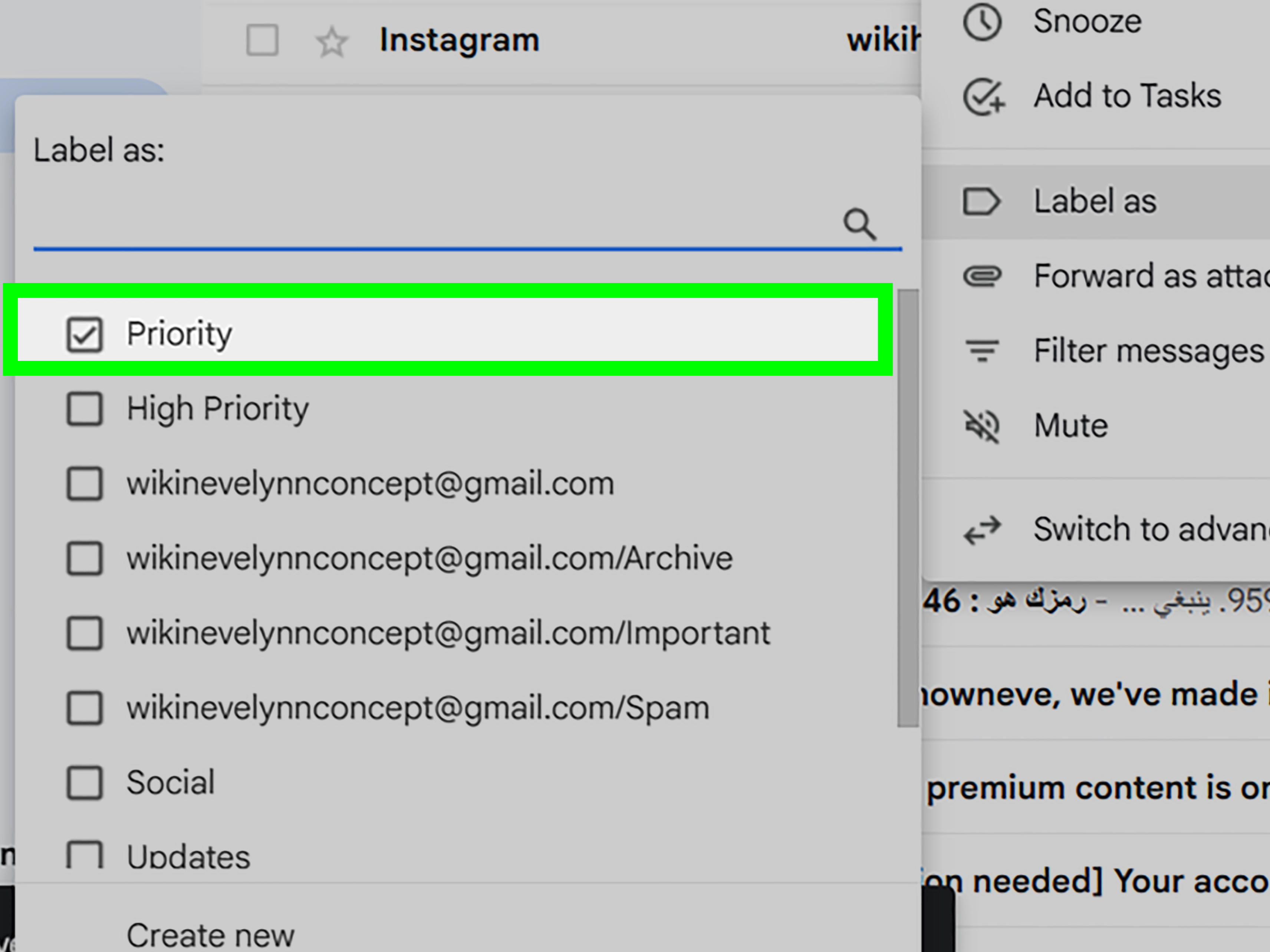
- Click the label icon in the top toolbar.
- Uncheck the label you want to remove.
- Apply the change.
On Android
- Open the Gmail app.
- Touch and hold the email you want to edit.
- Tap the three-dot menu.
- Choose Label as or a similar label option.
- Uncheck the label you want to remove.
- Tap OK or save the change.
On iPhone and iPad
- Open the Gmail app.
- Touch and hold the email you want to update.
- Tap the three-dot menu.
- Choose Change labels.
- Uncheck the label you want to remove.
- Tap Done.
This is the safer option when you still use the label but need to correct a few messages. Think of it as removing one sticky note instead of throwing away the whole label maker.
How to Hide Gmail Labels Instead of Deleting Them
Deleting is permanent in the sense that Gmail removes the label and its connections to emails. If you simply want a cleaner sidebar, hiding a label may be smarter.
On desktop, go to Settings, choose See all settings, open the Labels tab, and look for the show or hide options next to each label. Hiding a label removes it from view in the sidebar but keeps the label active. Filters can still apply it, and emails can still carry it.
Hide labels when you rarely need to click them but still want the organization behind the scenes. Delete labels when they are outdated, duplicated, misspelled, or no longer useful.
Which Gmail Labels Cannot Be Deleted?
Gmail includes system labels that are part of the app’s core structure. These usually include Inbox, Starred, Snoozed, Sent, Drafts, Spam, Trash, Important, Chats, Scheduled, and All Mail. You generally cannot delete these labels because Gmail uses them to run basic email functions.
However, you may be able to hide some system labels from the left sidebar on desktop. This can make Gmail look cleaner without breaking anything important. Please do not try to “delete” Trash. Trash is doing honest work. Let it have its corner.
Why Deleted Gmail Labels Sometimes Seem to Come Back
If a label appears again after you deleted it, there are a few possible reasons. The most common reason is a Gmail filter. Filters can automatically apply labels to incoming messages. If you delete a label but still have an old filter that references it, Gmail may prompt you to update the filter, or you may need to manually remove that filter action.
To check filters on desktop, open Gmail, click the gear icon, choose See all settings, and open the Filters and Blocked Addresses tab. Review any filter that applies labels. Edit or delete filters that no longer match your inbox system.
Another possibility is that you are using multiple Gmail accounts and cleaned up one account while viewing another. This is very common on mobile devices. Always check the account avatar or email address before deleting labels.
Best Practices Before Deleting Gmail Labels
1. Review the Label First
Click the label and scan the messages inside. If the emails are old but important, keep the messages and delete only the label. If the emails themselves are junk, delete or archive them separately.
2. Check for Filters
Before removing a label used in automation, review your filters. A label named “Invoices” may be connected to a filter that catches payment receipts. Delete that label without checking the filter, and your future organization may get messier.
3. Merge Duplicate Labels
If you have “Client,” “Clients,” and “Client Work,” choose one clear label and move relevant emails under it before deleting the extras. A clean naming system saves time later.
4. Use Clear Label Names
Good labels are specific but not absurdly specific. “Taxes 2026” is useful. “Things I might need when the moon is full” is memorable but probably not a scalable productivity strategy.
5. Hide Instead of Delete When Unsure
If you are not sure whether a label is still useful, hide it for a week or two. If you never miss it, delete it later. This is the inbox version of putting clothes in a donation box before actually donating them.
Common Problems and Quick Fixes
The Delete Option Is Missing
You may be trying to delete a system label. Built-in Gmail labels usually cannot be removed. If it is a custom label, try desktop Gmail or update your mobile app.
I Deleted a Label by Mistake
You can recreate a label with the same name, but Gmail may not automatically reconnect it to all previous emails. To rebuild the label, search for the relevant messages and apply the new label manually or with a filter.
My Emails Disappeared After Deleting a Label
They probably did not disappear. Search for them in Gmail using sender names, keywords, dates, or attachment terms. Also check All Mail, Inbox, Sent, and Trash if needed. Remember, deleting a label removes the tag, not the message.
I Cannot Manage Labels on a Work or School Account
Some Google Workspace settings may be controlled by an administrator. If label options are limited, ask your organization’s IT team whether Gmail label management is restricted.
Gmail Label Cleanup Strategy for a More Organized Inbox
If you want to clean Gmail labels without creating chaos, use a simple three-step system: keep, merge, and delete.
Keep labels that still serve a clear purpose. These may include active clients, current projects, financial records, travel plans, or family messages. Merge labels that overlap. For example, if you have “Bills,” “Utilities,” and “Payments,” you may decide that one label called “Bills” is enough. Delete labels that no longer help you find anything faster.
For many people, the best Gmail label system includes fewer labels than they expect. A simple structure is easier to maintain. Try broad labels such as Work, Personal, Receipts, Travel, Finance, Projects, and Follow Up. Then use Gmail search for the fine details.
Experience-Based Tips: What I Learned from Cleaning Up Gmail Labels
Deleting Gmail labels sounds like a tiny task, but it can reveal a lot about how you manage email. Most people do not create messy inboxes on purpose. The mess grows slowly. One label is created for a conference. Another is created for a job application. Another is created for a one-time purchase. Then, five years later, you open Gmail and wonder why you have a label for “Printer Warranty Emergency.” There was probably a story there, but thankfully, the label no longer needs to be part of your future.
One useful experience is to start with labels you have not clicked in months. If a label has no current purpose, delete it or hide it. The moment you remove old labels, Gmail becomes easier to scan. Your eyes stop bouncing around the sidebar, and important categories stand out more clearly. It is like clearing a desk before starting work. The computer is the same, the email is the same, but your brain suddenly stops making dial-up modem noises.
Another helpful lesson is not to delete labels too aggressively if they are tied to taxes, receipts, clients, legal documents, or medical billing. Those labels may not be exciting, but they often matter later. Instead of deleting them, rename them clearly. For example, change “Stuff” to “Receipts 2026” or “House Documents.” A boring label with a clear name is better than a creative label that requires detective work.
It also helps to separate emotional clutter from practical clutter. Some labels represent old jobs, past projects, completed moves, or former clients. You may not need them in your daily sidebar, but you may still want the emails. In that case, archive the messages, hide the label first, and delete it only when you are confident you no longer need that grouping.
Desktop Gmail is usually the best place for a serious cleanup. The larger screen makes it easier to compare labels, review filters, and avoid mistakes. Mobile is better for quick fixes, such as deleting one obvious label or removing a label from a message. If you are doing a full inbox reset, make coffee, open Gmail on desktop, and treat it like a 20-minute maintenance task. Your future self may not send flowers, but they will appreciate not scrolling past seventeen abandoned labels every morning.
The biggest lesson is that labels should support your real habits. If you never open a label, it is probably not helping. If a label needs a complicated explanation, rename it. If a filter keeps applying a label you no longer use, fix the filter. Gmail organization works best when it feels boringly obvious. The goal is not to build a museum of categories. The goal is to find email faster and feel less annoyed while doing it.
Finally, do not confuse a clean label list with a perfect inbox. Email will always be a little messy because life is messy. The point is to reduce friction. Delete what is outdated, hide what is rarely used, keep what helps, and let Gmail search handle the rest. A simple label system can make Gmail feel lighter, faster, and less like a filing cabinet that got into a bar fight.
Conclusion
Deleting labels from Gmail is one of the quickest ways to clean up your inbox without deleting important emails. Whether you use Android, iOS, or desktop, the process is straightforward once you know where the label settings live. On desktop, you can remove labels from the sidebar or the Labels tab in settings. On Android, use Settings and Manage labels. On iPhone and iPad, go through Settings, Inbox customizations, and Labels.
The key is knowing what you are deleting. A Gmail label is an organizational tag, not the email itself. Removing it clears clutter while keeping your messages safe. For best results, review old labels, check filters, hide labels when you are unsure, and keep your naming system simple. Your inbox does not need to be perfect. It just needs to stop looking like it was organized by a raccoon with Wi-Fi.