
Changing the time and date on your Android phone sounds like one of those tiny tasks that should take three secondsuntil you open Settings and Android politely sends you on a scavenger hunt. Is it under System? General management? Clock? Time zone? Why does your phone think you are in another state? And why is your alarm suddenly acting like it has joined a different time zone cult?
The good news: learning how to change the time and date on your Android phone is simple once you know where to look. Most Android phones can set the date, time, and time zone automatically using your mobile network, Wi-Fi, location, and updated time zone data. But you can also set everything manually when you are traveling, troubleshooting, using a Wi-Fi-only tablet, working offline, or fixing a phone that insists breakfast is happening at midnight.
This guide explains how to change the time and date on Android, including Google Pixel, Samsung Galaxy, Motorola, OnePlus-style Android phones, and carrier-branded devices. You will also learn how to switch between automatic and manual time, change your time zone, use 24-hour time, fix common clock problems, and avoid mistakes that can break alarms, calendar events, app logins, and security checks.
Why Your Android Phone’s Time and Date Matter
Your phone clock is not just decoration for the lock screen. It quietly supports alarms, calendar reminders, text message timestamps, email syncing, banking apps, navigation, two-factor authentication codes, app updates, website certificates, and travel schedules. When your Android date and time are wrong, small problems can multiply quickly.
For example, a wrong date may cause secure websites to show certificate warnings. A wrong time zone can make Google Calendar events appear one hour early or late. A manual clock that drifts by a few minutes can make authentication codes fail. Even messaging apps may display conversations out of order, which is charming only if you enjoy reading your life like a time-travel novel.
That is why automatic date and time is usually the best setting for most people. Android can use your carrier network, Wi-Fi, location, and system time zone updates to keep your phone accurate. Still, manual control is useful when you need to test an app, use a device without cellular service, correct a travel-related mismatch, or set a tablet that does not automatically detect the local time zone.
Quick Answer: How to Change Time and Date on Android
On most Android phones, you can change the time and date by opening Settings, going to System, tapping Date & time, turning off Set time automatically or Automatic date and time, then selecting Set date and Set time. To change your time zone manually, turn off Set time zone automatically or Automatic time zone, then choose your region and time zone.
On Samsung Galaxy phones, the path is usually Settings > General management > Date and time. On Google Pixel and many stock Android phones, it is usually Settings > System > Date & time. Some Android versions also let you open the Clock app, tap the three-dot menu, choose Settings, and select Change date and time.
How to Change the Time and Date on Stock Android Phones
Stock Android, or near-stock Android, is common on Google Pixel, Motorola, Nokia-style Android phones, and several unlocked Android devices. Menu names can vary slightly depending on the Android version, but the process is usually very similar.
Steps to set time and date manually
- Open the Settings app.
- Scroll down and tap System.
- Tap Date & time.
- Turn off Set time automatically or Automatic date and time.
- Tap Date or Set date, choose the correct date, and confirm.
- Tap Time or Set time, choose the correct time, and confirm.
- If needed, turn off Set time zone automatically, then choose your correct time zone.
Once automatic date and time is disabled, Android should reveal the manual date and manual time options. If those options are missing or grayed out, automatic time is probably still enabled, or your device may be controlled by a work profile, school account, parental control setting, or mobile device management policy.
How to Change the Time and Date on a Google Pixel Phone
Google Pixel phones use a clean Android interface, so the settings are straightforward. To manually change the time on a Pixel, open Settings, tap System, select Date & time, and turn off automatic settings before entering your own date, time, or time zone.
You can also use the Clock app route. Open the Clock app, tap the three-dot menu, go to Settings, then choose Change date and time. This is handy if you are already adjusting alarms, timers, or world clocks and realize your phone thinks it lives somewhere else.
Pixel automatic time zone tip
Pixel phones may use location to help detect your time zone. If location-based time zone detection is available and enabled, your phone can update the time zone more accurately when you travel. If location is turned off, your phone may rely more heavily on network information, which is usually fine but may occasionally lag during travel or in areas near time zone borders.
How to Change the Time and Date on a Samsung Galaxy Phone
Samsung Galaxy phones and tablets use One UI, so the menu path is a little different from Pixel. Instead of going through System, Samsung usually places date and time settings under General management.
Steps for Samsung Galaxy
- Open Settings.
- Tap General management.
- Tap Date and time.
- To let Samsung handle it, turn on Automatic date and time and Automatic time zone.
- To set it manually, turn off Automatic date and time and Automatic time zone.
- Tap Set date, select the correct date, and tap Done.
- Tap Set time, adjust the time, and tap Done.
- Tap Select time zone to choose the correct region and time zone.
Samsung notes that manual options may not appear while automatic date and time is enabled. So if you are staring at the screen wondering where the “Set time” button disappeared, do not panic. It is not hiding from you personally. Turn off the automatic switch first.
How to Change the Time Zone on Android
Changing the time and changing the time zone are related, but they are not the same thing. The time is the current hour and minute. The time zone tells your phone which regional clock rules to follow, including daylight saving time where applicable.
To change the time zone on Android, open Settings > System > Date & time, turn off Set time zone automatically, then tap Time zone. Choose your region, country, or city, depending on the device interface. On Samsung Galaxy, go to Settings > General management > Date and time, turn off Automatic time zone, then select your time zone manually.
If you travel often, automatic time zone is usually the easiest option. Your phone can update when you land, reconnect to a mobile network, or use location services. If you live near a time zone border, use a Wi-Fi-only tablet, or notice your phone choosing the wrong zone, manual selection may be more reliable.
How to Use 24-Hour Time on Android
Many Android users prefer 24-hour time because it removes confusion between morning and evening. It is especially useful for travel, healthcare, aviation, military schedules, international work, and anyone who has ever set a 7:00 alarm for the wrong half of the day.
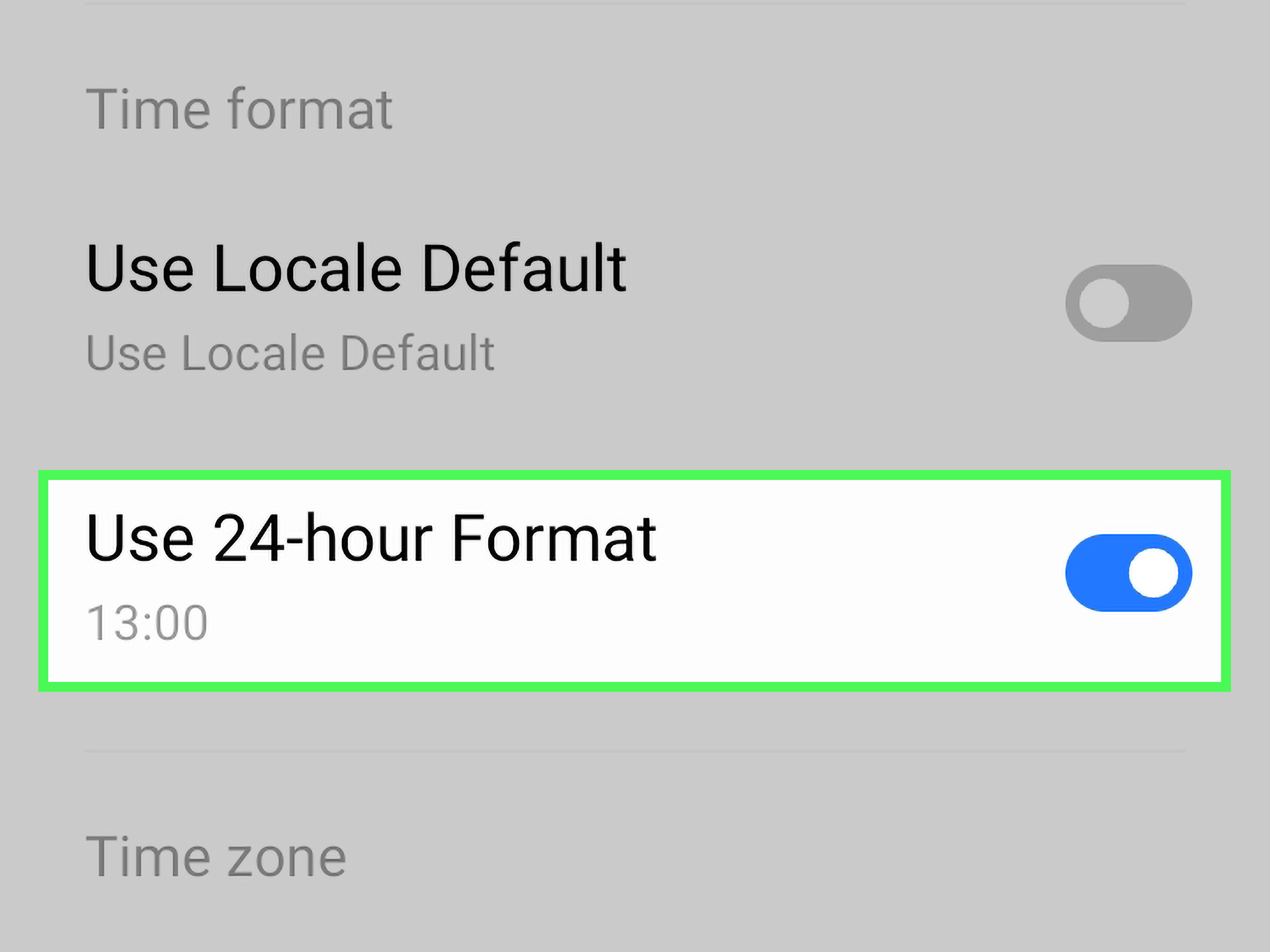
On most Android phones, open Settings > System > Date & time, then turn on Use 24-hour format. On Samsung Galaxy, open Settings > General management > Date and time, then enable Use 24-hour format. This changes how the clock displays time, but it does not change your actual time zone or alarm settings.
Should You Use Automatic or Manual Date and Time?
For most people, automatic date and time is the better choice. It reduces mistakes, handles daylight saving changes, supports accurate app syncing, and helps your phone behave properly when traveling. Automatic settings are especially important if you rely on alarms, calendar events, banking apps, authenticator apps, or secure websites.
Manual time is useful in specific situations. You may need it when your phone is not connected to a network, when a tablet has no cellular service, when you are troubleshooting a wrong time zone, when your carrier information is temporarily incorrect, or when you are testing software that depends on date and time. Manual settings give control, but they also create responsibility. If you forget to change the clock later, your phone will not politely tap you on the shoulder and say, “Excuse me, time itself has moved on.”
Why Android Date and Time Options Are Grayed Out
If you cannot change the time and date on your Android phone, check the automatic setting first. Android often hides or disables manual date and time controls while automatic date and time is turned on. Turn off Set time automatically or Automatic date and time, then look again.
If the controls are still unavailable, your phone may be managed by an organization. Work phones, school tablets, supervised child accounts, and devices with mobile device management software can restrict date and time changes. In that case, you may need to contact the account administrator or remove the management profile if it is your personal device and you no longer need it.
How to Fix Android Showing the Wrong Time
If your Android phone shows the wrong time, start with the simplest fix: turn automatic date and time off, wait a few seconds, then turn it back on. Next, restart your phone. A reboot can refresh network registration, location detection, and system services that help Android choose the correct clock settings.
Try these troubleshooting steps
- Turn on Automatic date and time.
- Turn on Automatic time zone.
- Restart the phone.
- Turn Wi-Fi off and on again.
- Toggle Airplane mode for 10 seconds, then turn it off.
- Make sure location services are enabled if your phone supports location-based time zone detection.
- Check for Android system updates and Google Play system updates.
- Manually select the correct time zone if automatic detection keeps choosing the wrong region.
If you recently crossed a time zone, give the phone a moment after reconnecting to a network. Airports, rural areas, roaming networks, VPNs, and weak signal zones can occasionally delay updates. Your phone is smart, but it is not magic. It still needs usable information.
Does Android Automatically Adjust for Daylight Saving Time?
Yes, Android phones usually adjust automatically for daylight saving time when automatic date, time, and time zone settings are enabled. The key detail is the time zone. If your phone is set to the correct time zone, Android can follow the local daylight saving rules for that region.
Problems may happen if your time zone is wrong, your phone is using old time zone data, automatic settings are turned off, or you are using a device that rarely connects to the internet. Android 10 and newer versions support modular time zone data updates, which helps devices receive changes when governments update time zone or daylight saving rules. Still, older devices or unsupported phones may not always receive the newest updates quickly.
How Android Time Affects Alarms and Calendar Events
Alarms generally follow the device clock. If you manually change your Android time from 7:00 AM to 9:00 AM, your phone treats the current time as 9:00 AM. That means alarms scheduled between those times may be skipped or behave unexpectedly. Before manually changing the clock, check important alarms, reminders, and calendar events.
Google Calendar can use the device time zone, which is convenient when traveling. If the calendar is set to use your device time zone, events adjust as your phone updates its location or selected time zone. If you turn that setting off, Calendar can keep events locked to a chosen time zone. This is useful for remote work, international meetings, and travel planning.
Common Examples: When You Might Need to Change Android Time Manually
Example 1: You are traveling internationally
You land in another country, turn on your phone, and the clock stays on your home time. First, enable automatic date and time and automatic time zone. If that does not work, connect to Wi-Fi, disable Airplane mode, and restart the phone. If it still refuses to update, manually select the destination time zone.
Example 2: Your Samsung tablet is Wi-Fi only
Some Wi-Fi-only tablets may not handle automatic time zone changes as smoothly as phones with mobile network access. If your tablet shows the correct minutes but the wrong time zone, open date and time settings and choose the time zone manually.
Example 3: Your authentication codes are failing
Authenticator apps rely on accurate time. If your two-factor authentication code keeps failing, turn on automatic date and time, restart your phone, and try again. Even a small time mismatch can cause temporary codes to expire before the server accepts them.
Example 4: Your calendar meetings are off by one hour
This often points to a time zone or daylight saving mismatch. Check Android’s time zone first, then check the time zone settings inside your calendar app. If your phone says one region and your calendar is locked to another, your meetings may do the scheduling equivalent of wearing mismatched socks.
Best Practices for Android Date and Time Settings
Keep automatic date and time enabled unless you have a clear reason not to. Keep automatic time zone enabled when traveling, especially if you cross state or country borders. Use manual time zone only when automatic detection is wrong or when your device does not support automatic time zone updates well.
Before changing the clock manually, check alarms and calendar events. After changing it, open your calendar, messaging app, email app, and any work apps you rely on to make sure timestamps look correct. If secure apps behave strangely, return to automatic time and restart the device.
It is also wise to keep your phone updated. Android system updates and Google Play system updates may include improvements that help with time zone accuracy, daylight saving changes, security, and app compatibility.
My Experience Changing Time and Date on Android Phones
After helping plenty of Android users with wrong clocks, missed alarms, and calendar chaos, I have learned one thing: the phone is usually not broken. Most time and date problems come from one of three things: automatic settings are turned off, the phone picked the wrong time zone, or the user changed the clock manually and forgot about it. That last one is surprisingly common. Manual time is useful, but it is also a tiny trap wearing a Settings icon.
One of the most common experiences happens during travel. Someone flies from New York to Los Angeles, the phone keeps showing Eastern Time, and suddenly lunch plans look like breakfast plans. Usually, turning on automatic time zone and reconnecting to the mobile network fixes it. If the phone was in Airplane mode for the entire trip, it may need a minute after landing to catch up. Restarting the device often helps because it forces the phone to refresh its network and location information.
Another real-world issue appears with Wi-Fi-only tablets. A tablet may show the correct date and minutes but still use the old time zone after a move or vacation. Since it has no cellular connection, it may not receive the same network-based time zone help as a phone. In that case, manual time zone selection is not a failure; it is simply the practical fix. Go to Date & time, turn off automatic time zone, choose the correct region, and the tablet usually behaves again.
Samsung users often run into a different kind of confusion. They search for System because many Android guides mention it, but Samsung places the setting under General management. Once they know the pathSettings, General management, Date and timethe process becomes easy. The same goes for the missing manual controls. If Automatic date and time is on, Samsung may hide the manual date and time choices. Turn off the automatic switch, and the options reappear like a magician pulling a rabbit from a very organized menu.
I also recommend checking the 24-hour format setting after changing time. Many people think they changed the actual time when they only changed the display style, or they think the phone is wrong because 18:30 appears instead of 6:30 PM. The 24-hour switch only affects how time looks. It does not change the date, time zone, alarms, or calendar schedule.
The safest habit is simple: use automatic time for everyday life and manual time only when solving a specific problem. If you turn manual time on, leave yourself a reminder to turn automatic time back on later. Your phone clock is connected to more than you might expect, and keeping it accurate helps everything from morning alarms to banking apps work smoothly. In other words, treat Android time settings like seasoning in soup: adjust when needed, but do not dump in chaos just because the option exists.
Conclusion
Changing the time and date on your Android phone is easy once you know the right menu path. On most Android devices, go to Settings > System > Date & time. On Samsung Galaxy, go to Settings > General management > Date and time. Turn off automatic settings if you want manual control, then set the date, time, and time zone yourself. For everyday use, automatic date and time is usually the smarter choice because it helps with daylight saving time, travel, alarms, calendar events, security checks, and app syncing.
Note: Android menu names can vary by phone brand, carrier, Android version, and device policy. If a setting is missing, use the Settings search bar and type “date,” “time,” or “time zone.”











