WhatsApp videos have a mysterious talent: they arrive quietly, multiply like digital rabbits, and then one day your Android phone says, “Storage almost full,” as if it did not personally let 426 family-group videos move in rent-free. If you use WhatsApp every day, knowing how to save WhatsApp videos on Android is not just a convenienceit is survival.
The good news is that Android gives you several ways to control what happens to videos sent through WhatsApp. You can make videos download automatically, keep them off mobile data, show them in your gallery, hide them from your gallery, back them up to Google Photos, or clean them out when they start eating your storage like popcorn at a movie theater.
This guide explains how WhatsApp auto-download works on Android, how to save videos to your phone, how to find them later, and how to avoid the classic “Where did my video go?” panic. We will also cover smart settings for Wi-Fi, mobile data, roaming, privacy, storage cleanup, backups, and real-life habits that make WhatsApp video management much easier.
What “Saving WhatsApp Videos” Really Means on Android
Before changing settings, it helps to understand one important difference: downloading a video and showing a video in your gallery are not always the same thing.
When someone sends you a video on WhatsApp, the app may download that video to your device, depending on your auto-download settings. Once downloaded, it is stored in WhatsApp’s media area on your Android phone. However, whether that video appears in your Gallery or Google Photos app depends on another setting called Media visibility.
In plain English: auto-download decides whether WhatsApp grabs the video automatically. Media visibility decides whether your phone’s gallery apps display it. Think of auto-download as the delivery driver and Media visibility as the person who decides whether the package goes in the living room or stays in the garage.
How to Turn On Auto-Download for WhatsApp Videos on Android
To automatically save WhatsApp videos on Android, you need to adjust the Media auto-download settings inside WhatsApp. This lets you choose whether videos download when you are using mobile data, connected to Wi-Fi, or roaming.
Step-by-Step: Enable WhatsApp Video Auto-Download
- Open WhatsApp on your Android phone.
- Tap the three-dot menu in the top-right corner.
- Select Settings.
- Tap Storage and data.
- Find the section called Media auto-download.
- Tap When using mobile data, When connected on Wi-Fi, or When roaming.
- Select Videos for the connection types where you want videos to download automatically.
- Tap OK or confirm your selection.
For most people, the best setup is simple: allow videos to auto-download on Wi-Fi, but not on mobile data or roaming. Videos are usually much larger than photos, so letting them download freely over mobile data can drain your monthly data plan faster than a teenager drains a phone battery.
Recommended Auto-Download Settings for Most Android Users
There is no single perfect setup for everyone, but the following settings work well for most users:
Best Balanced Setup
- When using mobile data: Photos only, or no media if you want to save data.
- When connected on Wi-Fi: Photos and videos.
- When roaming: No media.
This setup keeps WhatsApp convenient when you are at home, school, work, or anywhere with Wi-Fi, while protecting you from surprise data use when you are away from a trusted network.
Best Setup for Unlimited Data Plans
If you have a truly unlimited mobile data plan and plenty of phone storage, you can enable video auto-download for mobile data as well. Still, be careful. “Unlimited” plans sometimes slow down after heavy use, and WhatsApp groups can send enough videos to make your phone feel like it accidentally became a streaming server.
Best Setup for Low-Storage Phones
If your Android phone has limited storage, disable video auto-download everywhere. You can still tap individual videos to download them manually. This gives you more control and prevents random clips from taking over your device.
How to Make WhatsApp Videos Appear in Your Android Gallery
If your videos are downloading but not showing in your Gallery app, check WhatsApp’s Media visibility setting. This setting controls whether newly downloaded WhatsApp media appears in your phone’s gallery.
Turn On Media Visibility for All Chats
- Open WhatsApp.
- Tap the three-dot menu.
- Go to Settings.
- Tap Chats.
- Turn on Media visibility.
Once Media visibility is enabled, newly downloaded videos should appear in your Gallery or Photos app, depending on your phone model and gallery settings. Notice the word newly. This setting usually affects media downloaded after the setting is changed, not always old videos already stored on the phone.
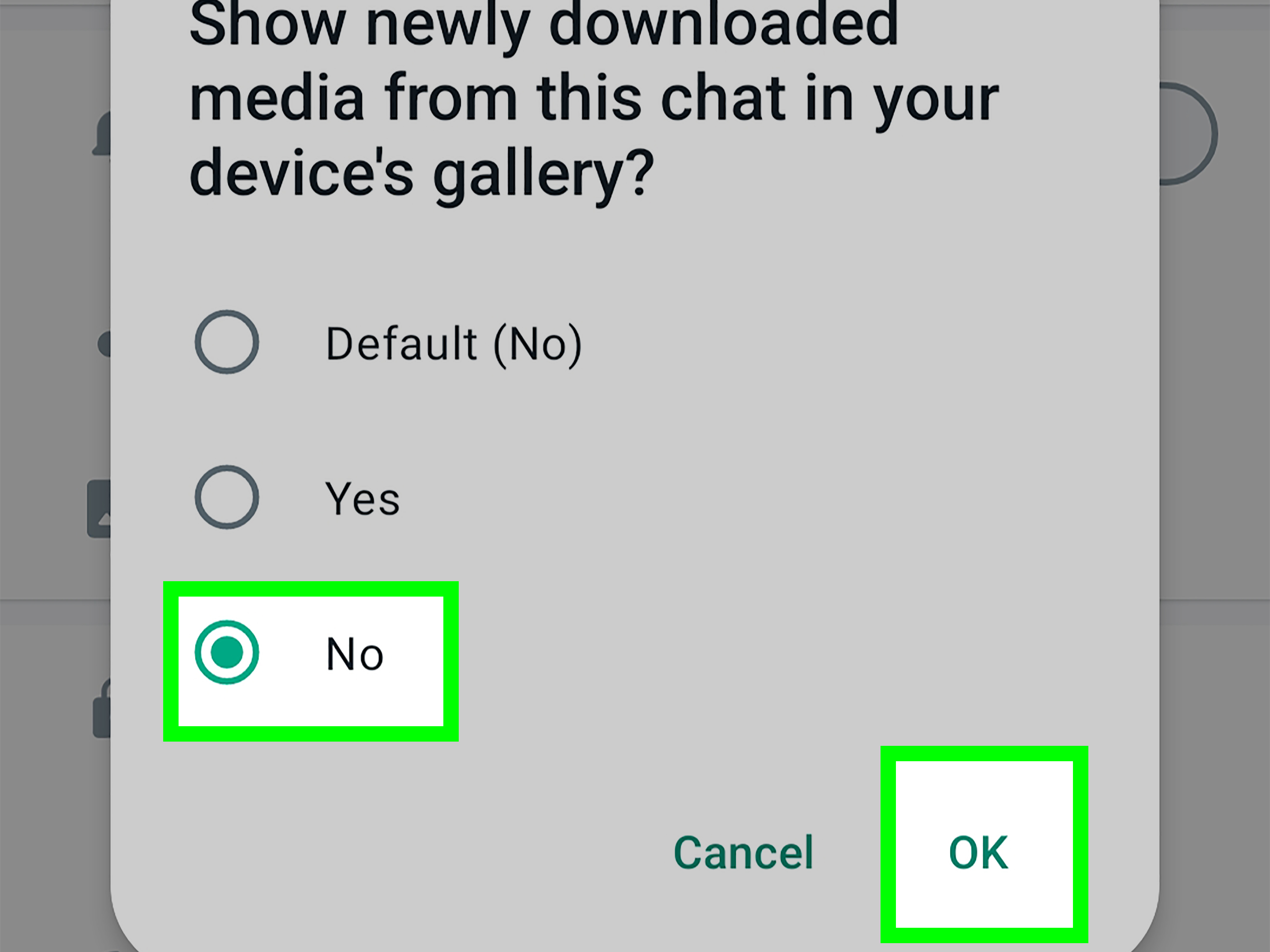
Turn On Media Visibility for One Chat or Group
Sometimes you may want videos from one chat to appear in your gallery, while keeping media from other chats hidden. For example, you might want family vacation videos to show in your gallery, but not every meme from a 97-person group chat called “Weekend Plans” that somehow never plans anything.
- Open the individual or group chat in WhatsApp.
- Tap the contact name or group name at the top.
- Tap Media visibility.
- Select Yes.
- Tap OK.
This is useful when you want more control. You can allow important chats to save videos visibly while keeping noisy groups out of your gallery.
Where Are WhatsApp Videos Stored on Android?
On many newer Android phones, WhatsApp media is stored inside the Android media directory. A common path looks like this:
Internal storage > Android > media > com.whatsapp > WhatsApp > Media > WhatsApp Video
Inside that folder, you may also see subfolders such as Sent and Private. The Sent folder usually contains videos you sent to other people. The Private folder may contain media that is downloaded but not shown in the gallery because of visibility rules.
Folder locations can vary depending on Android version, phone brand, WhatsApp version, dual-app settings, and whether you use an SD card. Samsung, Pixel, Motorola, OnePlus, and Xiaomi phones may organize file manager views slightly differently, but the general idea is the same: WhatsApp videos live inside WhatsApp’s media storage area.
How to Find WhatsApp Videos Using Files or My Files
If a video is missing from your gallery, try using a file manager app. Most Android phones include one. Google Pixel and many Android devices use Files by Google. Samsung Galaxy phones usually include My Files.
Using Files by Google
- Open the Files app.
- Tap Browse.
- Look for Internal storage.
- Open Android, then media.
- Find com.whatsapp.
- Go to WhatsApp > Media > WhatsApp Video.
Using Samsung My Files
- Open My Files.
- Tap Internal storage.
- Open Android.
- Tap media.
- Open com.whatsapp.
- Go to WhatsApp > Media > WhatsApp Video.
If you cannot find the folder, use the search feature inside your file manager and search for WhatsApp Video or simply WhatsApp. File managers are not glamorous, but they are excellent when your gallery app pretends it has never met the video you watched five minutes ago.
How to Manually Save a WhatsApp Video on Android
Auto-download is convenient, but manual saving gives you more control. If auto-download is off, you can still save individual videos by tapping them in the chat.
Manual Download Method
- Open the WhatsApp chat containing the video.
- Tap the video thumbnail or download icon.
- Wait for the download to finish.
- Open the video inside WhatsApp to confirm it plays.
- Check your Gallery or file manager if Media visibility is enabled.
This method is perfect when you receive lots of videos but only want to keep a few. It prevents WhatsApp from treating every forwarded clip like a precious family heirloom.
How to Save WhatsApp Videos to Google Photos
If you want your WhatsApp videos backed up to the cloud, Google Photos can help. On Android, Google Photos lets you choose which device folders to back up. If the WhatsApp Videos folder appears in your device folders, you can enable backup for it.
Steps to Back Up WhatsApp Videos in Google Photos
- Open the Google Photos app.
- Tap your profile picture or initial.
- Go to Photos settings.
- Tap Backup.
- Select Back up device folders.
- Find WhatsApp Video or a similar WhatsApp folder.
- Turn on backup for that folder.
This is especially useful if you change phones often or want an extra safety net. However, remember that Google storage is not magical fairy dust. Backing up large videos can fill your Google Account storage, especially if you receive many long clips.
WhatsApp Chat Backup vs. Google Photos Backup
Many Android users confuse WhatsApp chat backups with Google Photos backups. They are related to saving data, but they are not the same thing.
A WhatsApp backup saves your chat history and media so you can restore them when reinstalling WhatsApp or moving to another Android phone. Depending on your backup settings, videos may only be included if you turn on the option to include videos.
Google Photos backup saves photos and videos from selected device folders to your Google Account. This makes media easier to view outside WhatsApp, but it does not restore full WhatsApp conversations.
In short: WhatsApp backup is for restoring chats. Google Photos backup is for keeping media accessible as photos and videos. Use both if you want stronger protection.
Why WhatsApp Videos May Not Save Automatically
If WhatsApp videos are not saving on your Android phone, there are several possible causes. The fix depends on whether the video is not downloading at all, not appearing in your gallery, or not backing up.
1. Auto-Download Is Turned Off
Go to WhatsApp > Settings > Storage and data > Media auto-download and make sure Videos are selected for Wi-Fi, mobile data, or both.
2. Media Visibility Is Disabled
If the video downloads in WhatsApp but does not appear in your gallery, turn on Media visibility under Settings > Chats.
3. The Chat Has Custom Media Visibility Settings
A specific contact or group may have Media visibility set to No. Open the chat, tap the name, and check the Media visibility option.
4. Your Phone Storage Is Full
If storage is low, WhatsApp may struggle to download or save videos properly. Delete large files, clear duplicate media, or move important files to cloud storage.
5. Network Connection Is Weak
Large videos need a stable connection. If a download freezes, switch to Wi-Fi, restart WhatsApp, or try again later.
6. The Video Is View Once Media
WhatsApp View Once videos are designed for privacy. They cannot be forwarded, copied, saved, starred, or shared through normal WhatsApp controls. If someone sends a video as View Once, do not expect it to appear in your gallery.
How to Stop WhatsApp Videos From Taking Over Your Storage
Auto-download is handy until your phone starts begging for space. WhatsApp includes storage tools that help you review and delete large files, forwarded media, and chat-specific clutter.
Use WhatsApp Manage Storage
- Open WhatsApp.
- Tap the three-dot menu.
- Go to Settings.
- Tap Storage and data.
- Select Manage storage.
- Review large files, forwarded media, and chats using the most space.
- Select videos you no longer need and delete them.
This is the safest way to clean up WhatsApp without blindly deleting folders from your file manager. It lets you see which chats are the biggest storage offenders. Spoiler alert: it is usually the group chat that says “just one quick video.”
Privacy Tips When Saving WhatsApp Videos
Saving WhatsApp videos is convenient, but privacy matters. Some videos are personal, sensitive, or simply not something you want appearing while showing a friend your vacation photos.
Use Media Visibility Wisely
Turn off Media visibility if you do not want WhatsApp videos appearing in your gallery. You can keep videos accessible inside WhatsApp without displaying them alongside camera photos.
Be Careful With Shared Devices
If someone else uses your phone or tablet, visible WhatsApp media may be easier to discover. Consider app lock, chat lock, or disabling gallery visibility for private chats.
Respect Other People’s Privacy
Just because a video can be saved does not mean it should be shared. Avoid forwarding private videos without permission. Digital manners are still manners, even when the “Forward” button is temptingly close.
Best Practical Setup for Saving WhatsApp Videos on Android
Here is a simple setup that works well for most Android users:
- Enable video auto-download only on Wi-Fi.
- Disable video auto-download on mobile data and roaming.
- Turn on Media visibility only if you want videos in your Gallery.
- Use individual chat Media visibility for important chats.
- Back up important WhatsApp video folders in Google Photos.
- Use WhatsApp Manage storage once or twice a month.
- Manually download videos from noisy groups instead of saving everything.
This setup keeps the useful part of auto-download without letting WhatsApp turn your Android phone into a museum of forgotten clips.
Real-Life Experiences: What Actually Works When Saving WhatsApp Videos on Android
After helping many Android users manage WhatsApp videos, one pattern becomes obvious: most problems happen because people assume one setting controls everything. It does not. Auto-download, Media visibility, Gallery display, Google Photos backup, and WhatsApp chat backup all do different jobs. Once you understand that, the whole process becomes much less annoying.
A common example is the user who says, “My WhatsApp videos are not saving,” but when you check the chat, the videos are already downloaded. The real issue is that Media visibility is off, so the gallery app does not show them. In that case, turning on video auto-download will not fix anything because downloading was never the problem. The solution is to turn on Media visibility globally or for that specific chat.
Another common experience happens with family groups. A person turns on auto-download for videos because they want to save birthday clips, school performances, or travel videos. Two weeks later, their phone storage is full because the same group also sends cooking videos, joke clips, old festival greetings, and someone’s blurry recording of a TV screen. The better approach is to keep auto-download on for Wi-Fi only and use Media visibility selectively. Important chats can show in the gallery; chaotic groups can stay hidden.
People with budget Android phones often benefit from manual downloads. If your phone has 64GB or less of storage, automatic video saving can become a problem quickly. In real use, the best habit is to tap and download only the videos you truly need. This keeps WhatsApp fast, reduces gallery clutter, and makes storage warnings less frequent. Your phone may not thank you out loud, but it will stop acting like it is carrying a piano upstairs.
For users who switch phones often, Google Photos backup is a lifesaver, but only when configured correctly. Many people assume all WhatsApp videos automatically go to Google Photos. In reality, Google Photos usually needs permission to back up specific device folders. If the WhatsApp Video folder is not selected, your videos may remain only on the device. The smart habit is to open Google Photos after changing WhatsApp settings and confirm that the WhatsApp folder is included in backup.
One more practical lesson: do not rely only on WhatsApp chat backup if individual videos matter to you as standalone memories. WhatsApp backup is excellent for restoring chats, but Google Photos or manual file backup makes important videos easier to find, organize, and share later. For example, if someone sends you a graduation video, save it visibly to your gallery and back it up. Do not leave it buried inside a chat thread between “Congratulations!” and fifteen sticker replies.
Finally, review storage regularly. The best schedule is simple: once a month, open Settings > Storage and data > Manage storage in WhatsApp and delete large videos you no longer need. This small habit can save gigabytes over time. It also makes your phone feel faster and your gallery less chaotic. WhatsApp is a fantastic messaging tool, but it is not your personal video warehouse unless you train it properly.
Conclusion
Saving WhatsApp videos on Android is easy once you know which settings matter. Use Media auto-download to control when videos download, use Media visibility to decide whether they appear in your gallery, and use Manage storage to keep your phone from drowning in forwarded clips.
The best setup for most users is to auto-download videos on Wi-Fi only, keep roaming downloads off, show media in the gallery only for trusted chats, and back up important videos through Google Photos or another cloud service. That way, you keep the videos you care about without inviting every random group-chat clip to live forever on your phone.