
Discord friendships are kind of like the junk drawer in your kitchen: you don’t notice the clutter until you open it and a random screwdriver falls out. Maybe you’re doing a little digital spring cleaning. Maybe a friendship fizzled. Maybe you accidentally added “DefinitelyNotAScamBot_927” at 2 a.m. (We’ve all made choices.)
Whatever the reason, unfriending on Discord is quickonce you know where Discord hides the button this week. This guide walks you through how to remove a friend on desktop (Windows/Mac/Web) and mobile (iPhone/Android), plus what actually happens afterward and which option to pick if you want less drama (Ignore) or hard boundaries (Block).
First: What “Unfriend” Means on Discord (and What It Doesn’t)
When you unfriend someone on Discord, you’re simply removing them from your Friends list. Think: “We’re not connected directly anymore.” It’s not the same as kicking them from servers, deleting message history, or making them vanish into the shadow realm.
- They can still be in the same servers as you (unless someone removes them from the server).
- Your old DMs may still exist on your side (unless you close them, or messages are deleted).
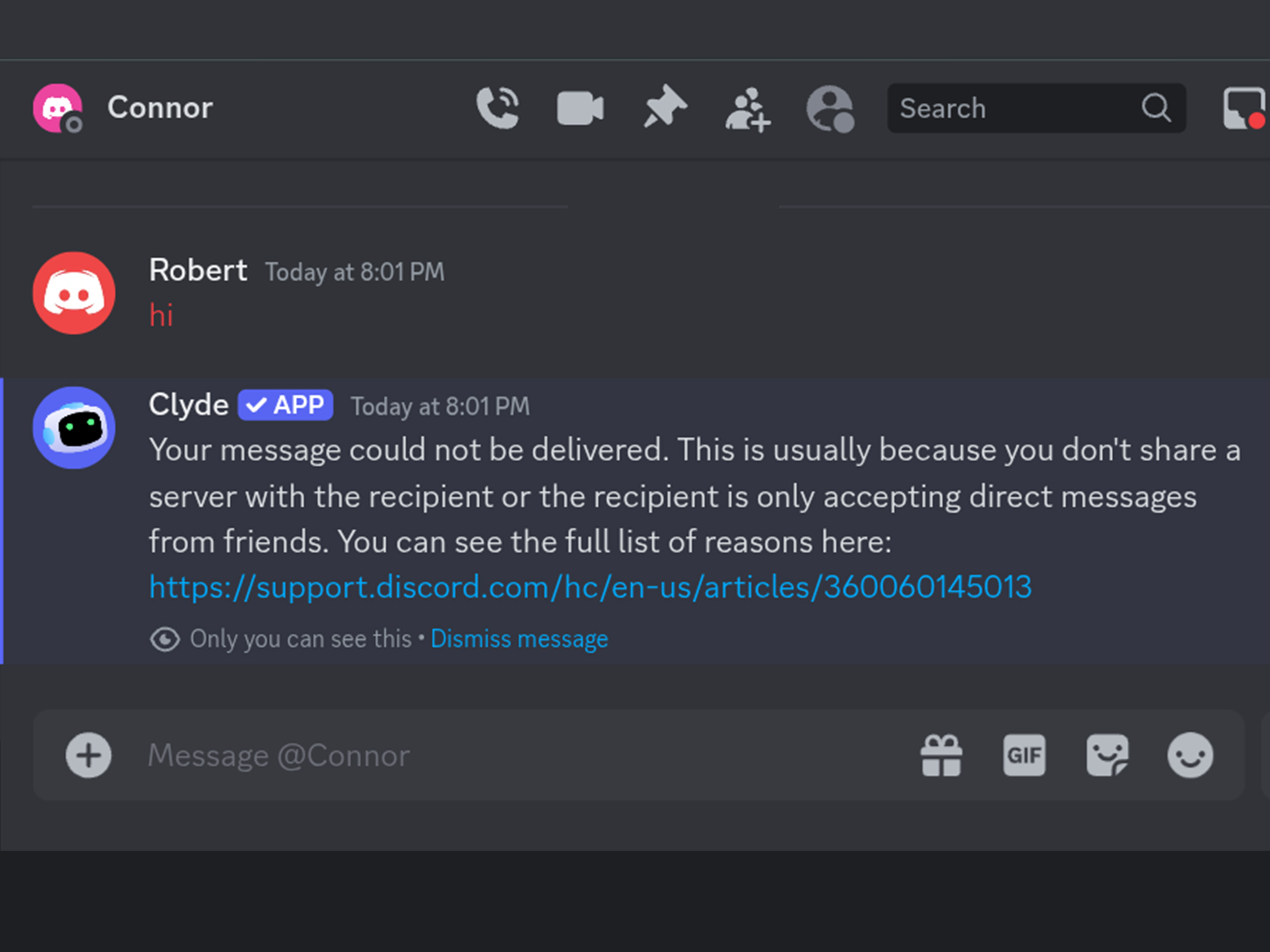
- They may still be able to message you if you share a server and your privacy settings allow itoften routed through Message Requests.
If your goal is “we’re not friends anymore” → unfriend is perfect. If your goal is “please don’t contact me at all” → you’ll want to combine unfriending with privacy controls, Ignore, or Block (more on that below).
Pick the Right Option: Unfriend vs Ignore vs Block
Discord gives you a few different “relationship statuses,” and choosing the right one saves timeand awkward follow-up messages like “hey did you remove me??”
Option 1: Unfriend (Remove Friend)
Best for: simple cleanup, old acquaintances, “we don’t really talk anymore,” or when you want a clean friends list without escalating.
- Removes the person from your Friends list.
- Doesn’t announce it with a notification banner (but they can notice by checking).
- Doesn’t automatically stop all contact if you share servers (settings matter).
Option 2: Ignore (the low-drama “soft boundary”)
Best for: you don’t want to see their messages or pings, but you also don’t want a full block vibe. Ignoring hides messages and notifications from that person, and Discord treats it like a quieter, less confrontational tool.
- You won’t be notified about their messages; they’re suppressed from your view.
- It’s reversible, and the user isn’t notified.
- Great if you share a server and just want peace.
Option 3: Block (the “nope” button)
Best for: harassment, spam, unwanted contact, or any situation where you want a stronger boundary. Blocking prevents them from DMing or pinging you, and their server messages are hidden behind a “blocked message” bar.
Quick rule of thumb: Unfriend = remove connection, Ignore = stop seeing them, Block = stop contact + hide their content.
How to Unfriend Someone on Discord (Desktop: Windows, Mac, Web)
On desktop, Discord gives you two easy routes: remove them from the Friends list, or remove them from their profile/DM context menu. If you can see their name, you’re basically two clicks away from freedom.
Method A: Unfriend from Your Friends List
- Open Discord on the desktop app or in your browser.
- Click the Discord/Home icon (top-left), then click Friends.
- Choose All (so you see your full friends list).
- Find the person you want to remove (use the search bar if your list is… spirited).
- Click the three dots (or right-click their name), then select Remove Friend.
- Confirm if prompted. They’re now unfriended.
Method B: Unfriend from a DM or Their Profile
- Open your DM with the person (or click their name anywhere you see it).
- Click their profile (or right-click their avatar/name).
- Select Remove Friend.
Tip: If you don’t see “Remove Friend,” double-check that you’re actually friends. If you’re not friends, you might see options like Add Friend, Ignore, or Block instead.
How to Unfriend Someone on Discord (Mobile: iPhone and Android)
On mobile, Discord likes to tuck social controls inside profiles and menus. The good news: once you’re on the person’s profile, the “Remove Friend” action is usually right therelike a tiny eject button for your Friends list.
Method A: Unfriend from Your Friends List (Mobile)
- Open the Discord app.
- Tap You (bottom-right) to open your profile area.
- Tap Your Friends.
- Find the friend (scroll or search), then tap their name to open their profile.
- Tap the three-dot menu (usually top-right).
- Select Remove Friend and confirm if prompted.
Method B: Unfriend from a DM (Mobile)
- Open your DM conversation with the person.
- Tap their name at the top (or their avatar) to open profile details.
- Tap the three dots and choose Remove Friend.
Small UI disclaimer: Discord changes labels and layouts sometimes (“Your Friends” vs “Friends,” profile menus moving, etc.). If the path looks slightly different on your phone, the universal trick is: open their profile → tap the menu → Remove Friend.
What Happens After You Unfriend Someone?
This is where most people get surprised, so let’s make it painfully clear (in a friendly way).
They’re removed from your Friends list
Yep. That’s the main effect. No confetti. No breakup playlist. Just… gone from the list.
Your servers don’t change automatically
If you share a server, you’ll still see each other there. If you want space inside a server, consider: mute, Ignore, or Blockor ask moderators for help if it’s a safety issue.
DMs and future messages depend on your settings
Unfriending doesn’t necessarily “turn off the inbox.” If you share servers and your privacy settings allow DMs from server members, the person may still be able to message youoften filtered into Message Requests if you’re not friends.
How to Prevent Contact After Unfriending (Privacy Checklist)
If you’re unfriending because you want less contact (or none), do this next. These settings are your digital “do not disturb” sign.
1) Use Message Requests as a gatekeeper
Discord can route messages from non-friends into Message Requests so you can approve before chatting. If you don’t approve, you don’t have to engage.
2) Lock down who can send you friend requests
In your Content & Social settings, you can restrict friend requests from “everyone,” server members, or friends-of-friends. If someone can’t send you a friend request, they can’t re-add you out of nowhere.
3) Turn off “Allow Direct Messages from Server Members” (per server)
If you share servers with the person and don’t want random DMs, disable DMs from server members on that server. This is a big one for avoiding surprise “hey” messages.
4) If needed, Block (or Ignore) them
If the person is persistent, blocking is the cleanest way to stop direct contact. If you just want quiet, Ignore is the lighter option.
How to Re-Add Someone Later (and How to Cancel a Pending Request)
People change. Context changes. Sometimes you unfriend someone because you’re cleaning upand later you realize they were the only person who knew where the raid starts.
To re-add them
- Open their profile (from a server, a past DM, or via username search).
- Select Add Friend and send a request.
- Once accepted, you’re friends again.
To cancel a sent friend request (Desktop/Web)
- Go to Friends → Pending.
- Click the X next to the request you want to cancel.
To cancel a sent friend request (Mobile)
- Tap You → Your Friends → Friend Requests.
- Find the sent request and tap the X to remove it.
FAQ: Quick Answers to Common “WaitWhat?” Moments
Will they get notified when I unfriend them?
Discord generally doesn’t pop up a “You have been unfriended” notification. But they can notice if they check their friends list, try to start a call, or see that they can’t DM you the same way as before.
If I unfriend someone, can they still see my online status?
In shared servers, people can often still see your presence depending on server visibility and your privacy settings. If you need a stricter boundary, consider blocking (or adjusting who can interact with you).
Can I unfriend someone faster if I have a huge friends list?
Discord doesn’t offer a built-in “bulk remove friends” button. If you see tools or scripts claiming to mass-remove friends, be cautious: they can violate platform rules and put your account at risk. The safest approach is manual cleanup over time.
What if “Remove Friend” isn’t showing up?
- You may not be friends with them (you’ll see “Add Friend” instead).
- You might be viewing them inside a server where you haven’t opened the full profile menu yet.
- Try opening their profile from your Friends list or an existing DM.
Conclusion: Your Friends List, Your Rules
Unfriending on Discord is a simple actionon both mobile and desktopbut the after-effects depend on privacy settings and shared servers. If you’re just decluttering, a quick “Remove Friend” does the job. If you want quiet, try Ignore. If you need a firm boundary, block and tighten your DM/friend request settings so you’re not playing whack-a-mole with new messages.
Either way, you’re allowed to curate your online space. It’s not rude. It’s maintenancelike updating your password, cleaning your inbox, or finally admitting you don’t need 47 unread server channels named “general-2.”
Experiences & Real-World Lessons From Unfriending on Discord (500+ Words)
The first time most people unfriend someone on Discord, it feels oddly dramaticlike you’re slamming a door that is, in reality, a very quiet sliding closet door. That emotional mismatch is normal. Discord is where friendships happen in fast-forward: you meet in a server, you play a game, you share memes, you DM, you hop into voice, and suddenly a stranger becomes “a person who knows what my laugh sounds like.” Removing that connection can feel bigger than it looks on screen.
One common scenario is the “activity friend.” You add someone because you’re on the same ranked grind, in the same study server, or coordinating an event. Then the season ends, the class ends, or the server goes quiet. Months later, your Friends list is full of names you don’t recognizelike a yearbook signed by people who never learned your last name. In these cases, unfriending is less a breakup and more an overdue filing system. A good test is: if you saw their name in your DMs right now, would you know what to say without checking your chat history? If not, the connection may already be expired.
Another scenario: the “mutual server awkwardness.” You unfriend someone because conversations got tense, or because you’re tired of the passive-aggressive replies in a hobby server. Then you realize unfriending doesn’t remove the shared server context. You still see their messages, they still see yours, and the vibe becomes “two coworkers who had a disagreement but still share a break room.” This is where Discord’s newer interaction tools shine. Ignoring can be a lifesaver if you want your brain to stop lighting up every time they type. Blocking is the right move if they keep trying to reinsert themselves into your DMs. And if the server itself is the problem, adjusting “Allow direct messages from server members” prevents the surprise “hey can we talk” DM that arrives exactly when you’re trying to relax.
There’s also the “oops-I-clicked-the-wrong-thing” moment. On fast-moving UIs, a mis-tap happensespecially on mobile. People sometimes unfriend accidentally while trying to open a profile, close a menu, or do literally anything with their thumb while holding a coffee. If you accidentally unfriend someone you genuinely like, it’s fixable: re-add them, and if it feels weird, keep it light. A simple “Heymy bad, fat-fingered the menu” is the universal translator of modern tech mishaps.
Finally, the “boundary setting” use case is real. Discord is a social space, but it’s also a contact channel. Unfriending is the gentle version of saying, “I don’t want this line open anymore.” Pair it with privacy settings, Message Requests, and/or blocking, and you get a healthy, controlled online environment without constantly reacting. The lesson most people learn: the best time to update your Discord privacy settings is before you need them. The second-best time is right after you unfriend someone and think, “Okay… now how do I make sure they can’t keep popping up?”












