Note: The steps below are written for recent iOS versions. Menu names may shift slightly after software updates, but the core settingsAirDrop, Bluetooth, NameDrop, and Bluetooth app permissionsremain the key places to control nearby sharing on an iPhone.
Introduction: What “Bluetooth Sharing” Really Means on an iPhone
Trying to block Bluetooth sharing on an iPhone can feel a little like trying to stop a cat from sitting on your keyboard. You know something is happening nearby, your phone seems oddly social, and you would prefer it to mind its own business. The good news is that iPhones do not usually send and receive random files over classic Bluetooth the way some older phones did. On an iPhone, what people often call “Bluetooth sharing” is usually tied to AirDrop, NameDrop, Personal Hotspot, nearby device discovery, or an app requesting Bluetooth access.
That difference matters. If your goal is to stop strangers from sending AirDrop requests in public, turning off Bluetooth from Control Center is not the best solution. If your goal is to stop apps from using Bluetooth to detect nearby devices, you need the privacy settings. If your goal is to completely shut down Bluetooth radios for a while, you need the Settings appnot just the Control Center button that looks like it should do everything but does not quite retire from duty.
This guide explains how to block Bluetooth sharing on an iPhone in two simple ways: by turning off AirDrop receiving and by disabling Bluetooth or Bluetooth access for apps. We will also cover NameDrop, Control Center confusion, public-place privacy, and real-world habits that make your iPhone less chatty without making it useless.
Quick Answer: The 2 Simple Ways to Block Bluetooth Sharing
If you only want the fast version, here it is. To block most nearby sharing requests, go to Settings > General > AirDrop and choose Receiving Off. This stops your iPhone from appearing as an AirDrop destination. To go further, open Settings > Bluetooth and turn Bluetooth off completely, or go to Settings > Privacy & Security > Bluetooth and disable Bluetooth access for apps you do not trust.
For most people, the best everyday setup is simple: keep AirDrop set to Contacts Only or Receiving Off, turn off Bring Devices Together if you do not want NameDrop-style sharing, and review Bluetooth app permissions every so often. Think of it as putting your iPhone on a polite but firm social diet.
Before You Start: Bluetooth, AirDrop, and NameDrop Are Not the Same Thing
Before changing settings, it helps to understand what you are blocking. Bluetooth is the short-range wireless technology your iPhone uses for accessories such as headphones, speakers, cars, keyboards, fitness devices, and watches. AirDrop, on the other hand, uses nearby wireless discovery to let Apple devices send photos, documents, links, contacts, and other items. It relies on both Bluetooth and Wi-Fi being available, even when you are not connected to a traditional Wi-Fi network.
NameDrop is related but more specific. It allows two compatible Apple devices to share contact information when they are brought close together. It is not supposed to silently hand over your life story to a stranger in a coffee shop. Still, if the animation and pop-up make you uncomfortableor if you carry two iPhones and they keep trying to become best friendsyou can turn it off.
So when someone says, “I want to block Bluetooth sharing,” they may mean one of three things: stop AirDrop requests, stop contact sharing, or stop apps and devices from using Bluetooth. This article addresses all three while keeping the method count refreshingly low: AirDrop controls and Bluetooth controls.
Method 1: Turn Off AirDrop Receiving
The most effective way to block unwanted nearby file sharing is to turn off AirDrop receiving. AirDrop is usually the feature behind surprise sharing requests, especially in schools, airports, offices, trains, conferences, or anywhere people are bored enough to rename their phone “Definitely Not Suspicious.”
How to Turn Off AirDrop from Settings
- Open the Settings app on your iPhone.
- Tap General.
- Tap AirDrop.
- Select Receiving Off.
Once this is selected, your iPhone should not appear as an available AirDrop target to nearby devices. This is the cleanest setting if you do not want to receive anything through AirDrop at all. It is especially useful when you are in a public place and do not want random pop-ups interrupting your day like tiny digital pigeons.
How to Change AirDrop from Control Center
- Swipe down from the top-right corner of the screen to open Control Center.
- Press and hold the network controls box that contains Airplane Mode, Wi-Fi, Bluetooth, and Cellular Data.
- Tap AirDrop.
- Choose Receiving Off.
This shortcut is faster once you know where it hides. Apple tucked the AirDrop button inside the expanded network tile, which is convenient after you learn it and mildly mysterious before that. If you often move between private and public spaces, Control Center is the quickest way to switch AirDrop off before entering a crowded area.
AirDrop Options Explained
Receiving Off blocks AirDrop receiving entirely. Contacts Only allows only people in your contacts to see your device for AirDrop, assuming both devices can verify the contact details. Everyone for 10 Minutes temporarily allows nearby Apple devices to find you, then automatically reduces exposure after the short window ends.
If you want maximum privacy, use Receiving Off. If you often share with friends, family, or coworkers, Contacts Only is a balanced choice. If you are transferring a file from someone who is not in your contacts, use Everyone for 10 Minutes only for that transfer, then switch back. Leaving discoverability open in public is like leaving your front door unlocked because you might order pizza later. Technically possible, not ideal.
Turn Off NameDrop and “Bring Devices Together”
If your concern is contact sharing when iPhones are brought close together, turn off the related AirDrop feature:
- Open Settings.
- Tap General.
- Tap AirDrop.
- Turn off Bring Devices Together.
This blocks NameDrop-style nearby sharing prompts. It is a good setting to disable if your phone frequently brushes against another iPhone, if you carry a personal and work device, or if you simply do not want your phone initiating a little networking event in your pocket.
Method 2: Turn Off Bluetooth or Block App Bluetooth Access
The second simple way to block Bluetooth sharing is to control Bluetooth itself. This is useful when you want to stop your iPhone from connecting to Bluetooth accessories, prevent Bluetooth-based discovery, or limit apps that request Bluetooth access. However, there is one important trick: the Bluetooth button in Control Center does not fully turn Bluetooth off.
How to Fully Turn Off Bluetooth on iPhone
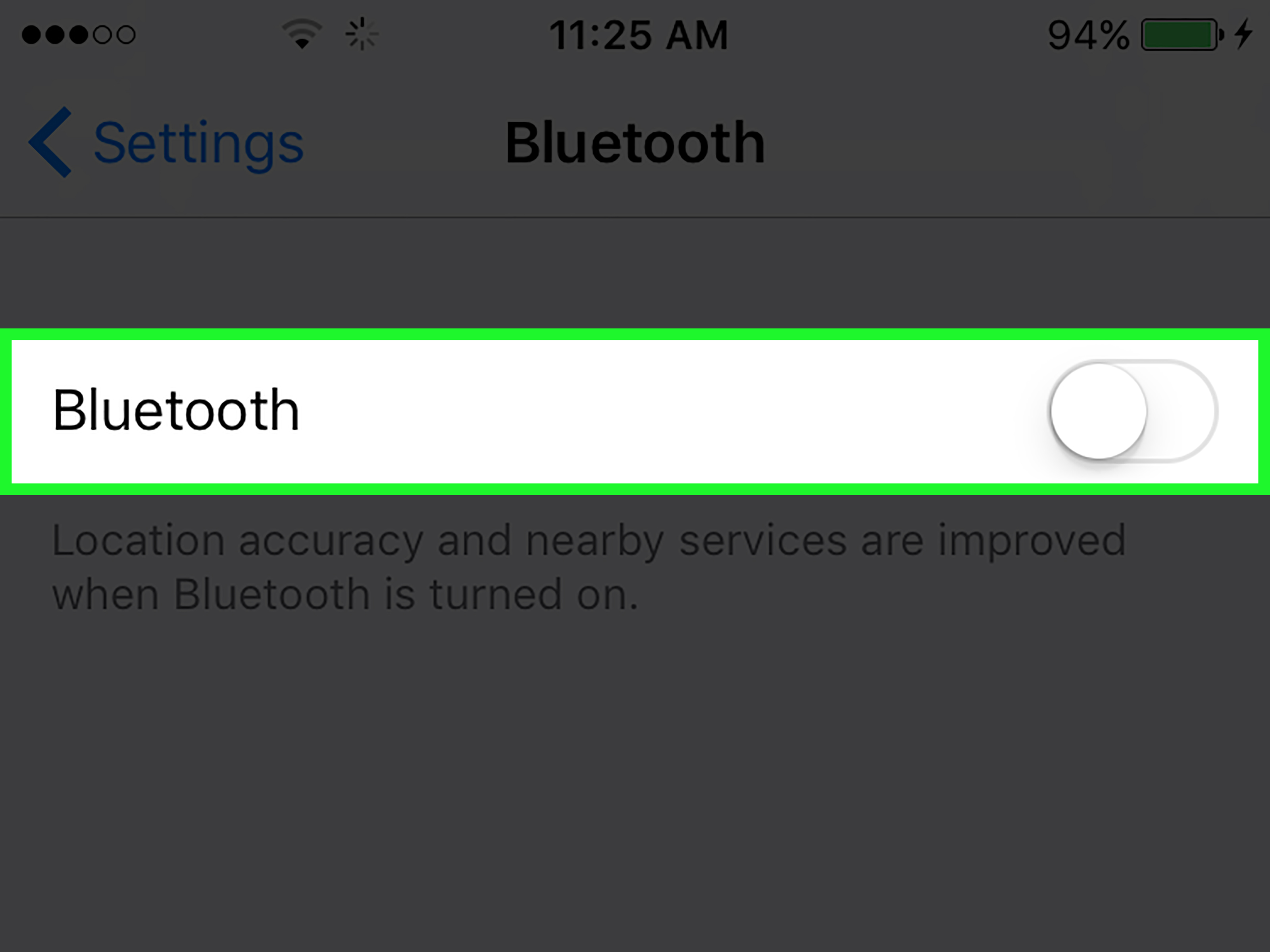
- Open Settings.
- Tap Bluetooth.
- Turn off the Bluetooth switch.
This is the full shutoff. Your iPhone will stop connecting to Bluetooth accessories until you turn Bluetooth back on. Use this when you want a stronger privacy pause, when you are troubleshooting weird nearby connection behavior, or when your phone keeps trying to reconnect to a speaker from three rooms away like it owes the speaker money.
Why Control Center Bluetooth Is Not the Same
When you tap the Bluetooth icon in Control Center, your iPhone disconnects from many Bluetooth accessories, but Bluetooth can remain available for certain Apple features and system services. That means Control Center is useful for a quick accessory disconnect, but it is not the same as fully disabling Bluetooth from Settings.
This distinction confuses many users because the icon looks like a big official off switch. In reality, it is more like telling Bluetooth, “Take a break, but stay near your phone in case Apple needs you.” If your goal is to block Bluetooth sharing as completely as possible, use Settings > Bluetooth.
How to Block Bluetooth Access for Apps
Some apps request Bluetooth access to connect to nearby devices, pair with accessories, detect beacons, improve location-related features, or communicate with smart gadgets. If an app does not need Bluetooth for anything you actually use, you can revoke its permission.
- Open Settings.
- Tap Privacy & Security.
- Tap Bluetooth.
- Review the list of apps.
- Turn off Bluetooth access for apps that do not need it.
This does not turn off Bluetooth for your entire iPhone. Instead, it prevents selected apps from using Bluetooth. For example, a headphone app, fitness tracker app, or smart home app may legitimately need Bluetooth. A random coupon app, flashlight app, or game probably does not need to sniff around nearby devices unless it has a very convincing explanation and perhaps a tiny detective hat.
Which Method Should You Use?
If you want to stop file requests, use AirDrop controls. If you want to stop contact-sharing prompts, turn off Bring Devices Together. If you want to stop Bluetooth connections altogether, turn Bluetooth off in Settings. If you want to reduce tracking or device discovery by apps, review Bluetooth permissions under Privacy & Security.
| Goal | Best Setting | Where to Find It |
|---|---|---|
| Block AirDrop file requests | AirDrop Receiving Off | Settings > General > AirDrop |
| Stop NameDrop contact prompts | Turn off Bring Devices Together | Settings > General > AirDrop |
| Fully disable Bluetooth | Bluetooth Off | Settings > Bluetooth |
| Stop apps from using Bluetooth | Disable app permissions | Settings > Privacy & Security > Bluetooth |
Extra Privacy Tips for Nearby Sharing
Keep AirDrop on Contacts Only or Receiving Off
For daily use, avoid leaving AirDrop open to everyone. Contacts Only is convenient for trusted sharing, while Receiving Off is best for public places. The fewer people who can see your device, the fewer surprise requests you will receive.
Rename Your iPhone If It Reveals Too Much
Your iPhone name may appear to others during AirDrop, Personal Hotspot, or device discovery. If your phone is named “Emily Johnson’s iPhone,” that is convenient at home but more revealing in public. You can rename it by going to Settings > General > About > Name. Something simple like “iPhone” or “MJ Phone” shares less personal information.
Turn Off Personal Hotspot When You Are Not Using It
Personal Hotspot can use Wi-Fi, Bluetooth, or USB to share your iPhone’s internet connection. If you are trying to reduce nearby wireless sharing, turn it off when not needed. Go to Settings > Personal Hotspot and disable Allow Others to Join.
Update iOS Regularly
Software updates often include security improvements, privacy changes, and bug fixes. If sharing settings are acting strangely, update your iPhone by going to Settings > General > Software Update. A fresh update will not make your phone immune to awkward pop-ups, but it can fix known issues and improve security behavior.
Common Problems and Fixes
“I Turned Off Bluetooth in Control Center, But AirDrop Still Works”
That can happen because Control Center does not fully disable Bluetooth. To shut Bluetooth off completely, go to Settings > Bluetooth and turn off the switch there. To block AirDrop specifically, go to Settings > General > AirDrop and choose Receiving Off.
“I Still See AirDrop Requests”
Check that AirDrop is not set to Everyone for 10 Minutes or Contacts Only. If you want no requests at all, use Receiving Off. Also check whether you are seeing NameDrop prompts rather than regular AirDrop requests, then disable Bring Devices Together.
“An App Keeps Asking for Bluetooth”
Go to Settings > Privacy & Security > Bluetooth and turn off access for that app. If the app needs Bluetooth to function, such as a smartwatch or printer app, some features may stop working. That is not a bug; that is the app finally listening to your boundaries.
“My AirPods or Car Stopped Connecting”
If you fully turn off Bluetooth, accessories such as AirPods, car audio systems, speakers, and fitness devices will stop connecting. Turn Bluetooth back on in Settings > Bluetooth when you want to use them again. If only one accessory is annoying you, tap the information icon next to that device and choose Disconnect or Forget This Device.
Security Perspective: Is AirDrop Dangerous?
AirDrop is designed with security controls, and receiving a file normally requires user interaction. The bigger everyday risk is not that strangers can magically steal your data through Bluetooth. The more realistic problems are unwanted requests, inappropriate images, confusing device names, accidental contact sharing prompts, and leaving your iPhone visible when you do not need to.
That is why the best advice is practical rather than panicked: use Receiving Off in public, Contacts Only with trusted people, and Everyone for 10 Minutes only when needed. Turn off NameDrop if it bothers you. Audit Bluetooth permissions. You do not need to wrap your iPhone in aluminum foil and whisper to it under the stairs. You just need the right settings.
Conclusion
Blocking Bluetooth sharing on an iPhone is less about one magic switch and more about knowing which feature you actually want to control. For unwanted nearby file transfers, turn off AirDrop receiving. For contact-sharing prompts, disable Bring Devices Together. For stronger wireless control, turn Bluetooth off from Settings instead of relying on Control Center. For app-level privacy, review Bluetooth permissions and remove access from apps that do not need it.
The best everyday setup is simple: keep AirDrop on Receiving Off or Contacts Only, turn off Bring Devices Together if you dislike NameDrop, and use Settings > Bluetooth when you truly want Bluetooth off. That gives you privacy without giving up useful iPhone features forever. Your phone can still be smartit just does not need to be the mayor of every nearby device.
Personal Experience: What Actually Works in Real Life
In everyday use, the most effective way to block Bluetooth sharing on an iPhone is not to obsess over Bluetooth itself, but to build a few reliable habits. The first habit is checking AirDrop before going into public places. Airports, classrooms, libraries, conferences, cafés, and trains are exactly where unwanted AirDrop requests tend to happen. Before walking into those places, setting AirDrop to Receiving Off takes only a few seconds and prevents most surprise sharing attempts.
Another useful habit is treating Everyone for 10 Minutes like a temporary guest pass, not a permanent lifestyle. It is handy when a coworker wants to send a document, a friend wants to share vacation photos, or someone at an event needs to send you a file quickly. But after the transfer, switch back to Contacts Only or Receiving Off. The ten-minute limit helps, but privacy works better when you are intentional.
Bluetooth permissions are also worth checking after installing new apps. Many people tap through permission pop-ups quickly because they just want the app to open. Later, they forget which apps were granted access. A quick visit to Settings > Privacy & Security > Bluetooth can be surprisingly revealing. If an app connects to headphones, printers, health devices, smart locks, or trackers, Bluetooth access may make sense. If an app has no obvious reason to use Bluetooth, turn it off and see whether anything important breaks. Usually, nothing dramatic happensno alarms, no smoke, no tiny app developer appearing to complain.
For people who use AirPods, Apple Watch, car audio, or smart home devices, fully turning off Bluetooth can be inconvenient. That is why AirDrop settings are usually the smarter first move. Turning off Bluetooth is useful for troubleshooting, travel, battery experiments, or maximum short-term privacy, but it can also interrupt the accessories you actually like. In other words, do not use a hammer when a light switch will do.
NameDrop is another setting that depends on personal comfort. Some users enjoy how fast it makes contact sharing. Others find it distracting, especially if they carry two iPhones or frequently place devices close together. Turning off Bring Devices Together does not ruin your iPhone; it simply stops that close-range sharing prompt. You can still share contacts manually when you want to.
The most practical setup for privacy-minded users is this: AirDrop set to Contacts Only at home or work, Receiving Off in crowded public places, Bring Devices Together disabled if NameDrop feels unnecessary, and Bluetooth app permissions reviewed monthly. This setup keeps sharing under your control while preserving the useful parts of Bluetooth. Your iPhone stays helpful, your accessories still work, and random strangers do not get an open invitation to send you mystery files titled “Important.” That is a win for privacy, sanity, and the general emotional health of your notification screen.