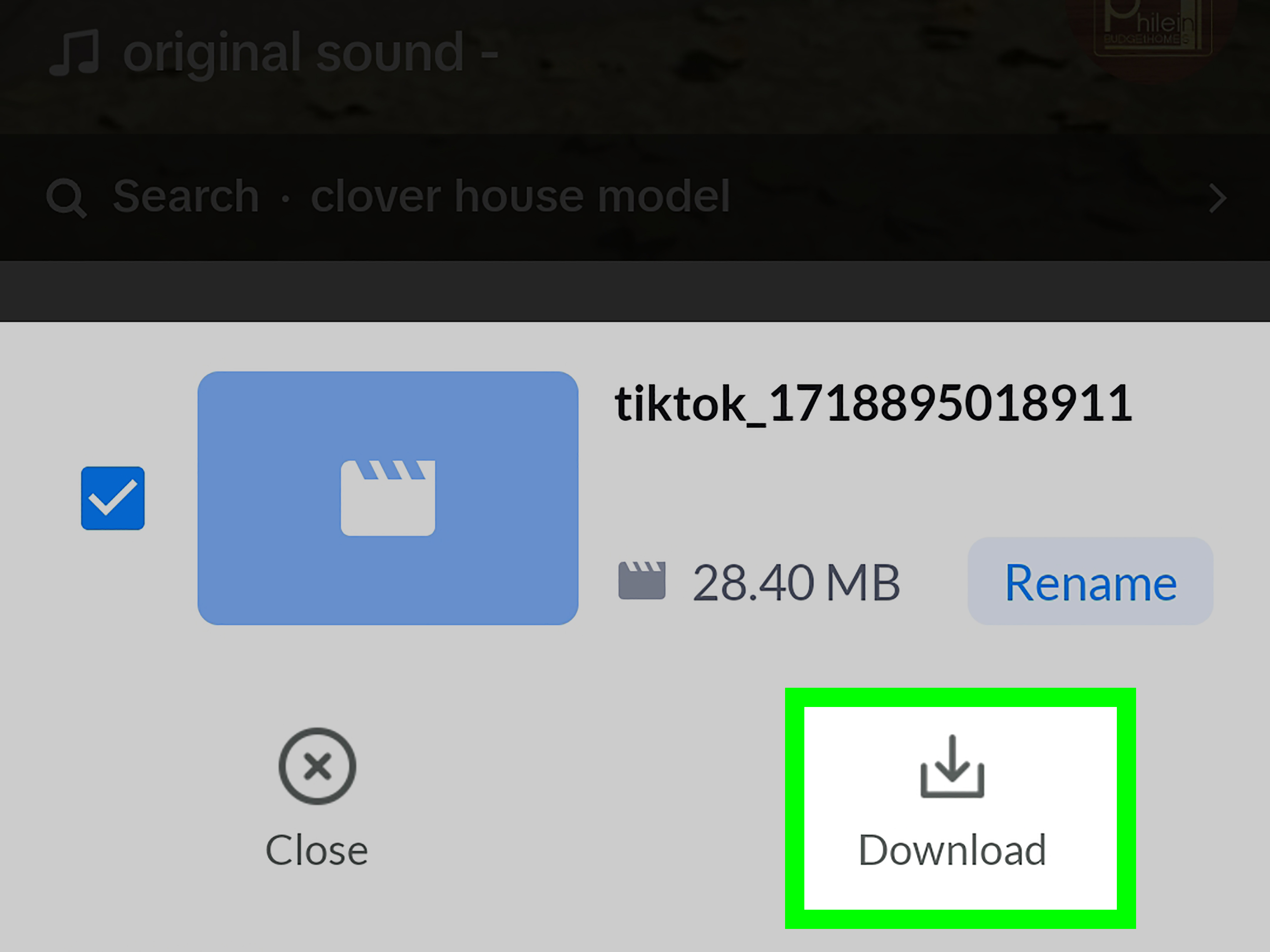
Saving a TikTok video to your Android Gallery sounds like it should be as simple as finding the video, tapping one magic button, and watching it land in your camera roll like a tiny dancing celebrity. Sometimes, it really is that easy. Other times, the button disappears, the creator has disabled downloads, your phone hides the file in a mysterious folder, or Android decides to behave like a bouncer outside a private club.
The good news: there are several reliable ways to save TikTok videos on Android without needing a tech degree, a second phone, or a suspicious “download unlimited viral videos now” app that looks like it was designed during a power outage. In this guide, you will learn three practical methods: using TikTok’s built-in Save Video feature, saving your own TikTok videos directly to your device, and using Android’s screen recorder when downloading is not available.
This guide focuses on simple, safe, and respectful methods. That means you should save videos for personal use, avoid reposting someone else’s work without permission, and remember that creators may turn off downloads for a reason. Internet manners: still free, still underrated.
Can You Save Any TikTok Video to Your Android Gallery?
Not always. TikTok allows creators to control whether other people can download their videos. If a creator has enabled downloads, you may see the Save Video option in the Share menu. If downloads are disabled, that button may not appear. Some videos may also be restricted because of privacy settings, music licensing, age settings, regional availability, or app limitations.
On Android, saved TikTok videos usually appear in your Gallery app, Google Photos, Samsung Gallery, or a folder such as Downloads, Movies, Camera, or TikTok. The exact location depends on your phone brand, Android version, and whether you are using a Samsung Galaxy, Google Pixel, Motorola, OnePlus, Xiaomi, or another Android device.
Before you start, update the TikTok app, check that your phone has enough storage, and make sure TikTok has permission to access photos and videos when your phone asks for it. If your storage is full, Android may refuse to save the video, which is basically your phone saying, “I cannot hold one more dancing cat. Please delete something.”
Method 1: Use TikTok’s Built-In Save Video Button
The easiest way to save a TikTok video to your Android Gallery is through TikTok’s own download feature. This is the cleanest option because it works inside the app and does not require extra tools.
Step-by-Step Instructions
- Open the TikTok app on your Android phone.
- Find the video you want to save.
- Tap the Share icon on the right side of the screen.
- Look for the Save video option.
- Tap Save video.
- Wait for the download to finish.
- Open your Gallery app or Google Photos and look for the saved video.
In most cases, the video will appear in your Android Gallery within a few seconds. If you are using Samsung, check Samsung Gallery. If you are using a Pixel or another Android phone that relies heavily on Google Photos, open Google Photos and check the Library or Collections area. Some phones may place downloaded videos in a folder named TikTok, Download, Movies, or Camera.
Why the Save Video Button May Be Missing
If you do not see the Save Video button, do not panic. Your phone is probably not broken, and TikTok is probably not personally targeting you. The most common reason is that the creator has turned off downloads. TikTok gives users privacy controls that allow them to decide whether other people can download their content.
The option may also be missing if the video is private, if the account has restrictions, if the video uses certain sounds or assets with download limitations, or if the TikTok app needs an update. Try closing and reopening the app, updating TikTok from the Play Store or TikTok’s official source, and checking another video to see whether the option appears there.
Best For
This method is best when you want the fastest official way to save a public TikTok video to your Android Gallery. It is also the best choice when the creator has clearly allowed downloads. The video may include a TikTok watermark, which helps preserve creator credit. Think of it as the video wearing a tiny name tag.
Method 2: Save Your Own TikTok Video to Your Android Device
If the video is yours, TikTok gives you more control. You can save your own TikTok videos before posting, while posting, or after publishing, depending on your settings and where the video is stored. This is especially helpful for creators who want a backup copy for editing, sharing with friends, posting on other platforms, or keeping a personal archive.
Save Before Posting
When you create a TikTok video, TikTok may let you save it to your device during the posting process. Before you publish, look for options such as More options or Save to device. Turn that setting on before posting, and TikTok can save a copy to your Android phone.
This is a smart habit for creators. Apps can glitch, drafts can disappear, and Wi-Fi can choose the worst possible time to develop trust issues. Saving a copy to your device means your work is safer, even if something goes wrong later.
Save After Posting
You can also save your own posted TikTok videos from your profile. Open TikTok, go to your profile, tap the video, press the Share button or three-dot menu, and look for the save option. If available, tap it and check your Gallery afterward.
If you do not see a save option on your own video, review your app version and privacy settings. Also check whether the original video already exists in your Gallery from when you recorded it. Many creators forget that the raw clip may still be sitting in their camera folder, quietly waiting to be appreciated.
Turn On Downloads for Your Own Videos
If you want other people to save your TikTok videos, you can manage that in TikTok’s privacy settings. Go to your profile, open the menu, choose Settings and privacy, tap Privacy, and look for Downloads. From there, you can control whether video downloads are allowed.
Only enable downloads if you are comfortable with people saving your videos. While watermarks help credit your account, downloaded videos can still travel far beyond their original audience. The internet is not exactly famous for staying in one place.
Best For
This method is best for TikTok creators, small business owners, influencers, students working on social media projects, and anyone who wants to keep a personal backup of their own content. It is also the most respectful option because you are saving material you created yourself.
Method 3: Use Android Screen Recorder
If the Save Video button is not available, Android’s built-in screen recorder can sometimes help you keep a personal copy of what appears on your screen. Most modern Android phones include a screen recording tool in Quick Settings. This method should be used responsibly and only for personal reference, commentary, education, or situations where you have permission. Do not use it to steal, repost, impersonate, or remove credit from another creator’s work.
How to Screen Record a TikTok on Android
- Swipe down from the top of your Android screen to open Quick Settings.
- Swipe down again if you need to expand the full menu.
- Look for Screen Record or Screen Recorder.
- Tap it and choose your audio settings if prompted.
- Start recording.
- Open TikTok and play the video you want to capture.
- Stop the recording from the notification panel or floating control.
- Open your Gallery, Google Photos, or Movies folder to find the recording.
On Samsung Galaxy phones, Screen Recorder is often available in the Quick Settings panel. On Google Pixel and many other Android phones, the process is similar. If you do not see Screen Recorder immediately, tap the pencil or edit icon in Quick Settings and add it to your visible buttons.
Tips for Better Screen Recordings
For a cleaner result, turn on Do Not Disturb before recording so notifications do not pop up at the worst moment. Nobody wants a beautiful cooking video interrupted by “Your package of socks has shipped.” Increase your screen brightness, play the TikTok in full screen, and avoid touching the screen while recording unless necessary.
You may also want to trim the beginning and end of the recording in your Gallery app. Most Android phones include basic editing tools that let you cut out the countdown, notification shade, or awkward moment where your thumb hovers like it forgot its job.
Best For
Screen recording is best when you need to save something for personal viewing and the official download button is unavailable. It is also useful for saving your own drafts, tutorials, reactions, or videos where you have permission from the creator. It is not the best method for high-quality archiving because the result depends on your screen resolution, audio settings, and how smoothly the video plays.
Where Are Saved TikTok Videos Stored on Android?
After saving a TikTok video, open your Gallery app first. If you do not see it there, open Google Photos and check Library, Collections, Movies, Downloads, or the device folders section. Samsung users should also check Samsung Gallery under Albums. Depending on your phone, TikTok videos may be saved in a dedicated TikTok folder or mixed into your general video folder.
If the video still does not show up, use your phone’s Files app. Search for “TikTok,” “Download,” or “Movies.” Some Android phones scan new media slowly, so give it a minute. If your phone is low on storage, delete unnecessary files and try again.
How to Fix TikTok Videos Not Saving to Gallery
If TikTok says the video saved but you cannot find it, start with the basics. Restart the TikTok app, reopen your Gallery, and check Google Photos. Then check storage space. Videos can be large, and your phone may need more free space than you expect.
Next, check app permissions. On Android, go to Settings, tap Apps, choose TikTok, and review permissions for photos, videos, music, or storage. The wording may vary depending on your Android version. If TikTok does not have the necessary permission, allow access and try saving again.
You can also clear TikTok’s cache. Open TikTok, go to Settings and privacy, find cache and storage settings, and clear the cache. This does not usually delete your account or posted videos, but it can remove temporary files that make the app act like it had too much coffee.
Should You Use Third-Party TikTok Downloaders?
Many websites and apps claim they can save TikTok videos to Android, sometimes without a watermark. Be careful. Some tools may show aggressive ads, request unnecessary permissions, collect data, reduce video quality, or encourage downloading content in ways creators did not approve.
For most users, the safest choices are TikTok’s built-in Save Video feature, saving your own videos through TikTok, or using Android’s screen recorder for personal use when appropriate. If a creator disables downloads, respect that choice. A missing download button is not a puzzle begging to be solved; sometimes it is a boundary.
Quality, Watermarks, and Creator Credit
When you save a TikTok video using the official Save Video button, it may include a TikTok watermark and creator username. That is normal. The watermark helps viewers identify where the video came from and who made it.
If you are saving your own video for professional use, keep an original copy before uploading whenever possible. Original files usually look cleaner than downloaded copies. If you plan to reuse your own video on YouTube Shorts, Instagram Reels, Facebook Reels, or a website, saving the original camera file gives you more flexibility.
If you are saving someone else’s content, do not remove credit or repost it as your own. Besides being unfair, it can hurt your account reputation and may violate platform rules or copyright laws. The creator did the work. Let them keep the applause.
Privacy and Safety Tips Before Saving TikTok Videos
Before saving or sharing any TikTok video, think about privacy. Does the video show someone’s face, home, school, workplace, license plate, private conversation, or personal information? If so, be extra careful. A video that seems funny in the moment can become uncomfortable when shared outside its original context.
For younger users, it is especially smart to avoid saving or sharing videos that include private details. Keep your own location, school name, and personal information out of public posts. TikTok can be fun, but your privacy deserves better security than “hope nobody notices.”
Practical Examples
Example 1: Saving a Recipe Video
You find a 30-second TikTok showing how to make spicy garlic noodles. The creator allows downloads, so you tap Share, choose Save Video, and the clip appears in your Gallery. Later, when your stomach starts making executive decisions, you can watch the recipe without searching again.
Example 2: Saving Your Own Dance Video
You record a dance video for TikTok and want to post it on other platforms later. Before publishing, you enable Save to device. Now you have a backup copy in your Android Gallery. Even if the upload fails, your video survives. Your choreography may still be questionable, but at least the file is safe.
Example 3: Recording a Tutorial for Personal Reference
You see a useful TikTok tutorial, but the Save Video button is unavailable. You use Android Screen Recorder, capture the tutorial for personal reference, and trim the extra seconds at the beginning and end. You do not repost it or remove credit. That is the difference between being organized and being the villain in a comment section.
Extra Experience-Based Tips for Saving TikTok Videos on Android
After saving many short videos on Android, one thing becomes clear: the method matters, but your phone habits matter too. A smooth save starts before you even tap the Share button. Keep your TikTok app updated, keep at least a few gigabytes of free storage, and make sure your Gallery or Google Photos app is syncing properly. When your phone is almost full, video saving becomes unpredictable. Android may save the file slowly, hide it in a folder, or fail without giving a helpful explanation. In other words, your phone becomes that friend who says “I’m fine” while clearly not being fine.
Another useful habit is organizing saved TikTok videos into albums. If you save recipes, workouts, cleaning hacks, study tips, travel ideas, and funny clips all in one place, your Gallery can quickly turn into a digital junk drawer. Create folders such as “TikTok Recipes,” “TikTok Ideas,” “Funny Videos,” or “Content Inspiration.” This makes it much easier to find a video later, especially when you remember the vibe but not the creator, caption, sound, or any useful searchable detail.
If you are saving videos for content planning, always keep notes. For example, if you save a TikTok about a clever camera angle, write down why you saved it: “good hook,” “fast editing,” “funny caption,” or “nice lighting idea.” Otherwise, you may open the video three weeks later and wonder why past-you thought a raccoon eating grapes was important business research.
For creators, the best workflow is to save the original video before uploading to TikTok. Record with your Android camera app if possible, edit in your preferred editor, and then upload to TikTok. That way, you keep a clean original version without compression or platform marks. TikTok downloads are useful, but they are not always the highest-quality version of your content. If you care about sharp visuals, brand consistency, or reposting your own videos elsewhere, originals are your best friend.
Screen recording is helpful, but it should be treated like a backup option, not the main method. Screen recordings may capture notifications, volume changes, lag, or accidental taps. Before recording, turn on Do Not Disturb, close unnecessary apps, and check your sound settings. If the video’s audio matters, test one short recording first. Nothing is more tragic than recording a perfect tutorial and later discovering the audio sounds like it was captured from inside a lunchbox.
Also, remember that not every saved video needs to stay forever. Review your downloaded TikToks once in a while and delete the ones you no longer need. Short videos add up faster than you think. A few hundred clips can eat storage space that you might need for photos, school files, games, or important updates. Keeping your Gallery clean makes your phone faster and your future self less annoyed.
Finally, save with respect. If a video belongs to someone else, use it privately unless you have permission to share it. If you quote, react to, or reference a creator’s idea, credit them clearly. TikTok culture moves quickly, but credit still matters. The best way to enjoy great content is to support the people who make it, not accidentally turn their work into mystery meat on the internet buffet.
Conclusion
Saving a TikTok video to your Android Gallery is usually simple once you know where to look. The official Save Video button is the fastest method when downloads are enabled. If the video is yours, saving it before or after posting gives you a useful backup. And when downloads are unavailable, Android’s screen recorder can help for personal, respectful use.
The key is to choose the right method for the situation. Use TikTok’s built-in tools whenever possible, keep your Android storage organized, and respect creator settings. With those habits, your favorite TikTok recipes, tutorials, jokes, and “I swear I’ll use this later” videos will be easy to find in your Gallery instead of lost forever in the endless scroll.