
If your Android alarm still sounds like a spaceship docking in 2009, it’s time for an upgrade. The good news:
changing your alarm ringtone (a.k.a. alarm sound, alarm tone, wake-up noise, the thing that makes you question your life choices)
is usually quick. The slightly-less-good news: the exact taps depend on your phone brand and which Clock app you’re using.
This guide covers the most common paths on AndroidGoogle’s Clock app (Pixel and many Android phones), Samsung’s Clock app (Galaxy),
and a “works-on-most-phones” fallback. You’ll also learn how to use a song (yes, your guilty-pleasure playlist can be your alarm),
add custom audio files, fix common issues, and keep your alarm loud enough to wake a hibernating bear.
What “alarm ringtone” means on Android (and why it’s different from your phone ringtone)
Android uses different sound categories for different jobs:
your phone ringtone is for calls, notification sound is for pings,
and alarm sound is for “wake up right now.” These are usually managed separately, and on many phones you can:
- Set a default alarm sound for new alarms
- Set a custom sound per alarm (weekday alarm gets one tone, weekend alarm gets another)
- Use device sounds, your own audio file, or a song via a music app
Translation: changing your regular ringtone won’t necessarily change your alarm. Alarms live in their own little dramatic universe.
Method 1: Change the alarm ringtone for one specific alarm (most reliable)
This is the best method if you want one alarm to be “gentle sunrise vibes” and another to be “YOU ARE LATE.”
The idea is the same across most Android phones: open the Clock app, open your alarm, tap the sound option, pick a new tone.
Google Clock app (Pixel and many Android phones)
- Open the Clock app.
- Tap Alarm.
- Tap the alarm you want to edit (or tap the + / Add button to create one).
- Tap the current alarm sound (it may show a bell icon or the name of the tone).
- Choose one of these options:
- Device Sounds: pick a built-in tone (simple and dependable).
- Add new: select a sound file you’ve downloaded (MP3, etc.).
- Record new (Pixel-supported): create a custom recorded sound for a very personal wake-up call.
- Song from an app: select music from supported apps (more on that below).
- Back out or tap OK/Save if prompted.
Pro move: After changing the tone, tap the alarm’s time and set it for 1–2 minutes from now to test it.
Because discovering your new alarm is silent should not be a “surprise feature” at 7:00 a.m.
Samsung Galaxy phones (Samsung Clock app)
Samsung’s Clock app gives you a dedicated Alarm sound option when creating or editing an alarm.
You can also adjust alarm volume from within the alarm sound section on many Galaxy devices.
- Open the Clock app.
- Tap Alarm.
- Tap an existing alarm to edit it, or tap + to create a new alarm.
- Tap Alarm sound.
- Select a new tone (and on many models, set the volume slider for that alarm sound).
- Tap Save.
Samsung bonus options: Depending on your model, you may see extras like Bixby Alarm (an alarm tone plus spoken info),
vibration patterns, and snooze settingsuseful if you want your phone to wake you up with both sound and “helpful” commentary.
Motorola phones (Motorola/stock-style Clock)
Motorola’s instructions are wonderfully straightforward: open Clock, then expand the alarm details to change the sound.
- Open the Clock app.
- Go to Alarm and pick an alarm (or create one).
- Tap the down arrow (expand) on that alarm to reveal settings.
- Change the alarm’s sound (and optionally the schedule/label).
- Use the app’s Settings menu to adjust general options like alarm volume or snooze duration if needed.
Method 2: Change the default alarm sound for your phone (when available)
Some Android versions and manufacturer skins include a default alarm sound setting in the system Sound menu.
This can be useful if you frequently create new alarms and want them all to start with the same tone.
However, note that alarms can still have per-alarm sounds that override the default.
Typical path in Settings
- Open Settings.
- Tap Sound or Sound & vibration (wording varies).
- Look for Alarm volume and (if available) Default alarm sound / Alarm sound.
- Select the tone you want and Save if prompted.
If you don’t see a default alarm sound option in Settings, no worriesMethod 1 (inside the Clock app) still works on nearly every device.
How to use a song as your Android alarm (Spotify, YouTube Music, Pandora, Calm, etc.)
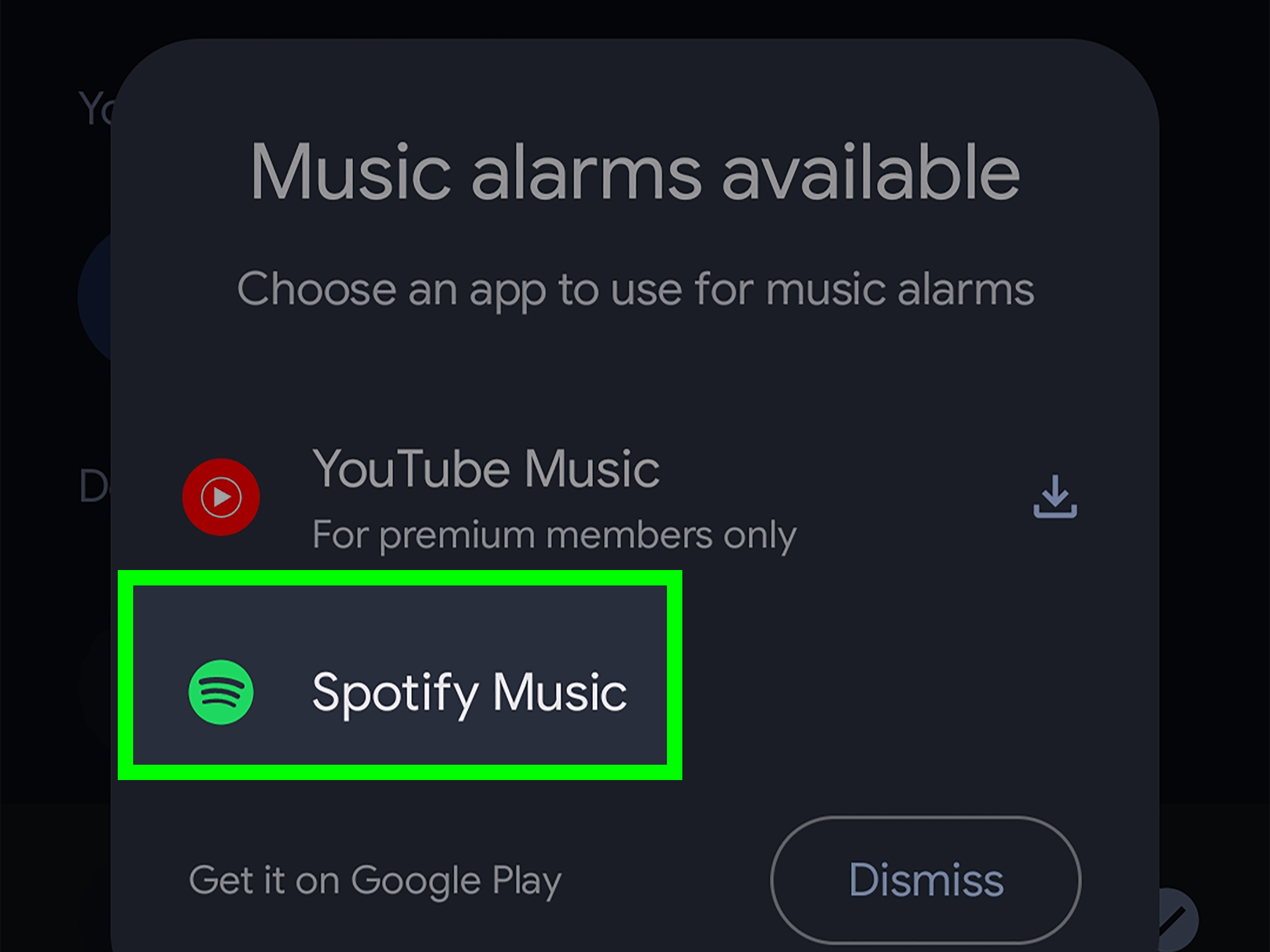
Want your alarm to be a song instead of a siren? On many phones using Google’s Clock app, you can set alarms to play music from supported apps.
It’s like having a DJ who only works one shift per day and is extremely strict about premium subscriptions.
Steps (Google Clock app)
- Install and sign in to a supported app (examples can include YouTube Music, Spotify, Pandora, or Calm).
- Open the Clock app > Alarm.
- Tap an alarm to edit it.
- Tap the alarm sound option.
- Choose the music service, then pick a song, album, playlist, station, or sound (options depend on the service).
Heads-up: Some services require a premium account for specific song selection.
Free tiers may limit you to playlists/stations and may include adsso your “peaceful piano sunrise” might occasionally become “BUY THIS THING RIGHT NOW.”
How to add your own custom alarm sound (downloaded audio files)
If you’ve got an MP3, a voice memo, or a sound effect that perfectly captures your morning mood (like “tiny raccoon tapping on a trash can”),
you can often use it as an alarm sound.
Option A: Add the file from inside the Clock app (easy)
- Download or transfer your audio file to your phone (common locations: Downloads or Music).
- Open Clock > Alarm, then edit the alarm.
- Tap Alarm sound.
- Tap Add new (or a similar option).
- Select Your sound file, then confirm.
Option B: Transfer from a computer (helpful if your phone won’t “see” the file)
If you’re moving audio from a computer, Android typically expects ringtones in specific folders.
Many devices can then pick those files from sound selectors.
- Connect your phone to your computer with a USB cable.
- Find the phone’s storage folders and copy your audio file to the appropriate location (folders can differ for ringtones vs. alarms).
- Disconnect and re-open the Clock app’s sound picker.
Tip: If you can’t find the file when choosing an alarm sound, try restarting the Clock app (or the phone),
then go back to the alarm sound picker and look for “Your sound file,” “Add,” or a file-browse option.
Make sure the alarm actually wakes you up (volume, vibration, and “oops” settings)
Changing the ringtone is only half the battle. The other half is making sure your phone isn’t quietly plotting against your morning routine.
Here are the settings that most commonly cause “My alarm didn’t ring!” panic.
1) Check alarm volume (not media volume)
Android has separate volume sliders. Turning up Spotify doesn’t automatically turn up alarms. You want Alarm volume.
On many phones, press a volume button and tap the menu icon to reveal multiple sliders, including Alarm.
2) Don’t set the alarm sound to “silent” (unless you enjoy chaos)
Some Clock apps will warn you if your alarm sound is silent or your alarm volume is too low. Treat those warnings like a tiny life coach.
3) Decide if you want vibration
Vibration is a great backupespecially if you’re a “sleep like a rock” person or you keep your phone on a soft surface.
Most alarms have a Vibrate toggle inside the alarm settings.
4) Review Do Not Disturb / Modes
On newer Android versions, Modes (including Do Not Disturb and Bedtime mode) can block or allow alarms,
depending on your configuration. If you see messages that DND silenced your alarm, you’ll want to adjust the mode’s notification filters
to allow alarms.
5) Battery and notification settings
If alarms are unreliable, make sure Clock notifications are allowed and that battery-saving settings aren’t restricting the Clock app.
Some devices even surface specific warnings if Battery Saver might interfere with alarms.
Troubleshooting: When your alarm sound won’t change (or won’t play)
If you changed the alarm ringtone and your phone still plays the old one (or nothing), try these fixes in order:
- Confirm you edited the correct alarm. (It’s surprisingly easy to change Tuesday’s alarm when you meant Thursday.)
- Test the alarm immediately. Set it for 1–2 minutes from now and verify the sound plays.
- Raise alarm volume. Ensure “Alarm” slider is upnot just “Media.”
- Turn off silent/mute for alarms. Some phones can silence alarms when system sound is offcheck Clock settings.
- Check Do Not Disturb / Bedtime mode filters. Ensure alarms are allowed to interrupt you.
- Update the Clock app. Open the Play Store, search for “Clock,” and update if available.
- Restart the phone. Classic fix, still undefeated.
- Try a different tone. If a custom file won’t play, test a built-in device sound to isolate the issue.
Best-practice examples (so you don’t accidentally sabotage your mornings)
Example 1: The “weekday vs. weekend” setup
Create two alarms:
one for weekdays with a louder, more urgent tone (because Monday),
and one for weekends with a gentler sound. Set the weekday alarm to repeat Monday–Friday, and the weekend alarm for Saturday–Sunday.
This keeps you from waking up at 6:30 a.m. on a Saturday like you’re reporting for duty.
Example 2: A music alarm that won’t break your heart
If you’re using a streaming service, pick a playlist or station that you know will play consistently.
Some services restrict exact song selection on free accounts, so a playlist/station can be more reliable than choosing one specific track.
Example 3: The “backup vibration” strategy
If you sleep through sound alarms, turn on vibration and place the phone on a firm surface (nightstand instead of a pillow fortress).
Sound + vibration is often the “no excuses” combo.
of Real-World Experiences People Commonly Run Into (and How They Fix Them)
Most people don’t change an alarm ringtone because they’re bored. They do it because they’ve developed a complicated relationship
with their current alarm toneone that can be summarized as: “I hate you, but you’ve kept me employed.”
Here are the most common real-life situations people describe when customizing alarm sounds, and what typically helps.
Experience #1: “I changed it, but it still plays the old sound.”
This is the classic. Usually, it’s because the person changed the default alarm sound in Settings, but the alarm they rely on
has a custom tone assigned inside the Clock app. The fix is simple: open the Clock app, tap the specific alarm, and change the sound there.
Another sneaky culprit: multiple Clock apps. Some phones have a manufacturer Clock plus Google Clock installed. If you set the alarm in one app
but adjust sound settings in another, Android will happily watch you suffer. The cure: open the exact Clock app that actually rings in the morning
and make changes there.
Experience #2: “My custom MP3 isn’t showing up.”
People often download an audio file and expect it to appear instantly in the alarm sound list like magic. Sometimes it does.
Other times, the Clock app wants you to use an “Add new” or file-picker option to browse your storage. When that still fails,
restarting the Clock app (or the phone) is surprisingly effective. If the file is in a weird format or has an odd filename,
renaming it and ensuring it’s a standard audio type (like MP3) can also help. Many folks end up discovering that the file is
sitting in an unexpected folder (hello, random “Messaging” downloads directory), so using the file-picker search bar is a big win.
Experience #3: “My alarm didn’t ring because Do Not Disturb was on.”
This one feels unfair because alarms are supposed to be the grown-ups in the notification world. But Modes and DND settings can be customized,
and sometimes alarms get blocked. People usually fix this by opening the active mode (Do Not Disturb or Bedtime) and checking the notification
filters to ensure alarms are allowed. After adjusting, they do a quick test alarm for peace of mind.
Experience #4: “The alarm rings, but it’s too quiet to wake me.”
Many people crank media volume and assume they’re safethen the alarm whispers politely and leaves. The fix: raise Alarm volume
specifically. Some users also prefer a tone with a strong, sharp opening (it cuts through sleep better than a soft fade-in).
Turning on vibration adds a second channel of “HEY” that can make a big difference.
Experience #5: “I used a song, but it played ads or the ‘wrong’ track.”
When alarms pull from streaming services, free accounts may have limitations. People often switch to a playlist or station they like,
or choose a built-in device sound for critical alarms (like flights and exams), saving music alarms for regular weekdays.
The best real-world strategy is a “belt and suspenders” approach: fun music for normal mornings, boring reliable tone for high-stakes mornings.
Conclusion
Changing your alarm ringtone on Android is usually a few taps: Clock app > Alarm > choose the alarm > tap the sound > pick a new tone.
From there, you can level up with custom audio files, streaming music alarms, and extra safeguards like vibration and proper alarm volume.
Once you’ve got the perfect sound, do yourself a favor and test itbecause “I thought I changed it” is not a bedtime affirmation.













