
Note: This guide explains practical ways to disable or limit the internal microphone on a Mac using built-in macOS privacy settings, sound input controls, and app-level permissions. macOS does not offer one magical “destroy the microphone forever” switchprobably because Apple assumes most people still want Zoom, FaceTime, voice memos, and the occasional “Hey Siri, where did I put my coffee?” moment. Instead, the best approach is to stop apps and voice features from using the internal microphone unless you clearly allow it.
Your Mac’s internal microphone is useful, tiny, and surprisingly good at hearing keyboard clacks, ceiling fans, snack bags, and that one dog three houses away. But there are plenty of good reasons to turn it off or restrict it. Maybe you are privacy-conscious. Maybe you record audio with an external microphone and do not want macOS switching back to the built-in mic. Maybe you simply want peace of mind before joining a meeting where “Can you hear me?” has already taken ten years off your life.
This in-depth guide walks you through six practical steps to disable the internal microphone on a Mac, reduce accidental audio capture, control microphone permissions, and keep your privacy settings clean. The instructions apply broadly to modern macOS versions using System Settings, including recent releases such as Ventura, Sonoma, Sequoia, and Tahoe. Older macOS versions may use “System Preferences” instead of “System Settings,” but the idea is similar.
Can You Completely Disable the Internal Microphone on a Mac?
Here is the honest answer: not with one simple built-in switch. Apple lets you control which apps can access the microphone, choose your preferred audio input device, turn off Dictation, and manage Siri listening features. However, macOS does not include a universal setting labeled “Disable Built-in Microphone.” If you want a true hardware-level shutdown, that usually means professional repair-level modification, which is not recommended for everyday users and may void warranty coverage. In other words, do not attack your MacBook with a screwdriver unless your hobby is turning expensive aluminum into sadness.
For most users, the practical goal is not physically removing the microphone. The goal is to prevent apps, browsers, websites, and voice services from using it without permission. That is where macOS privacy controls are very useful. You can revoke microphone access app by app, change the default input device, lower input volume, turn off Dictation, disable Siri listening, and monitor the microphone indicator in the menu bar.
Before You Start: What You Need
You only need your Mac and administrator access. If your Mac is managed by a school, company, or organization, some settings may be locked by device management policies. In that case, you may need to contact the administrator. If this is your personal Mac, you should be able to follow the steps below without installing extra software.
If you use an external microphone, USB audio interface, headset, webcam microphone, or monitor microphone, plug it in before changing your sound input settings. This makes it easier to choose something other than the internal microphone as your default input device.
How to Disable the Internal Microphone on a Mac: 6 Steps
Step 1: Open Microphone Privacy Settings
Start with the most important control: app permissions. Click the Apple menu in the top-left corner of your screen, then choose System Settings. In the sidebar, click Privacy & Security. Scroll until you see Microphone, then open it.
This screen shows apps that have requested microphone access. Apps such as Zoom, Microsoft Teams, Google Chrome, Safari, Discord, FaceTime, QuickTime Player, GarageBand, and screen recording tools may appear here. If an app has microphone permission, it can use audio input when its features require it. If permission is turned off, macOS should block that app from using the microphone.
Review the list carefully. If you do not recognize an app, or if the app has no business listening to audio, turn its microphone access off. For example, a video meeting app may need microphone access. A wallpaper app? Probably not. A calculator app requesting microphone access? That calculator has some explaining to do.
Step 2: Turn Off Microphone Access for Apps You Do Not Trust
Inside Privacy & Security > Microphone, toggle off microphone access for any app that does not need it. This is the cleanest way to “disable” the internal microphone from the perspective of most apps. It does not physically remove the mic, but it stops apps from using it through normal macOS permission channels.
Use a simple rule: if the app does not need your voice, it does not need your microphone. A note-taking app might need mic access if you use voice notes. A browser may need it if you join online meetings. A music production app may need it if you record vocals. But random utilities, games, shopping apps, and unknown tools should usually be denied.
After changing permissions, quit and reopen any app you just modified. Some apps only recognize permission changes after restarting. If the app is already open during the change, it may behave oddly until you relaunch it. Think of it like telling someone the meeting is canceled while they are already presenting slidesit takes a moment for reality to catch up.
Step 3: Change the Default Sound Input Away From the Internal Microphone
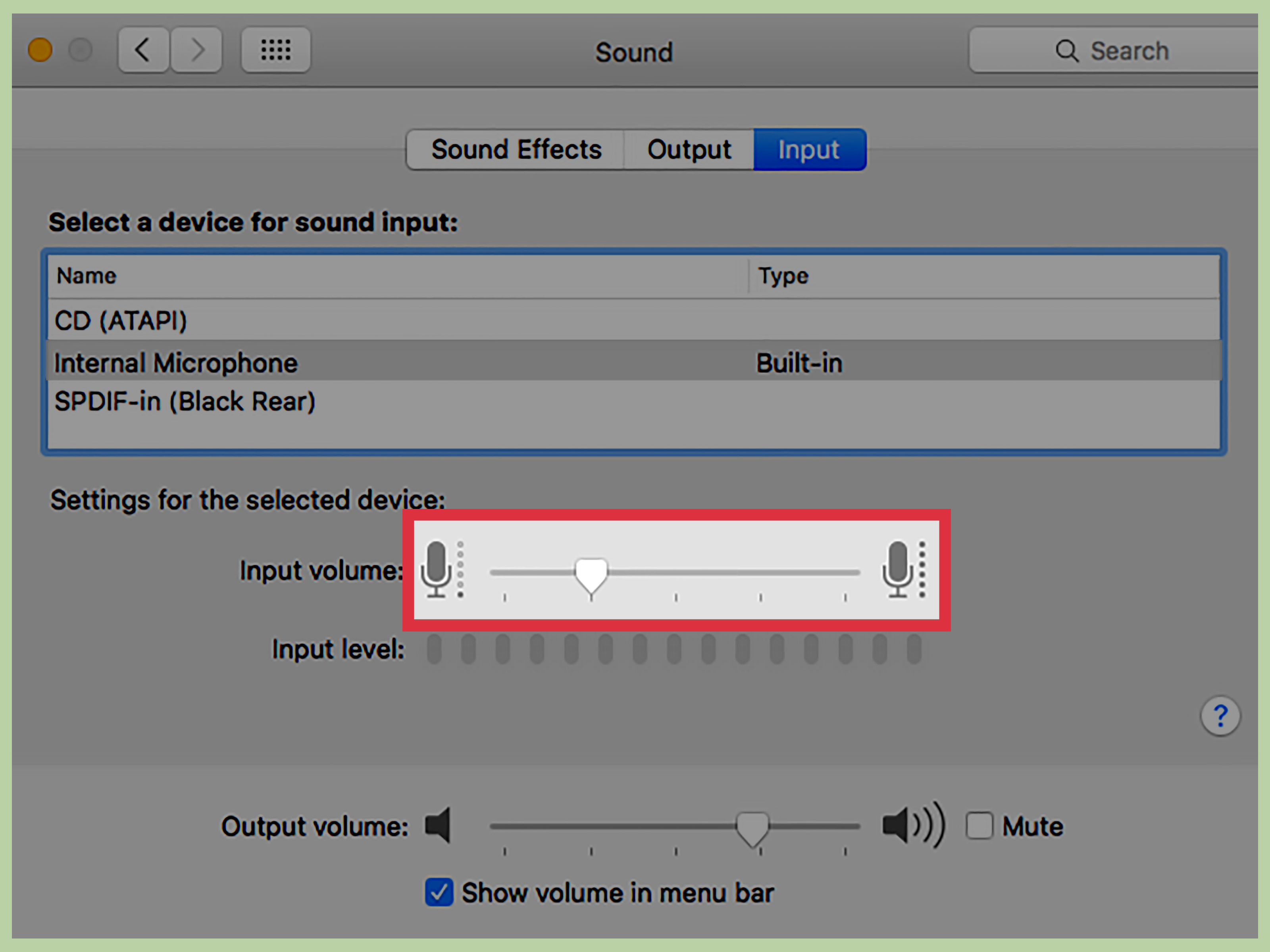
Next, change your Mac’s default input device. Go to Apple menu > System Settings > Sound, then click Input. You will see available sound input devices. On many Macs, the built-in option appears as something like MacBook Microphone, Mac Microphone, or a similar model-based name.
If you have another input device connected, such as a USB microphone, headset, audio interface, or external monitor microphone, select that instead of the internal microphone. This tells macOS to use the external device as the default input.
This step is especially helpful for creators, students, remote workers, and anyone who records audio. For example, if you use a USB podcast microphone, selecting it as the default input helps prevent your Mac from accidentally using the internal microphone during calls or recordings. Nothing ruins “professional studio sound” faster than recording from the laptop mic across the room while your expensive microphone sits there like a decorative metal candle.
If you do not have another input device, select the internal microphone and lower the Input volume as much as macOS allows. This is not a perfect privacy lock, and it should not replace app permissions, but it can reduce accidental pickup in certain situations. Some apps may still have their own microphone settings, so always check app-level controls too.
Step 4: Turn Off Dictation
Dictation lets you speak words and have your Mac turn them into text. It is useful when you want to write hands-free, but if your goal is to reduce microphone use, you should turn it off.
Go to Apple menu > System Settings > Keyboard. Find the Dictation section, then turn Dictation off. If macOS asks for confirmation, confirm the change.
This prevents accidental Dictation activation through a keyboard shortcut or function key. It is a small setting, but it matters. Many users forget Dictation exists until it suddenly wakes up and starts typing half a conversation into a document. That is rarely helpful, unless your essay assignment is titled “A Dramatic Transcript of My Roommate Looking for Socks.”
Step 5: Disable Siri Listening Features
Siri can use your microphone when voice activation is enabled. To reduce microphone activity, open System Settings and go to Siri or Apple Intelligence & Siri, depending on your macOS version. Look for options such as Listen for “Hey Siri”, Listen for “Siri”, or similar listening controls.
Turn off voice listening if you do not want your Mac waiting for a spoken Siri command. You may still be able to use Siri manually with a keyboard shortcut or menu bar icon, depending on your settings, but your Mac will not be actively listening for the wake phrase.
If you never use Siri on your Mac, you can turn Siri off entirely. This is a good option for users who prefer maximum privacy and minimal background voice features. It also prevents awkward moments where Siri responds to something that was absolutely not meant for Siri. Digital assistants are helpful, but sometimes they have the social timing of a toaster at a wedding.
Step 6: Check Browser and Meeting App Microphone Settings
Even after changing macOS permissions, check your browsers and meeting apps. Apps such as Safari, Chrome, Firefox, Zoom, Teams, Slack, Discord, Google Meet, and Webex may have their own microphone settings. A browser may also remember that you allowed a specific website to use your microphone.
In Safari, review website permissions from Safari settings. In Chrome and many Chromium-based browsers, check site settings for microphone access. In Firefox, review permissions under privacy and security settings. Remove microphone permission from websites that do not need it. If a random website asked for microphone access and you clicked “Allow” because you were tired, hungry, or emotionally defeated by pop-ups, now is the time to revoke it.
Finally, open your meeting apps and choose the correct microphone in each app’s audio settings. Many apps let you select the input device manually. Choose your external microphone if you use one, or select no microphone where the app allows it. Run a test call to make sure the internal microphone is not being used.
How to Know When Your Mac Microphone Is Being Used
Modern macOS versions show privacy indicators when the microphone or camera is active. If you see an orange indicator in the menu bar or Control Center area, that usually means an app is using the microphone. Open Control Center or check the menu bar details to identify which app is responsible.
This indicator is useful, but it is not a substitute for good permission hygiene. Think of it as a smoke alarm, not a fireproof house. It tells you something is happening, but your best protection is still limiting app permissions, installing software only from trusted sources, and keeping macOS updated.
Extra Privacy Tips for Mac Microphone Security
Keep macOS Updated
Software updates often include security fixes, privacy improvements, and bug repairs. Go to System Settings > General > Software Update and install available updates when practical. If you delay updates forever, your Mac becomes that one friend who still thinks “password123” is a security strategy.
Remove Apps You Do Not Use
Old apps can keep old permissions. If you no longer use an app, uninstall it. Then review Privacy & Security > Microphone again. Fewer apps means fewer permission problems and fewer mystery icons staring at you from Launchpad like abandoned houseplants.
Be Careful With Free Downloads
Only install software from trusted developers, the Mac App Store, or official websites. Free tools can be useful, but unknown downloads may include unwanted behavior. A microphone privacy guide is not very helpful if you install “TotallySafeAudioBooster_Real_Final_v7.dmg” from a website that looks like it was assembled during a thunderstorm.
Use an External Microphone With a Physical Mute Button
If you frequently join calls, consider using an external microphone or headset with a physical mute switch. A hardware mute button gives you quick, visible control. It is not the same as disabling the internal microphone inside the Mac, but it helps prevent embarrassing audio moments and makes your setup easier to manage.
Avoid Relying on Tape Over the Microphone
Tape works well for covering a camera because cameras need a clear view. Microphones are different. Sound can travel through tiny gaps and surfaces, and many laptops use multiple microphones. Covering the microphone with tape may reduce sound quality, but it usually does not create reliable privacy. It may also leave sticky residue, which is the least glamorous form of cybersecurity.
Common Problems and Fixes
The App Still Shows Microphone Access After I Turned It Off
Quit and reopen the app. If that does not work, restart your Mac. Some apps need a full relaunch before permission changes take effect. Also check whether the app has another helper process or browser-based version that still has permission.
The Internal Microphone Keeps Coming Back as the Default Input
This can happen if your external microphone is disconnected, asleep, or not recognized at startup. Reconnect the external device, return to System Settings > Sound > Input, and select it again. For meeting apps, check the app’s own audio settings because some apps choose input devices independently from macOS.
I Do Not See an App in Microphone Permissions
An app usually appears in the Microphone permission list only after it requests access. Open the app and try to use its microphone feature. macOS should prompt you to allow or deny access. If it still does not appear, update the app, restart your Mac, or reinstall the app from a trusted source.
My Microphone Does Not Work After I Changed Settings
That may be exactly what you wantedor a sign that you blocked the wrong app. Go back to Privacy & Security > Microphone and allow access for apps you actually need, such as Zoom or FaceTime. Then check Sound > Input and make sure the correct microphone is selected.
Best Setup for Maximum Privacy
For the strongest everyday privacy setup, turn off microphone access for all nonessential apps, disable Dictation, turn off Siri voice listening, remove browser microphone permissions for websites, and use an external microphone only when needed. When you finish a call or recording session, unplug the external microphone or mute it physically.
This setup gives you practical control without breaking macOS, installing risky tools, or performing laptop surgery. It also keeps your Mac usable. Privacy should feel empowering, not like you are preparing your computer for witness protection.
Experiences and Real-World Lessons: What Disabling a Mac Microphone Actually Feels Like
In real life, disabling the internal microphone on a Mac is less like flipping a giant red security switch and more like cleaning out a junk drawer. At first, you think there will be one obvious thing to remove. Then you discover seven apps, three websites, two meeting tools, a forgotten browser permission, and a voice feature you enabled in 2021 because you wanted to dictate one sentence and then never used again.
One common experience is discovering that different apps behave differently. For example, you might turn off microphone access for a browser, then open a video meeting link and wonder why nobody can hear you. That is not a bug; that is macOS doing exactly what you told it to do. The fix is to allow microphone access only for the app you trust, then choose the correct microphone inside that app. This is why the best privacy setup is not “block everything forever.” It is “allow only what you need, when you need it.”
Another real-world lesson is that external microphones make life easier. If you use a USB microphone or headset, selecting it as your default input gives you more control. Many external microphones have a mute button or visible light. That physical feedback is comforting. You do not have to wonder whether the MacBook microphone is listening from somewhere near the keyboard. You can glance at the device and know whether audio is muted.
People who work from home often benefit the most from these steps. A home office is full of unpredictable audio: doorbells, family members, barking dogs, street noise, coffee grinders, and the heroic thunder of someone opening a bag of chips. Turning off the internal microphone for apps that do not need it reduces accidental capture and helps prevent the wrong input device from joining a call. It also makes troubleshooting faster because you know exactly which microphone should be active.
Students can benefit too. If you use your Mac for online classes, group projects, or recorded presentations, microphone permissions can get messy quickly. One browser may have access for a school platform, another may not. A meeting app may use the internal microphone even when your headset is plugged in. Before an important class or presentation, it is worth doing a one-minute audio check: open Sound settings, confirm the input device, check the app permission, and test the microphone. This tiny routine can prevent the classic “I gave an entire answer on mute” tragedy.
Privacy-focused users often report that the biggest benefit is peace of mind. Even if you are not worried about dramatic spy-movie scenarios, it feels good to know which apps have access to your microphone. Most privacy problems are not caused by one villain in a hoodie whispering “enhance.” They are caused by permission creep. You install an app, click allow, forget about it, and months later it still has access. Regularly reviewing microphone permissions keeps your Mac cleaner and your digital life calmer.
There is also a practical lesson about browser permissions. Many people forget that websites can request microphone access through the browser. You may have allowed a meeting site, voice recorder, language-learning tool, or customer support chat to use the microphone. Later, that permission remains saved. Reviewing website permissions is like checking who still has a spare key to your apartment. Some keys make sense. Others should have been returned a long time ago.
The final experience is simple: once you set everything up, maintenance is easy. Check microphone permissions once a month, after installing new apps, or before sensitive meetings. Watch for the orange microphone indicator. Keep macOS updated. Use trusted software. Mute or unplug external microphones when not in use. These habits are not complicated, but they add up. Your Mac stays functional, your calls still work, and your internal microphone stops being the surprise guest at every digital gathering.
Conclusion
Disabling the internal microphone on a Mac is really about controlling access. macOS does not provide a single universal “off” switch for the built-in mic, but it gives you strong privacy tools when you know where to look. Start with Privacy & Security > Microphone, turn off access for apps that do not need it, change your default input device, disable Dictation, turn off Siri listening, and review browser permissions.
The best setup is practical, not paranoid. You want your microphone available when you intentionally join a call, record a podcast, dictate a note, or chat with friends. You do not want it available to every app that once asked nicely and got a sleepy click on “Allow.” With a few careful settings, your Mac can stay useful, quiet, and much more privacy-friendly.












