Trying to convert Word to Excel can feel like asking a toaster to organize your taxes. Word is built for paragraphs, pages, and polished documents. Excel is built for rows, columns, formulas, filters, and data that behaves itself. The good news? You do not need to retype everything by hand while questioning your life choices. Whether your Word document contains a neat table, a messy list, customer records, survey answers, invoices, or text separated by commas and tabs, there are practical ways to move that information into an Excel spreadsheet.
This guide explains how to convert Word to Excel in 15 clear steps, including the easiest copy-and-paste method, the cleaner text import method, and a few rescue techniques for documents that look like they were formatted during a thunderstorm. You will also learn when to use Text to Columns, Power Query, online converters, Google Sheets, and manual cleanup tools so your spreadsheet is not just converted, but actually useful.
Can You Convert a Word Document Directly to Excel?
Yes, but with one important caveat: Word and Excel do not use the same structure. A Word document is not automatically a spreadsheet just because it has information in it. If your Word file already contains a table, the process is usually simple. If the document contains paragraphs, labels, bullet points, or inconsistent spacing, you may need to prepare the data first.
Think of it this way: Excel loves patterns. It likes rows, columns, delimiters, headers, and predictable structure. Word, on the other hand, is happy to let you put three spaces here, a tab there, and a random line break in the middle like confetti. Your job is to help Excel understand where each piece of information belongs.
Best Method: Convert a Word Table to Excel
If your Word document already has a table, start here. This is the fastest and cleanest way to transfer data from Word to Excel.
Step 1: Open the Word Document
Open the Word file that contains the table you want to move into Excel. Before copying anything, scan the table for merged cells, blank rows, extra paragraph marks, and inconsistent columns. These small formatting gremlins can create extra rows or misplaced data in Excel.
Step 2: Select the Word Table
Click inside the table, then drag to highlight the rows and columns you want to convert. You can also use the small table handle that appears near the top-left corner of the table to select the entire table.
Step 3: Copy the Table
Press Ctrl + C on Windows or Command + C on Mac. You can also right-click and choose Copy. This places the table on your clipboard, ready for Excel.
Step 4: Open Excel
Open a new Excel workbook or the existing spreadsheet where you want the Word data to appear. Click the upper-left cell where the copied table should begin, such as cell A1.
Step 5: Paste the Data into Excel
Press Ctrl + V or Command + V. Excel should place each Word table cell into its own spreadsheet cell. If the table was well-formatted in Word, this may be all you need. Congratulations: your spreadsheet just entered adulthood.
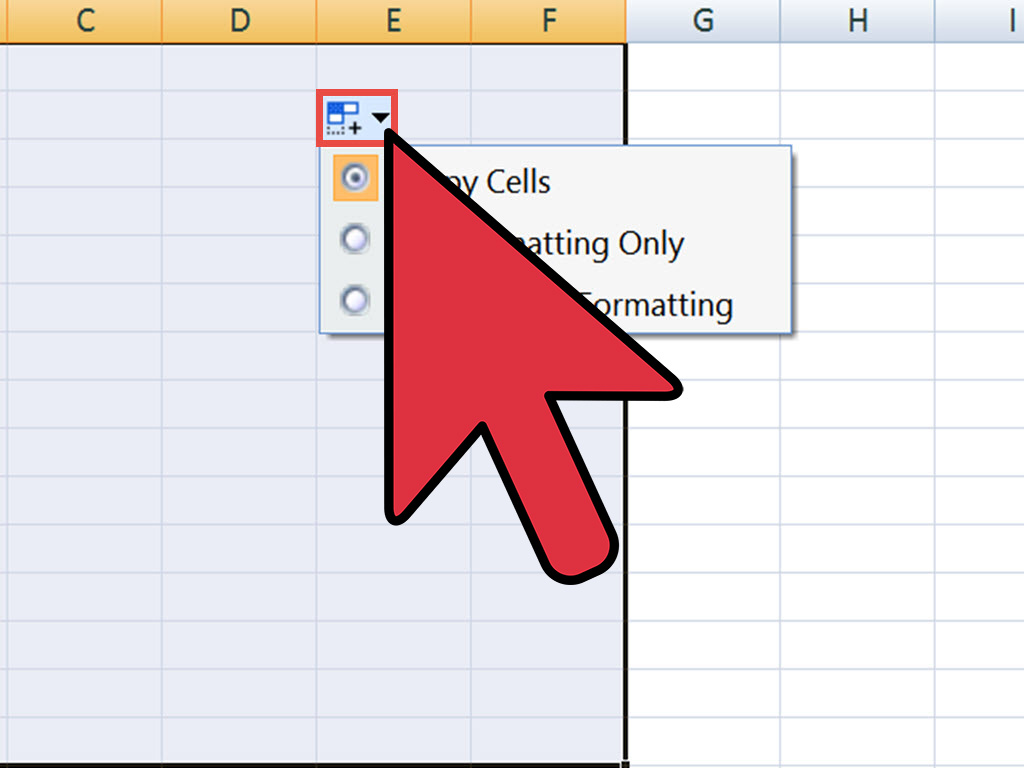
Step 6: Use Paste Options if Needed
After pasting, look for the small paste options button. You may be able to keep source formatting, match destination formatting, or paste values only. For clean data work, “match destination formatting” or “text only” is often better because it prevents Word’s fonts, borders, and spacing from hitching a ride into Excel.
Convert Word Text to Excel Using Plain Text
If your Word document is not already in a table, the plain text method is often more reliable. This method works especially well for lists, records, names, addresses, product details, and data separated by tabs, commas, or other consistent characters.
Step 7: Prepare the Data in Word
Before exporting, make sure the text has a consistent pattern. Use paragraph breaks for new rows and tabs or commas for new columns. For example:
Name [Tab] Email [Tab] Phone
Olivia Carter [Tab] [email protected] [Tab] 555-123-4567
This structure tells Excel, “Each line is a row, and each tab separates a column.” Excel appreciates clarity. Excel is not a mind reader, even though sometimes it judges you like one.
Step 8: Replace Messy Spacing with Tabs
If your Word data is separated by multiple spaces, use Word’s Find and Replace feature to clean it up. For instance, you can replace repeated spaces with tabs if the spacing is consistent. You can also replace paragraph marks, line breaks, or odd separators with a cleaner delimiter. In Word, paragraph marks are often represented as ^p, while tabs are represented as ^t in advanced find-and-replace workflows.
Step 9: Save the Word Document as Plain Text
Go to File > Save As, then choose Plain Text (.txt) as the file type. Save a copy instead of overwriting your original Word document. When Word asks about encoding, the default option usually works, but UTF-8 is a safe choice when your file includes special characters, accented names, or symbols.
Step 10: Open Excel and Import the Text File
In Excel, go to File > Open and choose the text file, or use Data > Get Data > From File > From Text/CSV, depending on your Excel version. Excel will preview the data and try to detect the delimiter automatically.
Step 11: Choose the Correct Delimiter
Select the delimiter that matches your Word file: tab, comma, semicolon, space, or custom. If the preview shows each field in the right column, you are on the right track. If everything appears in one column, Excel probably picked the wrong separator. Change the delimiter and check the preview again.
Step 12: Load the Data into Excel
Once the preview looks correct, click Load or Finish. Excel will place the imported Word data into a worksheet. At this point, you can rename headers, adjust column widths, apply filters, and format the range as a table.
Use Excel Tools to Clean Converted Word Data
Even a successful Word to Excel conversion may need cleanup. This is normal. Data rarely walks into Excel wearing a tuxedo.
Step 13: Use Text to Columns
If pasted data lands in one column, select that column and go to Data > Text to Columns. Choose Delimited, then select the correct separator, such as comma, tab, space, or semicolon. Excel will split the text into separate columns.
For example, if cell A1 contains Jane Smith,Marketing,[email protected], Text to Columns can split it into three cells: name, department, and email. This is one of the most useful tools for converting Word lists into spreadsheet-ready data.
Step 14: Use Flash Fill for Pattern-Based Cleanup
Flash Fill can help when your data follows a pattern. Suppose a Word document gives you full names in one column, but you want first names and last names separated. Type the desired result in the next column, start the second example, and Excel may detect the pattern. Press Ctrl + E to trigger Flash Fill.
Flash Fill is excellent for simple patterns, but it is not perfect. Always review the results, especially if names, addresses, or product codes are inconsistent. Flash Fill is helpful, not psychic.
Step 15: Format the Result as an Excel Table
After the data is in the right columns, select the range and press Ctrl + T or go to Insert > Table. Make sure “My table has headers” is checked if your first row contains column names. Excel tables make it easier to filter, sort, style, and analyze your converted data.
Alternative Ways to Convert Word to Excel
Use Power Query for Larger Files
Power Query is a strong option if you frequently import structured text files into Excel. Instead of manually cleaning the same type of file every week, you can build a repeatable import process. Power Query can split columns, remove blank rows, rename headers, change data types, and refresh the results later.
This is especially useful for business reports, exported forms, logs, and recurring Word-to-text workflows. It may feel advanced at first, but once set up, it can save hours of repetitive spreadsheet housekeeping.
Use Google Docs and Google Sheets
If you work in Google Workspace, you can copy a table from a Word document or Google Doc and paste it into Google Sheets. For simple tables, Sheets usually keeps the rows and columns intact. If text lands in one column, use Data > Split text to columns and choose the right separator.
Google Sheets also has a SPLIT function, which can divide text around a chosen character. For example, if a cell contains comma-separated values, SPLIT can separate them into multiple cells.
Use an Online Word to Excel Converter
Online converters can be convenient when you need a quick DOCX to XLSX conversion. You upload the Word file, choose Excel as the output, and download the converted spreadsheet. This can work well for simple documents with tables.
However, be careful with sensitive information. Do not upload confidential contracts, customer records, payroll files, medical data, legal documents, or private business reports to a third-party tool unless you fully understand its privacy policy and security practices. Convenience is nice; accidentally sharing private data with the internet is less charming.
Convert Word to PDF, Then PDF to Excel
This method can help when a Word document has complex formatting and direct copying fails. Save or export the Word document as a PDF, then use a PDF-to-Excel tool to extract tables into an XLSX file. Adobe Acrobat and other PDF tools can convert tables into rows and columns, although results vary depending on how cleanly the original document was formatted.
This is not always the first method to try, but it can rescue data from forms, invoices, reports, and table-heavy documents when the layout is otherwise difficult to copy.
Common Word to Excel Conversion Problems
Problem: Everything Appears in One Column
This usually means Excel did not detect the delimiter. Use Text to Columns, choose the correct separator, and preview the result before finishing.
Problem: Extra Blank Rows Appear
Extra paragraph marks or line breaks inside Word table cells can create unwanted rows in Excel. Return to Word, turn on formatting marks, and remove unnecessary breaks before copying again.
Problem: Columns Do Not Line Up
Inconsistent separators are often the cause. For example, some rows may use tabs while others use spaces or commas. Standardize the separators in Word before importing.
Problem: Numbers Turn into Dates
Excel sometimes converts values automatically. Product codes, ID numbers, and entries like “3-4” may become dates. To prevent this, format the destination column as Text before pasting or importing.
Problem: Leading Zeros Disappear
ZIP codes, account numbers, and product IDs may lose leading zeros if Excel treats them as numbers. Format those columns as Text before importing, or use Power Query to set the data type correctly.
Practical Example: Turning a Word Contact List into Excel
Imagine your Word document contains a contact list like this:
Michael Torres – Sales – [email protected] – 555-0101
Amanda Lee – Support – [email protected] – 555-0102
Priya Shah – Finance – [email protected] – 555-0103
To convert it to Excel, replace each hyphen separator with a tab in Word. Then save the file as plain text and import it into Excel using tabs as the delimiter. The result will be four clean columns: Name, Department, Email, and Phone. Add headers, format the range as a table, and you now have a sortable contact database instead of a Word list pretending to be organized.
Best Practices Before You Convert Word to Excel
First, always keep a backup of the original Word document. Conversion is much easier when you can return to the untouched file if something goes sideways. Second, remove unnecessary formatting. Bold text, colors, page breaks, headers, footers, and decorative borders rarely help Excel understand your data.
Third, use clear column names. A spreadsheet without headers is like a suitcase without labels: technically usable, but annoying. Fourth, check the first 10 rows and the last 10 rows after conversion. Mistakes often hide at the edges. Finally, test sorting and filtering. If Excel can sort your data without scrambling it, your conversion is probably in good shape.
When Manual Copy-Paste Is Better
Manual copy-paste is best when the Word file contains one or two simple tables. It is fast, visual, and easy to check. You do not need a converter, a macro, or a heroic amount of patience.
When Text Import Is Better
Text import is better when the Word document contains structured lists rather than tables. It is also better when you want more control over delimiters, encoding, and column placement.
When Power Query Is Better
Power Query is better for repeated tasks, large datasets, and files that need the same cleanup steps every time. If you convert similar Word reports every week or month, Power Query can turn a boring chore into a refreshable process.
Extra Experience: Real-World Lessons from Converting Word to Excel
After working with many Word-to-Excel conversions, one lesson becomes obvious: the conversion itself is usually not the hard part. The hard part is getting the Word document ready. A clean Word table can move into Excel in seconds. A messy document with inconsistent tabs, random spaces, merged cells, and line breaks inside cells can turn into a spreadsheet smoothie. Technically it contains the ingredients, but good luck identifying the banana.
The most reliable habit is to inspect the Word file before touching Excel. Turn on formatting marks in Word so you can see paragraph breaks, tabs, and spaces. This one step can save a surprising amount of time. Many conversion problems come from invisible characters. A cell may look empty but contain a paragraph mark. A row may look aligned but actually use spaces instead of tabs. Once you can see the structure, you can fix it.
Another useful experience is to avoid merged cells whenever possible. Merged cells may look nice in a Word report, but they often behave badly in Excel. If the goal is analysis, sorting, filtering, or formulas, unmerged and consistent columns are better. Excel prefers boring structure. Boring structure makes powerful spreadsheets.
For business documents, the best results often come from creating a small sample conversion first. Instead of importing a 40-page Word document immediately, test one page or one section. Check whether names, dates, prices, IDs, and notes land in the right columns. If the sample works, repeat the process for the full file. If it fails, you have only made a small mess instead of a large one. This is the spreadsheet version of tasting the soup before serving it to 30 people.
It is also wise to protect important numeric data. Excel is famous for being helpful in ways nobody asked for. It may turn long ID numbers into scientific notation, remove leading zeros from ZIP codes, or convert codes into dates. Before importing, decide which columns should be treated as text. Account numbers, tracking codes, SKU numbers, phone numbers, and ZIP codes are usually identifiers, not math problems.
For private or sensitive files, desktop methods are usually safer than online converters. Copying a Word table into Excel or importing a local text file keeps the document on your computer. Online converters are convenient, but they are not always appropriate for confidential material. When in doubt, use Microsoft Word, Excel, Google Workspace, or a trusted company-approved tool.
Finally, remember that “converted” does not always mean “finished.” After conversion, review the spreadsheet like an editor. Add clear headers, freeze the top row, format the data as a table, adjust column widths, remove blank rows, and check for duplicates. A few minutes of cleanup can turn a rough import into a spreadsheet that is easy to read, search, sort, and share. That is the real goal: not just moving data from Word to Excel, but making it useful once it gets there.
Conclusion
Converting Word to Excel is simple when the Word document has a clean table and a little more involved when the data is trapped in paragraphs or lists. The best method depends on the structure of your file. For tables, copy and paste is usually fastest. For structured text, save as plain text and import with the correct delimiter. For messy or repeated jobs, use Text to Columns, Flash Fill, Power Query, or carefully selected conversion tools.
The key is to make Word data look predictable before Excel receives it. Use rows, columns, tabs, commas, and clear headers. Remove extra line breaks and inconsistent spacing. Then check the results before you trust the spreadsheet. Do that, and you can convert a Word document to Excel without retyping everything or developing a personal grudge against office software.
Note: This publish-ready article synthesizes practical guidance from reputable documentation and productivity resources, including Microsoft, Google, Adobe, and established file-conversion references, without adding source links inside the article copy.