
Note: This article is based on current Adobe InDesign guidance for placing graphics, using image frames, fitting content, managing linked files, checking supported formats, and preparing documents for handoff or print.
Adding pictures in Adobe InDesign sounds simple until your image lands in the wrong place, appears gigantic, disappears behind a text frame, or turns into a mysterious gray box that looks like it has chosen a career in witness protection. The good news? InDesign is not trying to ruin your afternoon. It simply handles images differently from basic word processors or slide apps.
InDesign is a professional page layout program, which means it treats images as placed assets inside frames. Instead of casually dropping a photo onto a page and hoping for the best, you place the image, control its frame, adjust how it fits, manage its link, and check whether it is suitable for print or digital publishing. Once you understand that system, adding pictures becomes fast, clean, and oddly satisfyinglike snapping the last puzzle piece into place, but with fewer lost pieces under the couch.
This guide explains how to add pictures in InDesign in six practical steps. You will learn how to prepare image files, place them correctly, resize and crop them, wrap text around them, avoid broken links, and export your layout without unpleasant surprises. Whether you are designing a brochure, magazine spread, flyer, portfolio, restaurant menu, school project, eBook, or print-ready catalog, these steps will help you work like someone who knows where the “Place” command livesand that is half the battle.
Why InDesign Handles Pictures Differently
Before jumping into the steps, it helps to understand one key idea: InDesign usually links to images rather than fully storing every image inside the document. Think of the InDesign file as the layout blueprint and the image files as the furniture. The blueprint points to the furniture and tells it where to go, but if you move the furniture to another house, the blueprint gets confused.
This linked-image workflow keeps InDesign documents smaller and more flexible. You can edit a photo in Photoshop or update an Illustrator graphic, then refresh the link in InDesign. It also means you should keep your image files organized in a project folder. Randomly dragging images from the Downloads folder is technically possible, but it is also how chaos enters wearing sneakers.
For best results, use high-quality image formats such as JPEG, PNG, TIFF, PSD, AI, EPS, or PDF, depending on the project. JPEG works well for most photos. PNG is useful for web-style graphics and transparency. TIFF and PSD are common in print workflows. AI and PDF files are excellent for logos, vector graphics, and artwork that needs to stay crisp at different sizes.
Step 1: Prepare Your Pictures Before Adding Them
The cleanest InDesign layouts begin before you ever click “File.” Start by gathering all pictures into one clearly named project folder. A simple folder structure might include “InDesign File,” “Links,” “Fonts,” and “Exports.” Put your photos and graphics in the Links folder. This prevents missing-image warnings later, especially when you move the project to another computer or send it to a printer.
Choose the Right Image Size
For print projects, image resolution matters. A tiny web image stretched across a full-page magazine layout will not magically become sharp because you asked politely. InDesign can scale images, but it cannot invent real detail that is not in the original file. As a general rule, use images with enough pixel data for their final printed size. InDesign’s Links panel can show effective PPI, which helps you judge whether an image still has enough resolution after resizing.
For digital documents, you can often use smaller images because screens do not require the same print resolution. However, oversized images can make PDFs heavy and slow to load. The goal is balance: sharp enough to look professional, not so huge that your file behaves like it is carrying a piano upstairs.
Rename Files Clearly
A file named “IMG_4837_final_FINAL_reallyfinal.jpg” tells no one anything useful. Rename files with short, descriptive names such as “blue-sofa-living-room.jpg,” “company-logo.ai,” or “summer-menu-hero-photo.tif.” Clear names make it easier to relink images, package files, and collaborate with designers, editors, or printers.
Step 2: Create or Select an Image Frame
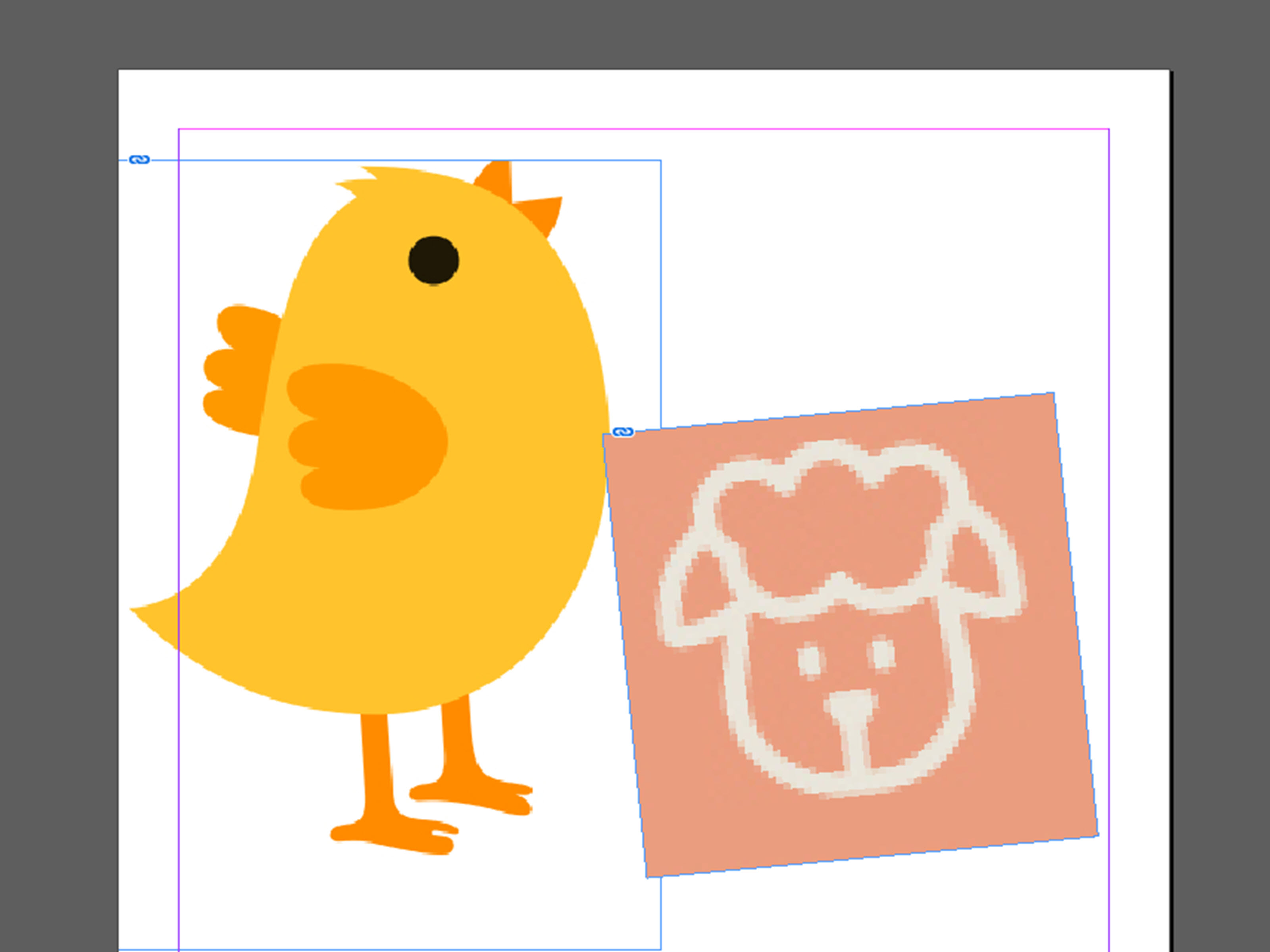
InDesign uses frames to hold pictures. A frame is like a window: the image sits inside it, and the frame controls what part of the image you see. You can place an image into an existing frame or create a new one while placing the image.
To create a picture frame manually, select the Rectangle Frame Tool from the Tools panel. It usually has an icon with an X inside a rectangle. Click and drag on the page to draw the frame where you want the image to appear. Do not worry if the size is not perfect. You can adjust it later.
You can also use regular shape tools, such as the Rectangle Tool or Ellipse Tool, and place images inside those shapes. This is useful when you want circular profile photos, image blocks, design accents, or creative layouts. For example, a travel brochure might use a large rectangular photo for the destination hero image and several small circular frames for food, landmarks, and hotel details.
Frame First or Image First?
Both methods work. If you already know the layout structure, create frames first. This is common in magazine design, catalogs, newsletters, and templates. If you are experimenting, place the image first and let InDesign create the frame as you click or drag. Designers often use both methods in the same project.
Step 3: Use File > Place to Add the Picture
The proper way to add pictures in InDesign is with the Place command. Go to File > Place, or use the keyboard shortcut Ctrl + D on Windows or Command + D on Mac. Choose your image file, then click Open.
Your cursor will become a loaded graphics cursor, which means InDesign is holding the picture and waiting for you to tell it where to go. At this point, you have several options:
- Click inside an existing frame to place the picture into that frame.
- Click on the page to place the image at its original size.
- Click and drag to create a new frame and scale the image into that area.
If you are adding several pictures at once, you can select multiple files in the Place dialog box. InDesign loads them into the cursor, and you can place them one by one. This is helpful for photo grids, portfolios, product pages, and event programs. It is also much better than dragging images in randomly and then spending twenty minutes wondering why your layout looks like a yard sale.
Using Show Import Options
In the Place dialog box, you may see a checkbox called Show Import Options. This is useful when placing certain file types, such as layered Photoshop files, PDFs, Illustrator files, or PNGs with transparency. Import options let you choose pages, layers, clipping paths, transparent backgrounds, and other settings depending on the file type.
For a simple JPEG photo, you usually do not need import options. For a multi-page PDF, logo sheet, layered PSD, or transparent PNG, turning this option on can save time and prevent confusion.
Step 4: Fit, Crop, Resize, and Position the Image
After placing the image, the next job is making it look intentional. InDesign separates the frame from the image content. This is where many beginners get tripped up. Selecting the frame changes the container. Selecting the content changes the picture inside the container.
Use the Selection Tool to move or resize the frame. Use the content grabberthe small circle that appears over the imageto move the image inside the frame. This lets you crop the image without permanently editing the original file.
Useful Fitting Options
Right-click the image frame and look for Fitting. You will see several helpful choices:
- Fill Frame Proportionally: Enlarges or reduces the image so the frame is completely filled. Some edges may be cropped.
- Fit Content Proportionally: Fits the entire image inside the frame without distortion. Empty space may appear if the proportions do not match.
- Fit Content to Frame: Forces the image to match the frame size, but it can distort the picture if the proportions differ.
- Fit Frame to Content: Changes the frame size to match the image.
- Center Content: Centers the image inside the frame.
For most professional layouts, Fill Frame Proportionally is the best starting point for photos because it fills the space while preserving the image’s proportions. You can then reposition the image inside the frame to keep the important subject visible. For example, if you are placing a portrait, make sure the person’s face is not cropped at the forehead unless you are designing a very dramatic shampoo ad.
Do Not Stretch People, Products, or Logos
One of the fastest ways to make a layout look amateur is to stretch an image unevenly. People become wider, circles become eggs, and logos begin quietly filing complaints. Always scale images proportionally unless you have a deliberate design reason. Hold Shift while resizing in many workflows, or use proportional fitting commands to maintain the correct shape.
Step 5: Manage Links, Quality, and Missing Images
Once your picture is placed, open the Links panel by going to Window > Links. This panel is your command center for placed graphics. It shows the image name, status, page number, file path, color space, scale, and resolution details depending on your panel settings.
If an image has been moved, renamed, or deleted outside InDesign, you may see a missing-link warning. This does not always mean the image is gone forever. It often means InDesign cannot find it in the location it remembers. Select the missing image in the Links panel, click Relink, and point InDesign to the correct file.
Linked vs. Embedded Images
InDesign can embed images, but linking is usually better for professional workflows. Linked images keep the InDesign file lighter and allow updates from outside programs. Embedded images travel inside the document, but they can increase file size and reduce flexibility. For most print and design projects, keep images linked and organized.
Check Effective PPI
Effective PPI shows the real output resolution after scaling. For example, an image might have a high actual resolution, but if you enlarge it too much, its effective resolution drops. This matters for print quality. A photo that looks acceptable on screen may print soft or pixelated if its effective PPI is too low.
Before exporting a print-ready PDF, use the Links panel and Preflight panel to check for low-resolution images, missing files, overset text, and other issues. Preflight is like a polite but firm friend who tells you there is spinach in your teeth before the big meeting.
Step 6: Add Text Wrap, Effects, and Export Correctly
After the image is placed and fitted, you can make it interact with the rest of your design. One common technique is text wrap. Select the image frame, then open Window > Text Wrap. Choose a wrap style, such as wrapping around the bounding box or object shape. Adjust the offset to create breathing room between the picture and text.
Text wrap is especially useful for magazine articles, newsletters, brochures, and editorial layouts. For example, a cooking article might wrap text around a bowl of pasta, while a real estate flyer might wrap property details beside a home photo. Just avoid wrapping text too tightly. Readers should not need a treasure map to follow a sentence around an image.
Add Subtle Effects When Appropriate
InDesign includes effects such as drop shadows, transparency, feathering, and blending modes. These can add depth, but use them carefully. A soft shadow under a product photo can look polished. Five shadows, three glows, and a bevel can make your layout look like it escaped from 2004.
For clean modern design, prioritize strong images, balanced spacing, consistent alignment, and clear hierarchy. Effects should support the image, not audition for the lead role.
Package or Export the Final File
If you are sending the InDesign file to someone else, use File > Package. Packaging collects the InDesign document, linked graphics, and document fonts into one folder. This reduces the risk of missing images when a printer, client, or teammate opens the file.
If you are exporting for print or online sharing, go to File > Export and choose the appropriate format, usually PDF. For print, use a high-quality print or press-ready PDF preset, depending on printer requirements. For digital sharing, use a smaller PDF setting that balances quality and file size.
Common Mistakes When Adding Pictures in InDesign
Dragging Images From Random Locations
Dragging images from the desktop, email attachments, or browser downloads may work temporarily, but it can create messy links. Always save images into your project folder first, then place them from there.
Ignoring the Frame
Many beginners try to resize the image but accidentally resize only the frame, or the other way around. Remember: the frame is the container, and the image is the content. Learning to control both is the secret handshake of InDesign image placement.
Using Low-Quality Web Images for Print
Small images from the web often look fine on a screen but poor in print. Use original high-resolution images whenever possible, especially for brochures, posters, catalogs, and magazine layouts.
Forgetting to Check Links Before Export
A missing image can ruin an otherwise beautiful document. Before exporting or packaging, check the Links panel and Preflight panel. It takes seconds and can save you from a printer email that begins with “Unfortunately…”
Best Practices for Better Image Layouts
Good image placement is not only technical; it is visual. Start with a clear purpose for every picture. Does it explain something, create emotion, show a product, support a story, or guide the reader’s eye? If an image does none of those things, it may just be decorative clutter wearing a nice hat.
Use consistent margins and alignment. If your images line up cleanly with text columns, headings, and other design elements, the whole layout feels more professional. InDesign’s guides, grids, and Smart Guides can help you position frames accurately.
Also pay attention to image direction. If a person in a photo is looking to the right, place the image so their gaze leads into the page, not off the edge. If a product faces inward, it naturally points the reader toward the content. These small choices create visual flow.
Finally, be selective. One strong image often works better than six average ones. InDesign gives you plenty of tools, but design still rewards restraint. White space is not wasted space; it is the part of the layout that lets everything else breathe.
Experience-Based Tips for Adding Pictures in InDesign
After working with InDesign layouts, one lesson becomes obvious: image problems usually come from disorganization, not from InDesign itself. The software is quite logical, but it expects you to behave like a responsible adult with folders. That is sometimes a lot to ask, especially when a deadline is glaring at you from across the room.
A practical habit is to build the project folder before you begin designing. Create a main folder with the project name, then add subfolders for Links, Fonts, Copy, Exports, and Archives. Place every image into the Links folder before importing it. This single habit prevents most missing-link disasters. When it is time to package, revise, or send the file to a printer, everything is already in one tidy place.
Another useful experience-based tip is to design with placeholder frames first. Instead of placing pictures immediately, sketch the layout using empty image frames. Decide where the hero image goes, where supporting photos belong, and how much space text needs. Once the structure feels right, place the images. This method is especially helpful for brochures, magazines, lookbooks, and product catalogs because it keeps the design from being controlled by the first photo you drop onto the page.
When choosing images, think about cropping before placement. A wide landscape photo may not work well in a tall narrow frame unless the subject has enough space around it. A tight portrait may look awkward in a banner. If the frame shape and image shape disagree too strongly, no fitting command can fully rescue the design. The best layouts match image orientation to frame purpose.
It is also wise to check images at real output size. Zooming to 400 percent can make even a decent image look suspicious, while viewing everything zoomed out can hide problems. For print pieces, use effective PPI and export proofs. For digital PDFs, test the file on the kind of screen readers will actually use. A menu PDF viewed on a phone has different needs from a full-page print catalog.
One mistake many designers make early on is overusing effects to “improve” weak images. A blurry image with a drop shadow is still a blurry image; now it is simply a blurry image trying to be fancy. Start with good photography or clean graphics. Use effects only when they support the layout. Strong contrast, smart cropping, and consistent alignment usually do more than decorative filters.
For multi-image layouts, consistency is your best friend. Use similar cropping styles, frame sizes, spacing, and alignment. If one product photo has a white background and another has a busy background, the page may feel uneven. If some images are warm and others are cool, consider editing them before placement so the set feels intentional. InDesign is excellent for layout, but image correction is often better handled in Photoshop or Lightroom before importing.
Finally, always run a final check before exporting. Open the Links panel, look for missing or modified files, check effective resolution, review text wrap, and confirm that nothing important is hidden behind another object. Then export a PDF and inspect it page by page. This final review may feel boring, but it is much less boring than discovering a missing logo after 2,000 flyers have already been printed.
The more you use InDesign, the more image placement becomes muscle memory. File > Place, click the frame, fit proportionally, adjust the crop, check the link, move on. Once that rhythm clicks, adding pictures feels less like fighting software and more like building a polished visual storyone frame at a time.
Conclusion
Learning how to add pictures in InDesign is one of the most important skills for creating professional layouts. The process is simple once you understand the workflow: prepare your images, create or select a frame, use File > Place, fit and crop the image, manage links, and export or package the file correctly.
InDesign gives you precise control over how pictures appear on the page, which is why it is trusted for brochures, books, magazines, posters, catalogs, menus, and digital publications. The trick is to respect the relationship between frames and images. Frames control the space; images provide the content. When those two work together, your layout looks clean, sharp, and intentional.
Keep your files organized, avoid stretching images, check effective resolution, and use the Links panel like a responsible designer with excellent coffee. Do that, and your InDesign documents will be easier to edit, easier to share, and much less likely to surprise you at export time.











