Instagram is a magical little place where your best friend posts brunch, your favorite creator drops a tutorial, and your cousin somehow uploads 18 Stories from the same concert. But unless your notifications are set correctly, Instagram may treat the whole event like a secret meeting you were not invited to. That is where post notifications come in.
Learning how to get notified when someone posts on Instagram is useful if you follow a creator, brand, client, friend, school club, sports team, or small business and do not want to miss their updates. The good news: Instagram lets you turn on notifications for specific accounts you follow. The not-so-good news: your phone settings, Instagram settings, Do Not Disturb mode, battery optimization, and even app updates can all decide to play defense.
This guide explains the process in six clear steps, with practical troubleshooting tips for iPhone and Android users. No confusing tech maze. No mysterious “just tap around until it works” advice. Just a clean, realistic walkthrough you can actually use.
Can You Get Notified When a Specific Person Posts on Instagram?
Yes, you can get notifications when a specific Instagram account posts new content, but there are a few important details. First, you usually need to follow the account. Second, notifications depend on the type of content you select, such as posts, Stories, Reels, or live videos. Third, your phone must allow Instagram to send push notifications.
In other words, Instagram has its own notification switch, and your phone has another switch. If either one is off, your alerts may not appear. Think of it like needing two keys to unlock the same door. One key is inside Instagram. The other key lives in your iPhone or Android settings.
Also, notifications are not a guarantee that you will see every update instantly. App behavior can vary depending on your internet connection, device settings, account privacy, Instagram updates, and whether your phone is trying to save battery. Still, setting account-specific alerts gives you the best chance of being notified when that person posts.
How to Get Notified when Someone Posts on Instagram: 6 Steps
Step 1: Update Instagram and Open the App
Before changing anything, make sure your Instagram app is updated. App menus can move around like furniture in a teenager’s bedroom, so an outdated version may not show the same settings described in newer guides.
Open the App Store on iPhone or Google Play Store on Android, search for Instagram, and tap Update if an update is available. Once updated, open Instagram and sign in to the account where you want to receive notifications.
This step matters because Instagram notification controls can change over time. Newer versions may include updated options for Posts, Stories, Reels, Live videos, Quiet Mode, or sleep-related notification settings. If you are helping a friend or managing a business profile, confirm that you are logged into the correct Instagram account before changing anything.
Step 2: Allow Instagram Notifications on Your Phone
Next, check your phone’s system notification settings. This is the part many people skip, then wonder why Instagram is quieter than a library during final exams.
On an iPhone, open Settings, scroll to Apps or find Instagram, tap Notifications, and make sure Allow Notifications is turned on. You can also choose where alerts appear, such as the Lock Screen, Notification Center, and banners. For best results, enable sounds and badges if you want visible and audible alerts.
On Android, open Settings, go to Apps, select Instagram, and tap Notifications. Make sure notifications are allowed. Depending on your device, you may also see notification categories, which let you control different types of Instagram alerts separately.
Samsung Galaxy users may need to enable notification categories in advanced notification settings before they can fine-tune individual alert types. Android menus vary by brand, but the general idea is the same: Instagram needs permission to send notifications at the device level.
Step 3: Go to the Instagram Profile You Want Alerts From
Now that your phone is ready, open Instagram and search for the account you want to follow more closely. Go to that person’s profile page. This could be a friend, influencer, musician, news account, local restaurant, online shop, school organization, or creator whose posts you genuinely care about.
Make sure you are following the account. If the profile is private, you may need to send a follow request and wait for approval before you can see their posts or receive meaningful updates. Instagram will not magically notify you about private content you do not have permission to view.
For public accounts, you can usually follow them immediately. For private accounts, the person must approve your follow request first. Once you follow the profile, you can manage notifications for that specific account.
Step 4: Tap the Notifications Bell on Their Profile
On the person’s Instagram profile, look for the bell icon or a Notifications option near the top of the profile. Instagram’s layout may vary slightly depending on your device and app version, but the bell icon is the main control for account-specific notifications.
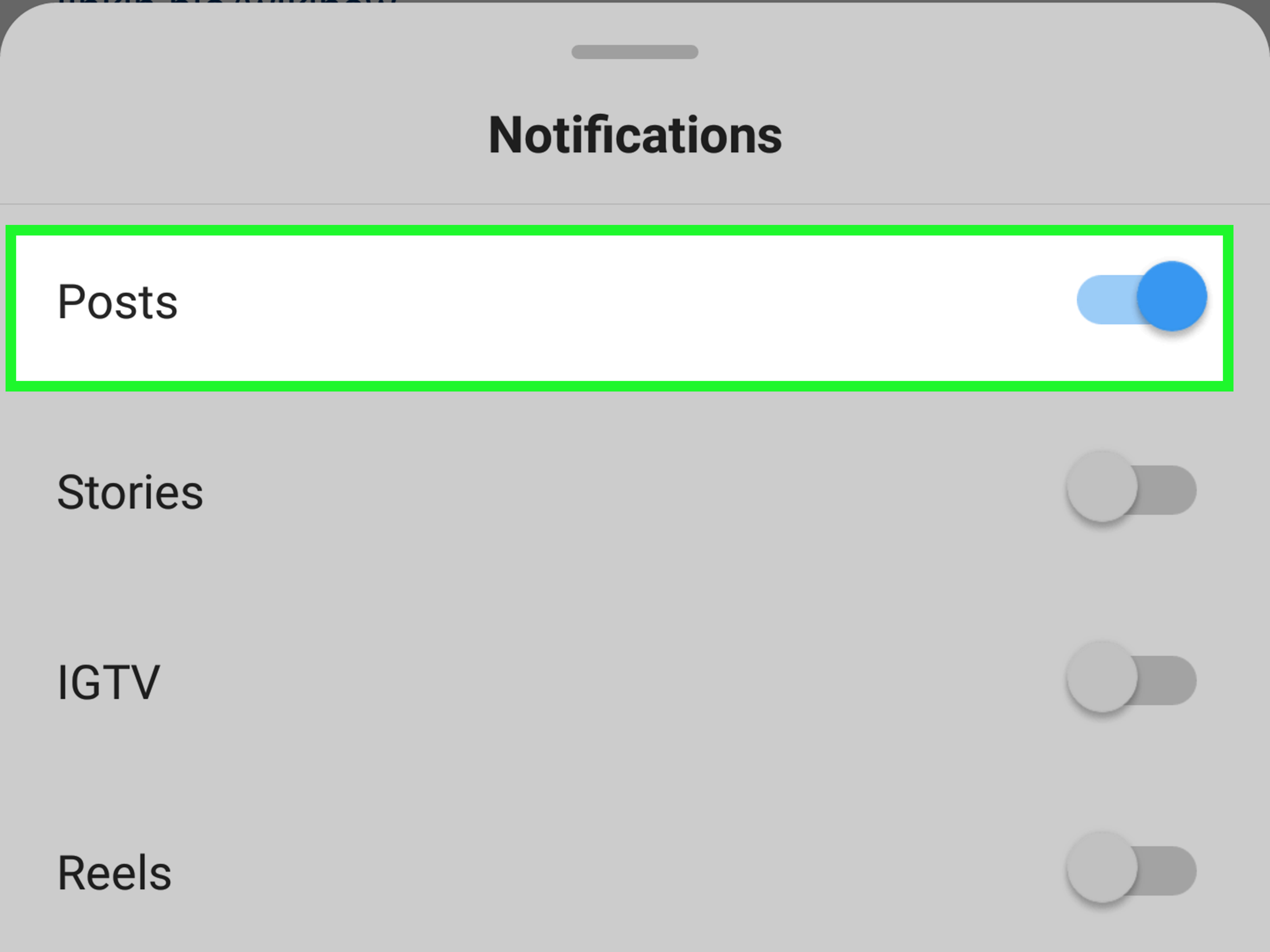
Tap the bell or Notifications button. A menu should appear with different content types. Common options include:
- Posts alerts for new feed posts
- Stories alerts when the account adds a Story
- Reels alerts for new Reels
- Live videos alerts when the account goes live
If you only care about regular photo or carousel posts, turn on Posts. If you are following a creator who mainly publishes short videos, turn on Reels. If the account often shares time-sensitive updates, such as event reminders or flash sales, Stories and Live notifications may be useful too.
Step 5: Choose the Types of Instagram Notifications You Want
This is where you decide how much Instagram should tap you on the shoulder. You do not have to turn on everything. In fact, you probably should not unless you enjoy your phone buzzing like it drank three coffees.
For a balanced setup, start with Posts and Reels. These are often the most important updates because they remain visible longer than Stories. If the account frequently uses Stories for announcements, add Story notifications. If the account hosts live sessions, Q&As, product launches, or classes, turn on Live notifications too.
Here is a practical example: suppose you follow a fitness coach who posts workout routines as Reels, meal ideas as feed posts, and live sessions once a week. You may want Reels, Posts, and Live notifications turned on, but leave Stories off if they mostly post daily behind-the-scenes content. On the other hand, if you follow a local coffee shop that announces limited pastries through Stories, Story alerts may be the most valuable setting.
The goal is not to receive more notifications. The goal is to receive better notifications.
Step 6: Test Your Settings and Fix Notification Problems
After turning on notifications for the account, give Instagram time to apply the settings. If you still do not receive alerts, check a few common trouble spots.
First, open Instagram, go to your profile, tap the menu icon, and review your Instagram notification settings. Make sure push notifications are not paused. Instagram has features such as Pause All, Quiet Mode, or Sleep Mode that can temporarily silence alerts. These tools are helpful when you want focus time, but they can also make you think notifications are broken.
Second, check your phone’s focus settings. On iPhone, look at Focus modes such as Do Not Disturb, Sleep, Work, or Personal. On Android, check Do Not Disturb and any battery-saving settings that may restrict Instagram in the background.
Third, confirm you have a stable internet connection. Push notifications need connectivity. If your phone is offline, in airplane mode, or struggling with weak Wi-Fi, notifications may arrive late or not appear at all.
Fourth, restart the Instagram app or restart your phone. It sounds basic, but it works surprisingly often. Technology sometimes needs a tiny nap.
Finally, avoid third-party apps that claim they can track every time someone posts, views, unfollows, screenshots, or interacts with an account. Many of these apps are unreliable and may put your privacy or login security at risk. Use Instagram’s built-in settings and your phone’s official notification controls instead.
Why Instagram Notifications May Not Work
If Instagram notifications are still not working after you turn them on, the problem is usually caused by one of five things: phone permissions, Instagram settings, account-specific settings, focus modes, or battery restrictions.
For example, you might turn on post notifications for a creator inside Instagram, but if iPhone notifications are disabled for Instagram, nothing will show up. Or you might allow Instagram notifications on Android, but battery optimization may prevent Instagram from running properly in the background. In another common case, the account you follow may simply not have posted the type of content you selected. If you turned on Posts but they only upload Stories, you may not get the alert you expected.
Instagram’s notification system is also personalized. The app may prioritize alerts based on your activity, device state, and settings. That is why two people following the same account may not always receive alerts at the exact same second.
Best Practices for Managing Instagram Post Notifications
Turning on notifications for everyone is not a strategy; it is a one-way ticket to notification chaos. Use account-specific alerts carefully. Choose the accounts that truly matter: a client, favorite creator, close friend, employer, event organizer, sports team, or brand you monitor for work.
If you use Instagram professionally, such as for social media management, content research, customer service, or creator partnerships, create a system. Turn on post notifications only for priority accounts. Save important posts into collections. Use Instagram’s favorites or close monitoring habits where appropriate. This keeps your workflow clean instead of turning your phone into a tiny screaming rectangle.
If you are a casual user, think about your attention. Notifications are helpful, but they are not free. Every buzz asks your brain to switch tasks. Keep alerts for accounts that genuinely improve your day, teach you something, make you laugh, or help you stay informed.
iPhone Tips for Instagram Notifications
On iPhone, Instagram notifications can be affected by system settings such as Focus, Scheduled Summary, Lock Screen display, banners, sounds, and badges. If you want immediate alerts, make sure Instagram is not being quietly bundled into a notification summary. Also check whether your current Focus mode allows Instagram notifications.
For example, if your phone is in Sleep Focus from 10 p.m. to 7 a.m., Instagram may not alert you during that period. That is not a bug; that is your phone politely telling Instagram to stop yelling during bedtime.
You can also decide whether Instagram alerts appear as banners, in Notification Center, or on the Lock Screen. If you only enable Notification Center, you may technically receive alerts but not notice them right away. For real-time updates, banners and sounds are usually more noticeable.
Android Tips for Instagram Notifications
On Android, notification options can vary widely depending on the phone brand. Google Pixel, Samsung Galaxy, Motorola, OnePlus, and other devices may organize settings differently. Still, the basic path is usually Settings > Apps > Instagram > Notifications.
If your Android phone has notification categories, review each category and make sure the relevant Instagram alerts are enabled. Also check battery settings. Some Android devices aggressively limit background activity to save power, which can delay notifications from apps like Instagram.
If notifications are delayed, try allowing background data and removing Instagram from restricted battery settings. You do not need to disable every battery-saving feature on your phone, but Instagram must be allowed to run enough in the background to deliver timely alerts.
Privacy and Etiquette: Use Notifications Respectfully
Getting notified when someone posts on Instagram should be about convenience, not surveillance. Stick to normal, respectful use. Follow accounts you are allowed to follow, turn on alerts for content you want to see, and avoid tools that promise secret tracking or hidden monitoring.
For private accounts, respect the person’s choice. If they do not approve your follow request, do not try to bypass their privacy. Instagram notifications are designed to help you keep up with content available to you, not to give access to someone else’s private activity.
A healthy approach is simple: use notifications to stay informed, not obsessed. If an account’s alerts start making you anxious, distracted, or glued to your screen, turn them off. The best notification setting is the one that helps your life, not one that hijacks it.
Extra Experience: What It Is Really Like Using Instagram Post Notifications
In real life, Instagram post notifications are most useful when you treat them like a VIP list. The first time many people discover the feature, they turn it on for too many accounts. A favorite musician? Yes. A news page? Sure. Three meme accounts? Absolutely. A bakery that posts cinnamon rolls at 6 a.m.? Obviously. Then, within two days, the phone becomes a notification popcorn machine.
The smarter experience is to start small. Pick three to five accounts that actually deserve instant attention. For example, if you manage a small business, turn on notifications for competitors, industry leaders, and customers who frequently tag your brand. If you are a student, turn them on for a school club, campus organization, scholarship page, or class-related account. If you are a fan, use them for an artist, creator, or team whose updates you do not want buried under the algorithm.
One practical lesson is that Instagram notifications are not just about speed; they are about context. A Story notification may be urgent because Stories disappear. A Live notification may be even more time-sensitive because the broadcast is happening now. A feed post or Reel, however, usually gives you more time to react. So if you are trying to reduce distractions, keep Posts and Reels on, but think carefully before enabling Stories and Live videos for every account.
Another real-world tip is to review your notification list once a month. People change posting habits. A creator who once posted weekly tutorials may now post ten times a day. A brand you followed for useful sales may start sending too much promotional content. A friend may go on vacation and upload enough Stories to qualify as a documentary series. When that happens, adjust your settings. Notifications are not a lifetime contract.
For creators and marketers, this feature can also teach you how followers experience your own content. If you ask people to turn on post notifications, make sure your posts are worth the interruption. Share useful updates, clear announcements, strong visuals, and content that rewards attention. Nobody wants to be notified just to see a blurry photo of a sandwich unless that sandwich has a dramatic backstory.
It is also helpful to combine notifications with Instagram’s save feature. When an important post appears, save it immediately into a collection. This works well for recipes, workout routines, design inspiration, product ideas, travel tips, and educational posts. Notifications help you catch the content; saves help you find it later.
Finally, remember that even perfect settings cannot control everything. Instagram may update its interface. Your phone may change notification behavior after a system update. Focus modes may block alerts. The account may post at a time when your phone is offline. If a notification fails once, do not panic. Check the basics, refresh the settings, and keep your setup simple. The less complicated your notification system is, the easier it is to fix when something goes quiet.
Conclusion
Getting notified when someone posts on Instagram is easy once you understand the two-level setup: your phone must allow Instagram notifications, and Instagram must have account-specific notifications turned on for the profile you care about. The six-step process is simple: update the app, allow phone notifications, visit the profile, tap the notification bell, choose the content types you want, and troubleshoot if alerts do not appear.
The best approach is selective. Turn on notifications for accounts that truly matter, not every profile that makes one decent post. Used wisely, Instagram post notifications can help you follow creators, friends, brands, teams, and communities without relying completely on the algorithm. Used wildly, they can make your phone feel like it joined a marching band. Choose wisely.
Note: Instagram menus and notification options may change with app updates, so the wording on your device may vary slightly. Always use Instagram’s built-in notification settings and your phone’s official notification controls for the safest experience.