Antivirus software is a little like a smoke detector: usually quiet, occasionally annoying, and absolutely not something you should remove because it interrupted dinner once. Still, security tools can sometimes block a legitimate installer, interfere with specialized software, slow a demanding task, or complicate troubleshooting.
In those situations, you may need to pause part of your computer’s virus protection temporarily. The emphasis belongs on temporarily. Disabling antivirus protection for hours or daysespecially while browsing, opening email attachments, or connecting unknown USB drivesis less “technical troubleshooting” and more “leaving the front door open with a welcome basket.”
This guide explains seven legitimate, reversible ways to reduce or pause protection using normal product settings. It does not cover registry modifications, command-line workarounds, tamper-protection bypasses, or methods for defeating security policies on workplace and school computers.
Before You Turn Off Antivirus Protection
Real-time antivirus protection continuously checks files, applications, downloads, scripts, and other activity for suspicious behavior. Windows also combines antivirus scanning with features such as reputation checking, firewall protection, and application controls. On macOS, several built-in layersincluding XProtect, Gatekeeper, and app notarizationwork together rather than appearing as one traditional antivirus switch.
Government security guidance recommends keeping security software active and updated because attackers frequently attempt to disable protective tools before installing ransomware or stealing data. The Federal Trade Commission also advises using security software that automatically scans new files and receives regular updates.
Use this safety checklist first
- Confirm that the file or program comes from its official developer.
- Check its digital signature and compare its checksum when the publisher provides one.
- Create a restore point or current backup before installing system-level software.
- Disconnect unnecessary external drives.
- Close your browser, email program, and messaging apps while protection is paused.
- Choose the shortest available pause period.
- Turn protection back on before reconnecting to normal online activity.
Never change security settings on an employer-, school-, or organization-managed computer without authorization. A grayed-out switch usually means an administrator controls the setting. It is not an invitation to begin your exciting new career in corporate policy evasion.
1. Temporarily Turn Off Microsoft Defender Real-Time Protection
Microsoft Defender Antivirus is built into Windows 10 and Windows 11. Its real-time protection can be paused through the Windows Security interface when you have administrator permission.
Steps for Windows 11 and current Windows 10 installations
- Open Start and search for Windows Security.
- Select Virus & threat protection.
- Under Virus & threat protection settings, select Manage settings.
- Switch Real-time protection to Off.
- Approve the User Account Control prompt if it appears.
- Complete the trusted installation or troubleshooting test.
- Return to the same screen and switch real-time protection back on.
Windows may automatically reactivate real-time protection after a limited period. Other security layers may also continue operating, so turning off this one switch does not necessarily disable every Windows security feature. Microsoft recommends restoring protection as soon as the test is finished.
If the switch is unavailable, your device may use another antivirus product or be controlled by an administrator. Do not attempt to defeat Tamper Protection or organizational policies. Contact the administrator or software vendor instead.
2. Use a Third-Party Antivirus Program’s Timed Pause
Many consumer antivirus suites provide a temporary pause option from their notification-area icon. This is preferable to force-closing services because the product can reactivate itself after a chosen interval.
Typical procedure
- Find the antivirus icon near the Windows clock.
- Right-click the icon.
- Look for an option such as Pause protection, Disable shields, Disable Auto-Protect, or Exit.
- Select the shortest practical duration, such as 10 minutes, 15 minutes, or until the next restart.
- Confirm the warning.
- Perform your test and manually restore protection afterward.
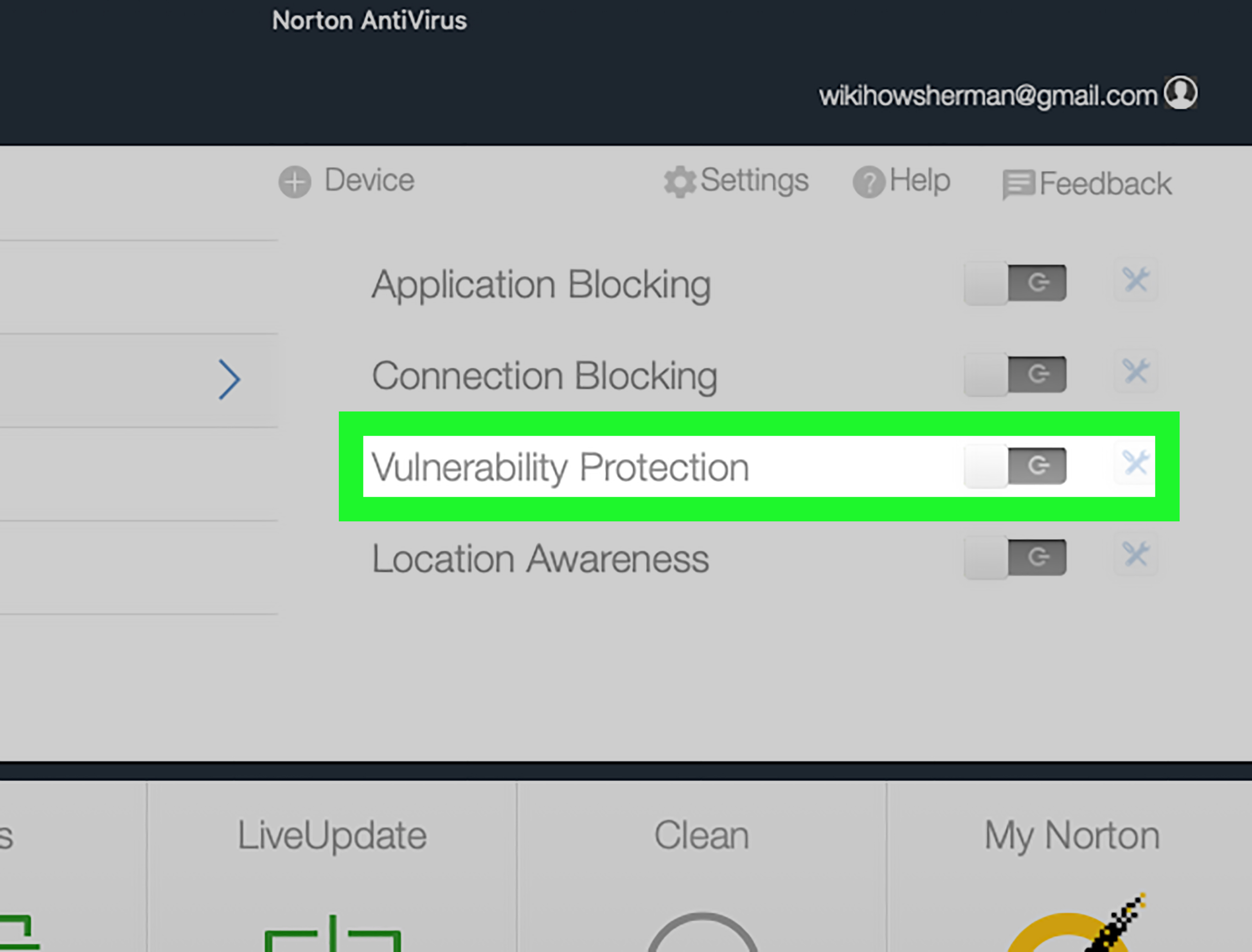
Avast supports temporarily disabling all protection or individual shields and describes the feature as a troubleshooting measure. Norton provides duration-based controls and can automatically turn protection back on after the selected period. ESET also allows users to pause antivirus and antispyware protection for a chosen length of time.
Avoid choosing permanently when a timed option is available. “Permanently” has a habit of lasting until three months later, when you discover the switch while wondering why your security dashboard looks like a Christmas tree.
3. Disable Only the Shield Causing the Conflict
Modern security suites often divide protection into modules. Common examples include File Shield, Web Shield, Mail Shield, behavior monitoring, ransomware protection, and firewall controls.
If one feature is causing the problem, disable only that feature rather than shutting down the entire suite. For example:
- Pause File Shield when a verified installer is being quarantined.
- Pause Web Shield briefly when diagnosing access to a trusted internal website.
- Pause Mail Shield when troubleshooting a desktop email client.
- Test the firewall separately when an application cannot connect to a local device.
Avast’s official controls allow individual shields to be paused, while Norton separates antivirus, web, and firewall components. Bitdefender similarly exposes multiple protection modules, although its interface and available duration choices can vary by product version.
Use a simple diagnostic test
Turn off one module, reproduce the problem once, and turn the module back on. If the problem remains, that module was probably not responsible. This one-change-at-a-time approach is slower than wildly flipping every switch, but it produces an actual answer instead of a small digital mystery.
Do not disable the antivirus and firewall simultaneously unless the vendor’s support team specifically requires it. Those tools protect against different routes of attack.
4. Add a Narrow Exclusion Instead of Disabling Everything
An exclusion tells antivirus software not to scan a particular trusted file, folder, file type, or process. This can be safer than turning off protection for the entire computer, provided the exclusion is extremely limited and the item has been independently verified.
Adding an exclusion in Microsoft Defender
- Open Windows Security.
- Select Virus & threat protection.
- Select Manage settings.
- Scroll to Exclusions.
- Select Add or remove exclusions.
- Add only the specific trusted file or folder required.
- Remove the exclusion when it is no longer needed.
Microsoft warns that excluded items are no longer checked by Defender in the usual way, which can leave the device and its data vulnerable. An exclusion should therefore be treated as a precision tool, not a giant “ignore everything on my Downloads folder” button.
When an exclusion makes sense
A limited exclusion may be appropriate for a verified development compiler, a trusted business application that creates unusual temporary files, or a legitimate program confirmed as a false positive by its publisher and antivirus vendor.
Never exclude an entire system drive, user profile, temporary-files directory, browser-download directory, or email-attachment folder. Those locations routinely receive new and untrusted content.
5. Pause or Reschedule Scheduled Scans
Sometimes the antivirus is not blocking anythingit is simply running a resource-heavy scheduled scan while you are editing video, presenting a webinar, compiling software, or attempting to win an online game with the seriousness of an Olympic final.
In that case, leave real-time protection enabled and postpone only the scheduled scan.
General steps
- Open your antivirus application.
- Find Scans, Scheduled scans, Automation, or Scheduler.
- Pause the active scan or move it to a time when the computer is normally idle.
- Keep file, web, and behavior protection enabled.
- Run the postponed scan later.
This approach reduces performance pressure without creating a broad protection gap. Security software can still examine files as they are opened or downloaded.
Before assuming antivirus is responsible for slow performance, check Task Manager on Windows or Activity Monitor on macOS. A browser with 83 open tabs may be the true suspect. It has motive, opportunity, and an impressive appetite for memory.
6. Quit a Third-Party Antivirus App on a Mac
macOS does not provide a simple supported switch for turning off all of its built-in malware defenses. XProtect, Gatekeeper, code signing, notarization, and background security updates form several overlapping layers. Apple recommends opening software from trusted sources and provides a specific override process for an identified app rather than encouraging users to disable system-wide protection.
If you installed a third-party antivirus product, however, that product may provide its own pause or quit control.
Typical Mac procedure
- Select the antivirus icon in the macOS menu bar.
- Open its settings or protection dashboard.
- Pause real-time file protection or choose Quit if the vendor supports it.
- Enter the Mac administrator password when requested.
- Perform the trusted test.
- Reopen the antivirus application and confirm that protection is active.
ESET documents a switch for temporarily disabling real-time file-system protection on macOS. Norton also provides individual real-time protection controls, while Trend Micro offers a menu-bar or diagnostic-tool option for temporarily stopping its components.
If macOS blocks one legitimate app, use Apple’s app-specific review or Open Anyway workflow only after confirming the developer. Do not search for scripts that broadly disable Gatekeeper or XProtect.
7. Use Passive Mode or Replace the Antivirus Cleanly
When two real-time antivirus products run simultaneously, they may scan the same files, compete for access, generate duplicate warnings, or cause performance and installation conflicts.
If you are testing or migrating to another security product, use the existing product’s passive mode when available. Passive mode generally allows the program to remain installed for manual scans while another compatible product handles continuous protection.
A safer replacement process
- Download the new antivirus installer from its official website.
- Do not run it yet.
- Disconnect from unnecessary online activity.
- Enable passive mode in the old antivirus, or uninstall it through the operating system’s normal app-removal interface.
- Restart the computer if requested.
- Install and update the new antivirus immediately.
- Confirm that real-time protection is active.
- Run an initial scan.
Avast offers a passive mode intended primarily for temporary troubleshooting or use alongside another active antivirus product. Microsoft Defender can also change its operating state when a compatible third-party antivirus is installed.
Do not leave the computer permanently caught between two products, with both assuming the other one is on duty. That is how security begins to resemble a group project.
Should You Disable Browser Malware Protection?
Browsers add another layer of protection by warning about phishing sites, malicious pages, deceptive content, unsafe extensions, and suspicious downloads. Chrome Safe Browsing and Firefox’s dangerous-download protection are separate from desktop antivirus software, but turning them off still reduces your defense against malware.
Google explicitly labels Chrome’s No protection setting as not recommended because it disables warnings for dangerous websites, downloads, and extensions. Rather than disabling browser protection globally, verify the disputed file with its publisher, submit a suspected false positive to the security vendor, or use a controlled test environment.
What to Do If Antivirus Keeps Blocking a Trusted Program
- Update the antivirus definitions. A false positive may already have been corrected.
- Update the blocked program. Old installers may use outdated certificates or vulnerable components.
- Verify the digital signature. In Windows, inspect the file’s Properties and Digital Signatures tab when available.
- Download a fresh copy. Use the developer’s official site rather than a mirror or download portal.
- Check the detection name. “Potentially unwanted application” is different from a confirmed Trojan detection.
- Submit a false-positive report. Most major antivirus vendors provide a review process.
- Contact the software developer. The developer may know about a compatibility issue or compromised installer.
Do not assume every alert is a false positive merely because you recognize the program’s name. Attackers routinely disguise malware as popular utilities, updates, video codecs, cracked applications, and browser extensions.
How to Confirm That Virus Protection Is Back On
After troubleshooting, do more than trust your memory. Open the security dashboard and verify the status directly.
- Confirm that real-time file protection is active.
- Confirm that web and email shields are active.
- Confirm that the firewall is active if you changed it.
- Remove temporary exclusions.
- Reconnect external drives.
- Update the antivirus engine and threat definitions.
- Run a quick scan of the file or application involved.
- Restart the computer and check the status again.
Windows Security includes a protection-history area that displays detections, actions, and important features that have been switched off. Reviewing it can help confirm what happened during troubleshooting.
Practical Experiences: What Antivirus Troubleshooting Usually Teaches You
One of the most common experiences begins with a trusted installer that refuses to run. The user disables every security component, retries the installation, and celebrates when it works. Unfortunately, this proves only that something in the security stack affected the installer. It does not reveal whether the antivirus engine, web filter, ransomware module, firewall, or application-reputation service caused the conflict.
A better experience comes from changing one setting at a time. Start by updating both programs. Then inspect the antivirus protection history. If the file was quarantined, review the detection category and verify the installer’s signature. Next, pause only real-time file scanning for a few minutes. If the installer still fails, restore that protection before testing another module. This method takes a little longer, but the result is useful: you learn which component caused the problem and can create a narrow fix.
Another familiar situation involves a computer that becomes sluggish during a large scan. The mouse stutters, the cooling fans prepare for takeoff, and opening a spreadsheet suddenly feels like rendering a feature film. Users sometimes respond by disabling antivirus protection completely. In practice, rescheduling the scan usually solves the problem while preserving real-time protection. It also avoids the classic mistake of turning security off on Friday afternoon and remembering on Wednesday.
Network troubleshooting provides a third lesson. Suppose a printer, local server, or business application becomes unreachable after a security suite update. Temporarily testing the firewall can help isolate the problem, but the test should last only long enough to reproduce the connection failure. Once the firewall is restored, the correct long-term solution is usually a specific network or application rulenot leaving the firewall disabled.
False positives also demonstrate the value of official downloads. Two files can have identical names while containing completely different code. A familiar filename such as “setup.exe” tells you almost nothing. The publisher’s digital signature, download source, version number, and checksum provide much stronger evidence. If the antivirus vendor confirms that the detection was mistaken, update the product and use a tightly scoped exception only when necessary.
Mac users often discover that quitting a third-party antivirus does not disable Apple’s built-in protections. That is a feature, not a defect. When one specific app is blocked, the safest path is to investigate that app and use Apple’s app-specific approval process when appropriate. Broad system-security workarounds create far more risk than they solve.
The final lesson is simple: the best antivirus troubleshooting session ends with a visible check that everything is active again. Reopen the dashboard, remove temporary exceptions, update threat definitions, and run a quick scan. Human memory is excellent at remembering song lyrics from 2009 and surprisingly unreliable at remembering which security shield was paused 20 minutes ago.
Conclusion
You can disable virus protection temporarily, but the safest method is always the smallest possible change for the shortest possible time. Pause Microsoft Defender through Windows Security, use a third-party product’s timed control, disable only the conflicting shield, create a narrow exclusion, reschedule a heavy scan, quit a Mac antivirus app through its supported interface, or use passive mode while replacing security software.
Avoid registry hacks, service tampering, command-line bypasses, and instructions that defeat administrator policies. Security agencies and consumer-protection organizations consistently recommend keeping antivirus tools updated and active because malicious software commonly targets systems with weakened defenses.
The golden rule is easy to remember: verify first, pause briefly, change one thing at a time, and turn every protective feature back on when the test is over.