
Moving a repository into GitHub sounds simple until you meet the usual suspects: old remotes, mystery branches, a private repo living on another platform, or that one teammate who says, “Just wing it,” right before everything catches fire. The good news is that GitHub gives you more than one way to bring code home. The trick is choosing the method that matches your situation instead of treating every migration like a dramatic season finale.
In this guide, you’ll learn three practical ways to import a repository on GitHub: using GitHub Importer, using the command line, and using GitHub Desktop. Along the way, we’ll cover when each method makes sense, what it preserves, what it does not, and how to avoid classic mistakes like pushing to the wrong remote or turning a clean migration into a digital yard sale.
If your goal is to move an existing project, preserve commit history, or publish a local repository without breaking a sweat, this article will help you do it with fewer surprises and fewer panicked browser tabs.
Why Import a Repository into GitHub?
There are plenty of reasons to import a repository into GitHub. Maybe your project lives on GitLab, Bitbucket, or an internal Git server and you want to centralize development on GitHub. Maybe you built a project locally and now want version control, collaboration tools, pull requests, and backup in the cloud. Or maybe your team is standardizing workflows and your code needs to join the party.
Importing a repository to GitHub can help you preserve your project’s structure, keep commit history intact, collaborate more easily, and connect the repository to GitHub features like Actions, Issues, pull requests, and code review. That said, not every import method handles data the same way. Some move full Git history. Some are better for a local project. Some are ideal if you prefer buttons over terminal commands.
That is why the smartest question is not just how to import a repository on GitHub, but which import method fits the repository you already have.
Method 1: Use GitHub Importer for Repositories Hosted Elsewhere
Best for: repositories that already live on another Git-based hosting service and are reachable online.
GitHub Importer is the easiest option when your project is already hosted on another platform and you want GitHub to do most of the heavy lifting. Think of it as the moving company of repo migration. You hand over the address, GitHub picks up the boxes, and your code shows up in a shiny new GitHub repository.
When GitHub Importer makes the most sense
Use GitHub Importer when your repository is on a Git-based service and accessible from the public internet. It works especially well if you want to move source code and commit history without manually cloning and pushing from your computer. It is also handy when the source repository is private but you can provide credentials during the import process.
There is one important catch: GitHub Importer is not magic. It is designed for Git repositories, and it focuses on source code and commit history. It is not the right choice if you expect it to carry over every piece of project metadata like issues, pull requests, or every add-on workflow from the old platform. If your repo uses Git LFS, that needs extra attention too.
How to import with GitHub Importer
- Sign in to GitHub.
- Open the Import your project page from GitHub.
- Paste the URL of the remote repository you want to import.
- If the source repository is private, enter authentication details.
- Choose the owner and repository name for the new GitHub repo.
- Start the import and wait for GitHub to finish processing it.
That is the clean version. In practice, it feels refreshingly civilized. No local setup. No awkward remote configuration. No terminal window staring into your soul.
What GitHub Importer preserves and what it does not
GitHub Importer is excellent at bringing over the actual Git repository data: the source code and commit history. That is the part most developers care about when they say “I need to import my repository.” But it does not bring everything under the sun. If you were hoping for a one-click teleportation of issues, pull requests, and platform-specific metadata, this is where reality politely clears its throat.
So, if your real goal is a straightforward code migration, GitHub Importer is great. If your goal is a complete platform migration with every organizational detail preserved, you may need a larger migration plan.
Example scenario
Let’s say your team has a small app sitting on a GitLab repository. The codebase is active, the commit history matters, and you want it on GitHub fast. GitHub Importer is ideal here. You paste the repository URL, authenticate if needed, pick a repo name, and let GitHub bring over the code history without requiring each developer to do a local dance routine in the terminal.
Method 2: Import a Repository on GitHub with the Command Line
Best for: developers who want control, local projects that are not yet on GitHub, or migrations where you want to preserve history precisely.
The command line method is the grown-up table of repository imports. It gives you flexibility, repeatability, and fine-grained control. It also gives you plenty of rope, so use it wisely.
This method actually covers two common situations:
- You have a local project on your computer and want to publish it to GitHub.
- You have an external Git repository and want to move it to GitHub manually.
Option A: Push an existing local project to GitHub
If your project already exists on your machine, this is often the fastest route. You can either use plain Git commands or GitHub CLI.
Basic Git workflow
This workflow works well when your folder is not already tracked by Git. It initializes the repo, stages files, creates a first commit, connects your local project to GitHub, and pushes the default branch.
GitHub CLI workflow
If you already use GitHub CLI, this can feel delightfully efficient. It creates the remote repository and pushes your local commits in one smoother motion. Fewer steps, less copy-paste, less chance of accidentally pasting a repo URL into the wrong terminal tab while wondering why nothing works.
Option B: Import an external Git repository with full history
If your repository already exists elsewhere and you want more control than GitHub Importer provides, the manual route is a classic. The usual pattern is to create a new empty repository on GitHub, make a bare clone of the old repository, and then mirror-push it to GitHub.
This approach is especially useful when you want a clean repository transfer with branches and tags preserved. It is a more hands-on workflow, but that control is exactly why experienced developers keep returning to it.
Why the command line method is so popular
The command line is excellent for repeatable workflows, automation, and troubleshooting. If you are migrating multiple repositories, documenting an internal process, or just like knowing exactly what happened during the import, it is hard to beat.
It is also the best choice when your repository started life as a local app folder. In that case, there may be nothing to “import” from another host at all. You are simply turning a local project into a real GitHub repository with version history, branches, and remote collaboration.
Common command line pitfalls
The most common mistakes are beautifully predictable:
- Adding the wrong remote URL.
- Forgetting to make an initial commit before pushing.
- Pushing the wrong branch.
- Trying to add a new
originwhen one already exists.
If a remote named origin is already configured and you want to replace it, remove or update it before moving on:
Or, if you want to keep the remote but change its URL:
That little detail alone can save a shocking amount of unnecessary drama.
Method 3: Use GitHub Desktop for a Friendly GUI Workflow
Best for: people who want a visual interface instead of living in the terminal all day.
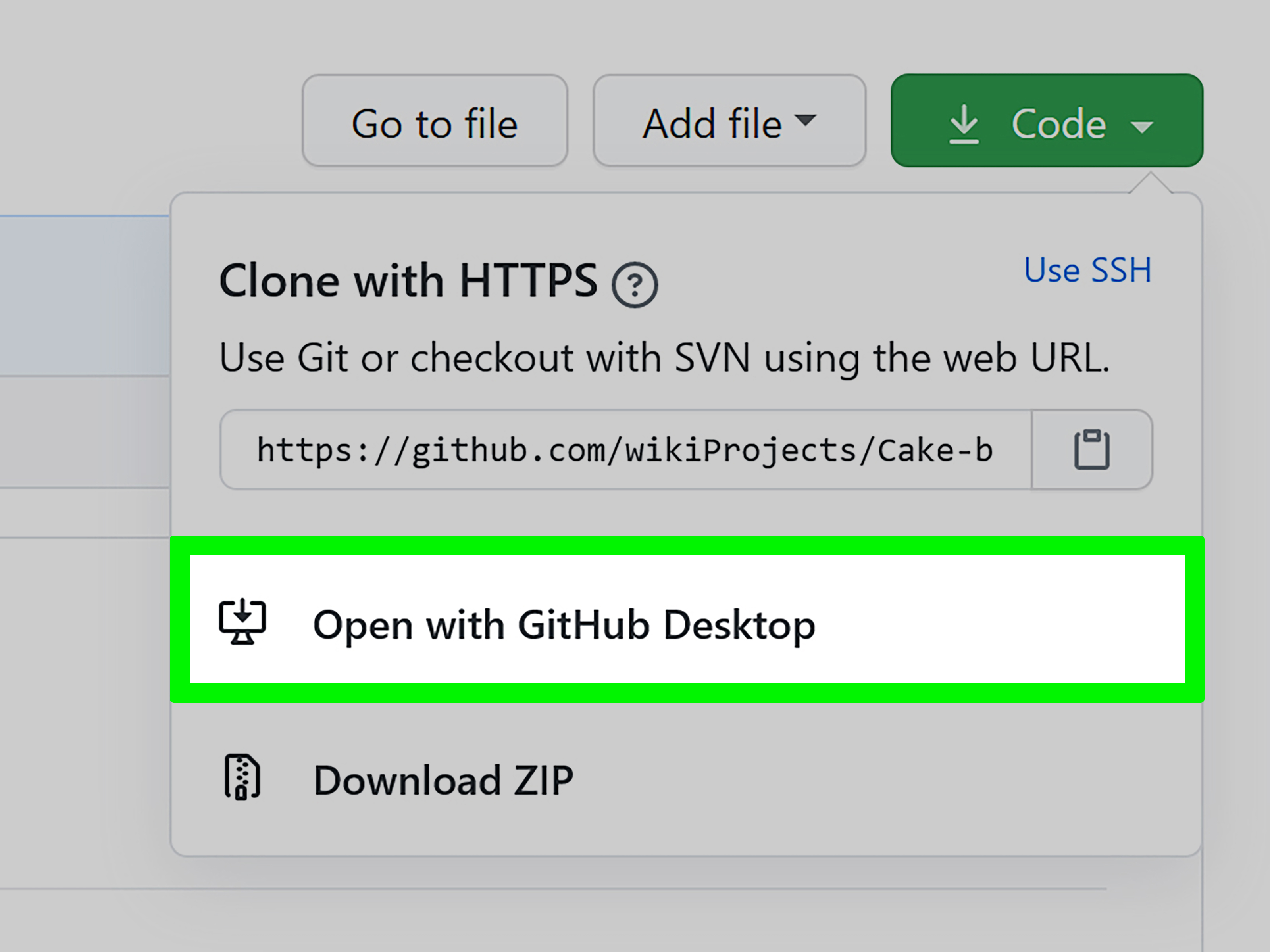
GitHub Desktop is the gentle, button-driven option. It is perfect if you prefer to see your repository state in a clean interface or if you are helping teammates who would rather not memorize Git commands before lunch.
How GitHub Desktop works for repository import
If you already have an existing Git repository on your machine, you can add it to GitHub Desktop and publish it to GitHub from there. In many cases, you should first remove any old remote named origin so Desktop does not get confused about where the project should go.
- Check whether an old remote already exists.
- Remove the old remote if needed.
- Add the local repository to GitHub Desktop.
- Click Publish repository.
- Choose the repository name, visibility, and description.
- Publish it to GitHub.
Why people love this method
GitHub Desktop makes repository publishing feel approachable. It is especially useful for beginners, small teams, designers who occasionally touch code, and anyone who wants fewer commands and more visible context. You still get the benefits of GitHub, but without feeling like you need to impress a Unix wizard.
Where GitHub Desktop is less ideal
For very large migrations, complex scripts, or bulk imports across many repositories, GitHub Desktop is not the most scalable option. It is great for a project here and there, but if you are moving a dozen repositories from another platform, the command line or GitHub Importer will usually be more efficient.
Which GitHub Import Method Should You Choose?
Here is the simple version:
Choose GitHub Importer if…
Your repository already lives on another Git-based hosting service, is accessible online, and you want the easiest route for moving source code and commit history.
Choose the command line if…
You want full control, you are working from an existing local repository, or you need a precise migration workflow that can preserve branches and tags through a mirror push.
Choose GitHub Desktop if…
You want a graphical interface and a less intimidating path for publishing an existing local repository to GitHub.
If you are still undecided, use this rule of thumb: Importer for hosted repos, command line for power and flexibility, Desktop for ease and comfort.
Helpful Tips Before You Import a Repository on GitHub
1. Clean up your repository first
Before importing, make sure your project is not carrying around junk files, uncommitted changes, or confusing branch names. A tidy repository imports more cleanly and makes a better first impression once it lands on GitHub.
2. Know whether history matters
If commit history matters, use GitHub Importer or a command line migration that preserves history. If all you need is the latest version of the files, a simpler local publish may be enough.
3. Double-check your remote
A wrong remote URL is one of the fastest ways to send your code somewhere unexpected. Always verify before pushing.
4. Pay attention to large files
If your repository relies on Git LFS or contains large binaries, plan for that before you migrate. A repository that looks normal at first glance can become very stubborn once large files enter the chat.
5. Add a solid README after the import
Once the repository is live on GitHub, update the README so visitors know what the project does, how to run it, and why it exists. Importing the code is step one. Making it understandable is step two. Step two matters more than some people would like to admit.
Real-World Experiences Importing Repositories on GitHub
The most useful lesson I have seen in real projects is that repository imports usually fail for boring reasons, not exotic ones. It is rarely some cinematic bug hiding deep inside GitHub. More often, the problem is a mismatched remote, a missing permission, an old branch convention, or a repo that was “totally organized” until somebody opened it and discovered three build folders, two lockfiles, and a README that still says “test test test.”
One common experience is migrating a small app from another Git host to GitHub during a team handoff. On paper, the move sounds easy. In practice, someone realizes halfway through that the old repo has a private URL, another person cannot authenticate, and the team suddenly remembers the project also uses Git LFS for media assets. That is when choosing the right method really matters. GitHub Importer is wonderful when the repository is reachable and the goal is code plus commit history. But when the project has unusual requirements, the command line becomes the backup hero because it gives you the visibility to inspect every step.
Another very normal experience happens with local projects. A developer has been building something for weeks on their laptop, maybe in VS Code, maybe in a folder named something heroic like final-final-actual-app. Eventually they decide it is time to put the project on GitHub. At that point, the command line or GitHub Desktop is usually the smoothest choice. The biggest surprise is not the import itself. It is how much cleaner the project becomes once the developer realizes other humans will now see it. Suddenly the README gets written, the .gitignore gets fixed, and random temporary files vanish like they were never there.
Teams also learn that preserving history is not always optional. When a repository moves to GitHub, commit history can be valuable for debugging, audits, onboarding, and plain old accountability. It is much easier to understand why a file changed when the history came with it. That is why mirror pushes and proper imports matter so much for mature projects. You are not just moving files. You are moving context.
There is also a human side to all this. Some developers love the terminal. Some would rather click a button labeled Publish repository and get on with life. The best workflow is usually the one your team will actually use consistently. A perfect import strategy that nobody understands is less helpful than a slightly simpler one that everyone can repeat correctly.
In the end, importing a repository on GitHub is not just a technical task. It is a tiny moment of project housekeeping, collaboration planning, and future-proofing. Do it carefully, choose the method that fits the repo you have, and your code will arrive on GitHub looking like it belongs there instead of like it just sprinted through airport security.
Conclusion
If you need to import a repository on GitHub, you have three strong options. GitHub Importer is the easiest choice for repositories already hosted elsewhere. The command line is the most flexible and powerful option for local projects and full-fidelity migrations. GitHub Desktop is the simplest visual route for people who want a GUI instead of a terminal session that feels like a pop quiz.
The best method depends on where your code lives now, whether commit history matters, and how comfortable you are with Git tools. Pick the method that matches the project, verify your remote settings, and keep your repository tidy before you move it. Do that, and importing a repo to GitHub becomes a clean handoff instead of a cautionary tale told in Slack screenshots.
And that, thankfully, is the kind of version control story everyone enjoys.













