
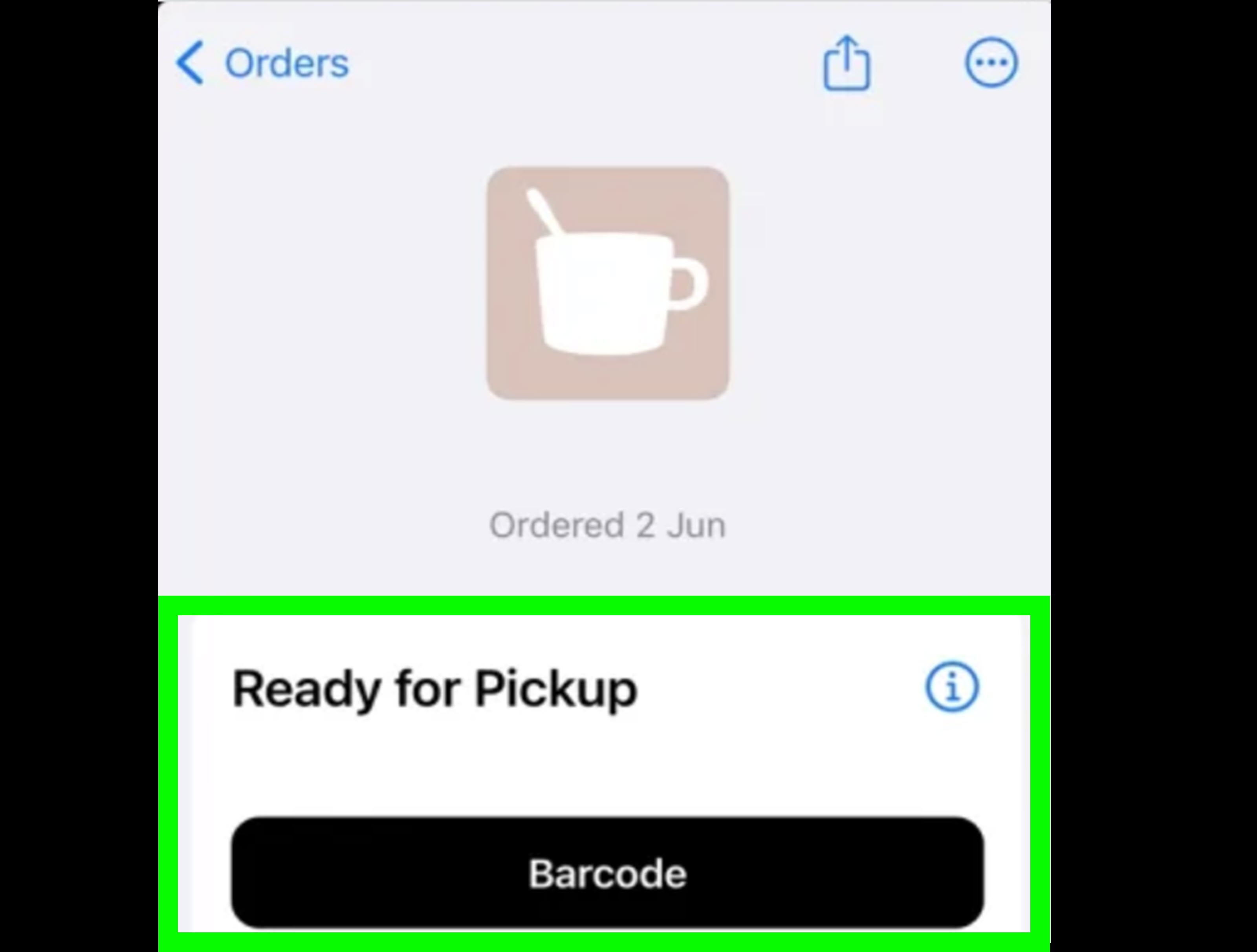
Apple Wallet is basically the “junk drawer” of your iPhoneexcept it’s organized, searchable, and it won’t stab you with a rogue battery. One minute it’s holding your debit card for Apple Pay, the next it’s saving your concert ticket, your transit pass, and that gym membership barcode you swear you’ll use “starting Monday.”
The confusing part: people say “add a card to Apple Wallet,” but they might mean a payment card (Apple Pay), a transit card (tap-to-ride), or a pass (tickets, rewards, boarding passes, etc.). The good news is that all three can be added in a few tapsif you use the right path.
Below are three simple ways to add cards to Apple Wallet on your iPhone, plus troubleshooting tips and a real-world experiences section at the end so you can avoid the most common “why is this not working?!” moments.
Before You Start: 60-Second Checklist
- Update iOS if you can. Many Wallet and Apple Pay issues vanish after an update.
- Sign in to your Apple Account on the iPhone.
- Set device security: Face ID, Touch ID, or a passcode (required for Apple Pay features).
- Use a supported card/issuer for Apple Pay. Not every bank and card type is eligible.
- Know your goal: payment card vs. transit card vs. ticket/pass.
Quick note: Apple Wallet is not the same thing as adding a payment method to your Apple Account (for App Store subscriptions). Wallet is for tap-to-pay and passes; Apple Account payment methods live in Settings and are used for Apple services.
Way 1: Add a Debit/Credit Card in the Wallet App (Apple Pay)
This is the classic “add my card so I can tap to pay” setup. It’s also the method most people mean when they say “add a card to Apple Wallet.” If your bank supports Apple Pay, you’ll be able to add a debit, credit, or sometimes prepaid card right inside Wallet.
Step-by-step (Wallet app method)
- Open the Wallet app on your iPhone.
- Tap the Add button (usually a “+”).
- Select Debit or Credit Card, then tap Continue.
- Add your card details:
- Tap/hold the card near your iPhone if prompted (some cards can be read via chip).
- Or choose Scan Card with Camera.
- Or Enter Card Details Manually if scanning is being dramatic.
- Agree to terms and follow the verification steps from your bank (text, email, app approval, or phone call).
- Once verified, your card is ready for Apple Pay.
What verification usually looks like (and why it exists)
Many banks will ask you to confirm your identity before the card becomes usable. You might receive a code, a push notification in your banking app, or a prompt to call the bank. This isn’t Apple being nosythis is your bank making sure the person adding the card is actually you.
Pro tip: Sometimes the bank app is faster
If Wallet doesn’t play nicely, adding via your bank’s app can be smoother because the bank already knows it’s you. Many U.S. banks (like Chase, Bank of America, Wells Fargo, Capital One, U.S. Bank, and American Express) provide an “Add to Apple Wallet” or “Digital Wallets” option inside their mobile apps.
Common “Way 1” problems (quick fixes)
- “Card not supported”: The issuer may not participate, or that card type isn’t eligible (call the bank).
- Verification failed: Try verifying inside the bank app, confirm your contact info is current, or call issuer support.
- Wallet button missing: Update iOS and sign in to your Apple Account. Also confirm Face ID/Touch ID/passcode is enabled.
- “Could Not Add Card”: Restart iPhone, try a different network (Wi-Fi vs cellular), and try again.
Way 2: Add Tickets, Loyalty Cards, and Passes Using “Add to Apple Wallet”
This is the underrated superpower of Wallet: it stores passesdigital items like event tickets, boarding passes, store rewards cards, movie tickets, reservations, and coupons. You usually don’t create these inside Wallet from scratch. Instead, the business gives you a pass and you tap a button that literally says “Add to Apple Wallet.”
Where the “Add to Apple Wallet” button shows up
- Inside an app (airline apps, event apps, store apps)
- In an email (tickets, boarding passes, confirmations)
- On a website (mobile tickets, membership cards)
- From a text/notification (some vendors send passes via message)
- Via AirDrop (someone shares a pass to your iPhone)
- Sometimes from a QR code flow, depending on the vendor’s setup
Step-by-step (the universal pass method)
- Open the app/email/website that contains your pass.
- Tap Add to Apple Wallet.
- Follow any on-screen instructions.
- If prompted, tap Add in the top-right corner.
Example: adding an event ticket (what it typically looks like)
Many ticketing platforms let you open your ticket in their app and tap “Add to Apple Wallet.” After that, the ticket appears in Wallet, ready to scan at the venue. Some platforms hide barcodes in Wallet for security, and scanning may happen by holding your phone near the venue reader instead of showing a static barcode.
Example: adding a boarding pass
Airlines commonly offer an “Add to Apple Wallet” option after you check in. Once added, your boarding pass can show up on the Lock Screen around travel time, and newer iOS versions may support richer travel updates depending on airline support.
If you don’t see “Add to Apple Wallet”
- It may not be supported by that merchant or ticket system. (Yes, it’s annoying. No, you can’t bully Wallet into making a pass.)
- Try Safari if you’re using a web page and the button isn’t working in a different browser.
- Update the vendor’s app. Sometimes the button exists, it’s just hiding behind an outdated UI.
- Look for “Share” optionssome apps put Wallet under a share sheet or a “More” menu.
Bonus: sharing passes
Some passes can be shared with nearby iPhone users from inside Wallet (where supported). It’s handy when one person is the “designated ticket holder” and everyone else is standing behind them doing the awkward “do you need to scan me too?” shuffle.
Way 3: Add a Transit Card (Tap-to-Ride, Often Without Face ID)
Transit cards are their own category because they behave differently than typical debit/credit cards and passes. In supported cities and systems, you can add a transit card to Wallet and use it to pay fares. Many systems also support Express Mode, which can let you ride without authenticatingso your morning commute doesn’t turn into a Face ID staring contest.
Step-by-step (add a new transit card)
- Open the Wallet app.
- Tap the Add button (“+”).
- Tap Transit Card.
- Pick a transit card from the list (or search by location/card name).
- Tap Continue.
- Select a value amount or pass, then tap Add and confirm the purchase.
“Cards Found for You” (if you’ve used a transit card before)
Some transit systems let you re-add a previously used transit card via a “Cards Found for You” option. If you see it, it can save timeespecially if you’re moving to a new phone and don’t want to start from zero.
Transit tips that save real headaches
- Check system support: Not every city or transit operator supports Wallet transit cards.
- Keep funds in mind: Some systems let you reload directly in Wallet; others may require their own app or a linked method.
- One device habit: If you pay for transit with your iPhone, try to tap with the same device consistently for that trip (especially for systems with tap-in/tap-out rules).
Troubleshooting: When Apple Wallet Says “No”
If adding a card fails, don’t assume your iPhone suddenly forgot how numbers work. Most issues boil down to eligibility, verification, or settings. Here’s a practical checklist that fixes the majority of problems.
Fixes for debit/credit cards (Apple Pay)
- Confirm Apple Pay eligibility: Your card issuer must support Apple Pay for that specific card.
- Update iOS: A surprising number of “Could Not Add Card” errors disappear after updating.
- Make sure device security is on: Face ID, Touch ID, or a passcode is required.
- Try adding via your bank app: Look for “Digital Wallets” or “Add to Apple Wallet.”
- Double-check region and Apple Account sign-in: Being signed out can break setup in quiet, confusing ways.
- Contact issuer support: If verification fails repeatedly, the bank typically has to clear it on their end.
Fixes for tickets/passes
- Make sure the pass is supported: If there’s no “Add to Apple Wallet” button, the merchant may not provide Wallet passes.
- Update the vendor’s app: New UI updates can move or hide the Wallet option.
- Check the email/app you received: Passes usually come from the sender, not from Wallet’s “Add” menu.
Fixes for transit cards
- Confirm your transit system supports Wallet in your region.
- Check payment method: You may need a supported debit/credit card to load funds.
- Restart and retry: Transit provisioning can be sensitive to network hiccups.
Security Tips: Keep Your Wallet Yours
Adding cards to a digital wallet is secure when you’re the one doing it. The biggest real-world risk is social engineeringscammers trying to trick you into approving a verification step you didn’t initiate.
- Never share verification codes for adding a card to any wallet (Apple Wallet, Google Wallet, anything).
- Don’t approve unexpected prompts to add a card if you weren’t trying to add one.
- Use your bank’s official app or contact methodsavoid links in suspicious texts/emails.
- Enable transaction alerts so you’ll know quickly if something’s off.
FAQ: Quick Answers to Common Apple Wallet Questions
Can I add any loyalty card to Apple Wallet?
Only if the merchant supports Wallet passes (or provides an “Add to Apple Wallet” option). Some brands keep loyalty cards inside their own apps only.
Why does Wallet show “Add” but I can’t add my specific pass?
The “Add” button in Wallet is mainly for supported categories like payment cards, transit cards, and certain pass types. Many passes must be issued by the merchantmeaning you add them from the merchant’s app, email, or website, not from Wallet alone.
Do I need internet to use a card once it’s added?
For Apple Pay payments, your iPhone can often complete transactions without a live connection at the moment of purchase. But adding cards, verifying them, and updating passes typically requires internet.
What’s the difference between Apple Wallet and Apple Account “Payment & Shipping”?
Wallet is for Apple Pay and passes you carry and present. “Payment & Shipping” is for paying Apple (apps, subscriptions, iCloud storage, etc.). They can overlap (same card), but they’re not the same feature.
Real-World Experiences: What Adding Cards to Apple Wallet Feels Like (and What People Trip Over)
The instructions for Apple Wallet are simple, but the real world is where things get… spicy. Here are common experiences people run into when they try to add cards using the three methods aboveplus what tends to solve the problem fast.
1) The “It scanned my card… then nothing happened” moment.
A lot of people expect scanning a card to be the finish line. In reality, scanning is just data entry with extra flair. The real gatekeeper is verification. If your bank wants a one-time code, a phone call, or an in-app approval, you’re not fully set up until that happens. The quickest fix is often opening your bank app and looking for a “Digital Wallets” or “Add to Apple Wallet” sectionbecause banks can sometimes verify you instantly when you’re already signed in. If verification keeps failing, it’s usually because the bank has outdated contact info (old phone number, old email) or their fraud system is being overprotective. Updating your profile with the bank and trying again solves it more often than you’d think.
2) “My friend has the Wallet button, but I don’t.”
This comes up with tickets and boarding passes all the time. Wallet passes are not universal, and companies roll them out inconsistently. You might see “Add to Apple Wallet” for one event but not anothereven on the same ticket platformbecause the venue, promoter, or ticket type can change the delivery method. For flights, some airlines only show the Wallet option after check-in, or they hide it behind a “View Boarding Pass” screen. The biggest practical trick: if you’re trying to add a pass from a web page on your iPhone, Safari is often the most reliable path because Wallet integrations are commonly built and tested for Safari first.
3) Transit cards: “Why does this feel different from Apple Pay?”
Transit cards can behave differently because they’re designed for speed. People often notice that Express Mode makes commuting smootherno Face ID, no double-click panic, no holding up the bus line while your phone decides it needs a nap. The surprise is that transit support depends heavily on the city and operator. In supported systems, adding value in Wallet is easy and feels magical; in unsupported systems, Wallet won’t show that transit card at all, and you’ll need the transit app (or a regular payment card via contactless) instead.
4) The “I added it… but it’s not on my Apple Watch” confusion.
Some people assume everything syncs everywhere automatically. Passes often sync to a paired Apple Watch, but payment cards can require a separate add step in the Apple Watch app, depending on your setup. If your goal is to leave your phone in a bag and pay with your watch, check the Watch app under Wallet & Apple Pay. It’s a quick fix that feels like unlocking a cheat code.
5) The “Apple Wallet not working” spiral (usually caused by one of three things).
In real use, most failures come from (a) a card issuer that doesn’t support Apple Pay for that card, (b) verification issues that only the bank can resolve, or (c) settings/iOS versions that are out of date. People tend to troubleshoot in the reverse orderrestarting the phone five times and then finally realizing their card issuer simply doesn’t participate. If you want the fastest path: confirm issuer support first, update iOS second, then try adding via the bank app. If it still fails, call the issuer and ask specifically about “Apple Pay provisioning” or “wallet tokenization” (they’ll know what you mean, and it routes you to the right support team faster).
6) The “This seems too easyshould I worry?” thought.
It’s normal to wonder. The main safety habit people adopt after using Apple Wallet for a while is simple: never share verification codes and never approve prompts you didn’t start. Once that becomes automatic, Apple Wallet feels less like “digital money magic” and more like “why did we ever carry five pieces of plastic to buy a sandwich?”
Wrap-Up
If you remember just one thing, make it this: use the right “add” path for the right item. Payment cards go through Wallet (or your bank app), passes come from “Add to Apple Wallet” links in apps/emails/websites, and transit cards live in their own section inside Wallet. Once you’ve added them, Apple Wallet becomes the fastest way to pay, ride, and scan your way through daily life and it takes up exactly zero space in your actual wallet (the one that hurts your back).













